Apple Calendar
 HubSpot
 Salesforce
 Pipedrive
 Law firms
 Tax advisors
 Insurance brokers
 Trade businesses
 Consultants
 Medical practices
 Dentists
 Coaching
 Property management
 Real estate
 Fitness studios
How to Schedule a Zoom Meeting and Send Invites: 2026 Guide


You need to set up a Zoom meeting, but you're not sure where to start? This guide covers everything from basic scheduling to automated invites, including how Zeeg can simplify the process by handling meeting creation, preventing double-bookings, and managing reminders automatically. Zeeg is Europe's leading AI phone agent and scheduling software in one: it answers your business's calls and books appointments straight into your calendar. GDPR-compliant, hosted in Europe.
Stop manually creating meetings. Let Zeeg handle your Zoom invites, reminders, and calendar syncing automatically.
Try Zeeg for free5 ways to set up and share Zoom meetings
First of all, it's important to know that there are different ways to do schedule your Zoom meetings and to share your Zoom meeting link to invite other people:
- Through Zoom web version
- Through Zoom desktop app
- Through Zoom mobile app
- Through the Calendar app that you connect your Zoom to
- Through Zeeg, Europe's leading AI phone agent and scheduling software
*there's also another way to book meetings through, which we've decided not to include here, as it's a slightly different method: the Zoom Scheduler. Head to our article on how to use Zoom Scheduler if you want to know how to connect Zoom to your calendar app and create availability slots for others to book meetings wit you.
1. How to set up a Zoom call and send a Zoom invite on web
How to schedule a Zoom meeting on the web? Easy. Go to the homepage on https://zoom.com, and login. Once there, follow the steps:
1. If you’re logged in, you should be able to see this page

2. Go to “Meetings” on the left menu, and press “+ Schedule a Meeting” on the right

3. You'll then see the meeting details that you have to fill in. On the top half, you can:
- Choose the name of the meeting and add a description
- Decide on the timings: when the meeting will be, its duration, the Timezone, and whether this should be a recurring meeting or just a one-off. In case you make it recurring, you should provide the details

4. After that, if you scroll to bottom half, you can do other things:
- Choose who your attendees will be. You can enable or disable the option to have attendees accessing to the the meeting chat before and after the meeting
- Choose a meeting template, which will let you create a meeting based on other meetings rules (so you don’t always need to create a meeting from scratch, in case they’re similar)
- Add a Zoom whiteboard, if you’ve created any that you have in your library; or you can also add any docs
- Customize the passcode, if you wish
- Choose if people should wait permission from the host to join the meeting or if they can join immediately
- If video can be on or must be off
- And choose some of these options: if participants can join the meeting at any point during the session; if attendees will be automatically muted upon entering; if the meeting shall be recorded on the host's computer without manual activation; or if there’s restriction access based on locationNow you just need to hit save

5. Finally, you'll be sent to a screen where you can , and you’ll be sent to a screen where you can:
- Add your meeting to your calendar app (this will already send the invite to their calendar through the correspondent email)
- Consult the passcode
- Copy the invite to send to others manually
- Save the meeting settings as a template.

And that’s it!
How to invite attendees to a Zoom meeting on web
Want to know how to share a Zoom meeting link on web? This is also a very simple and easy process:
- From the previous screenshot, showing the screen that you’ll see once you start the meeting, you can already find the copy link and send it to people. Easy. And if you want to add more people, in that same screen press edit - you’ll then be able to send it to more people. But you’ve left the screen, just click on “Meetings” on the left menu again, and you’ll be able to check it again or to edit it
- There's another option, perhaps the easiest and most popular - if you decide to add your Zoom meeting to a Calendar tool (like Google Calendar or Outlook Calendar), your invitees will receive your Zoom meeting invite via email, and they'll have it on their calendar app. You just need to make sure that Zoom has access to those tools.
2. How to schedule a Zoom meeting on the desktop app
1. Open the Zoom app and choose the option to schedule a meeting

2. Next, you'll find a window with similar meeting options to the ones we've covered on the desktop. Make sure you go through all of them, including what people you want to invite to the Zoom meeting, and if you want to connect your meeting with your calendar tool (including Google Calendar, iCal, and others). And hit send!
*in case you decide to send it through the calendar apps, it's very important that you don't forget to setup this connection beforehand, just in case.

How to send a Zoom invite (Zoom desktop app)
If you want to how to share you Zoom meeting link on the desktop app in order to add more people to your Zoom meeting, follow the steps:
- Find the meeting you want to edit
- Click on the three dots of that meeting (right bottom corner of the event)
- Press "Copy invitation" if you want the invite link to send manually
- Press "Edit" if you want to add more people straight into the meeting

- If you press edit, you'll see the meeting details - choose the person or people you want to invite to your Zoom meeting
- Hit save (right bottom corner) of that window

Et voila, that's it on the desktop app.
3. How to schedule a Zoom meeting and invite others on Zoom mobile app
Smilar to the desktop app, on the mobile you'll see a screen with several options in blue buttons
1. Choose the "Schedule button" if that's what you want

2. You'll find similar meeting options to the ones we've covered already, including the atendees to your Zoom meeting

3. Press save (right bottom corner)
And that's it.
👉 Also, read more:
- Calendly vs Zoom Scheduler - Which one to choose?
- What is Zoom Scheduler and how to use it?
- How to connect Zoom to Calendly?
- How to Connect Microsoft Bookings to Zoom
How to invite others to your Zoom meeting through the mobile app
Want to invite other people to meetings you've already created? Also easy on the mobile. One you've logged in:
1. Choose the meeting you want to invite to by clicking on the three dots of that meeting
2. Then, you have two options: a) you can edit the meeting details (right top corner) and new participants; b) or you can just press "Add attendees" to Zoom meeting and input their names

4. A third way to send Zoom invites: Calendar apps
Once you create your Zoom meeting, in case you link your Zoom to a calendar app like Google Calendar, you can simply create and edit the events from the calendar app. You just need to make sure that you're connection between Zoom and Google Calendar, in this case, is set up beforehand. And you should be good to go - on Google Calendar events, you'll find that the links have a Zoom video link.
5. How to send a Zoom invite with Zeeg
Creating scheduling links with Zeeg
1. Sign up for a free Zeeg account
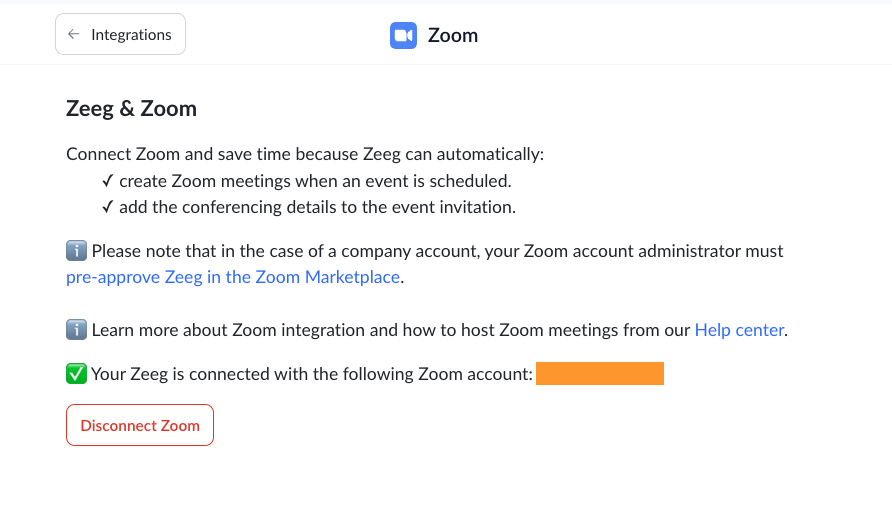
2. Select Zoom under Integrations
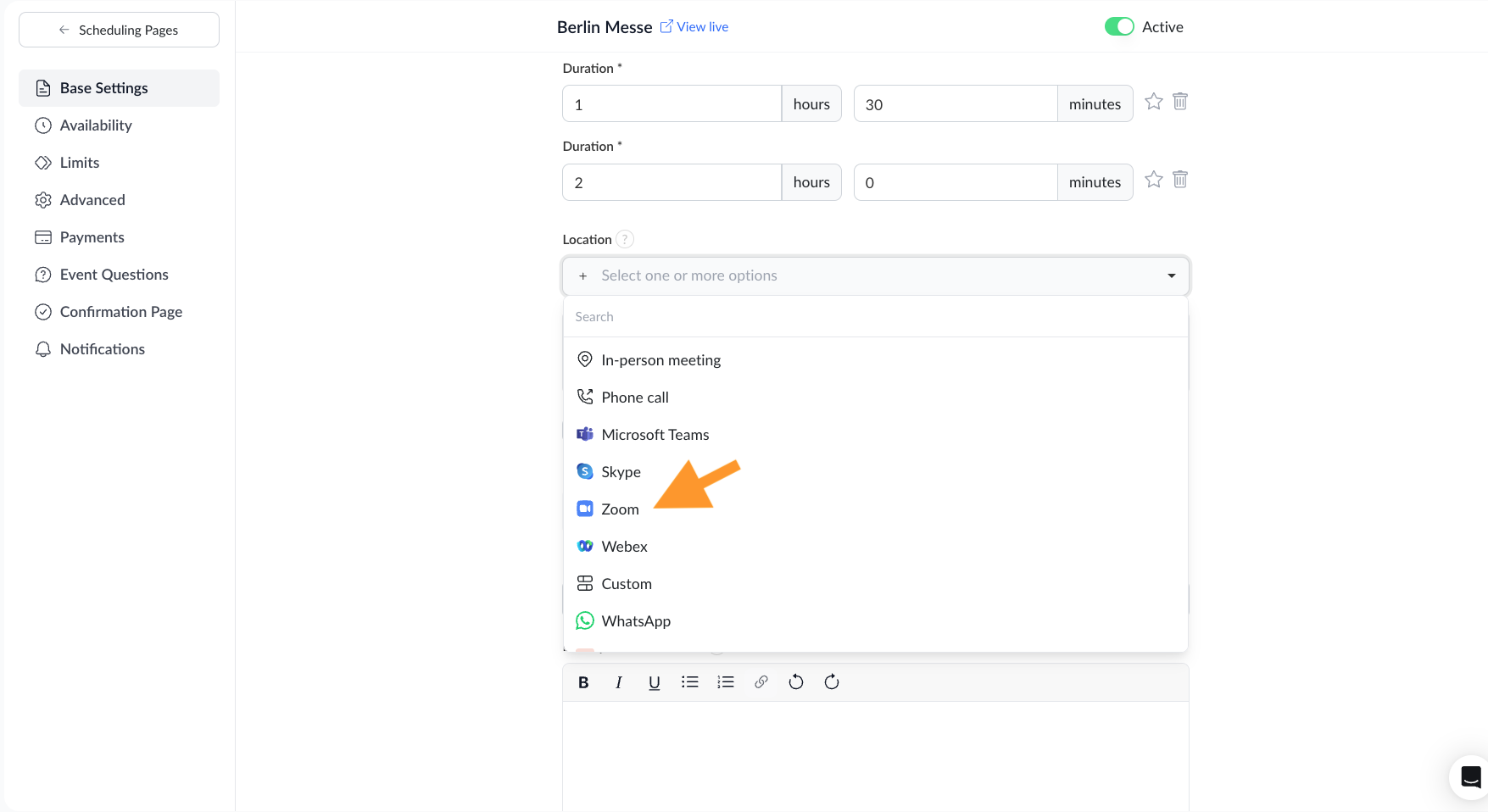
3. Configure your meeting settings
4. Customize your scheduling page with colors, images, questions, etc.
5. Copy your public scheduling link
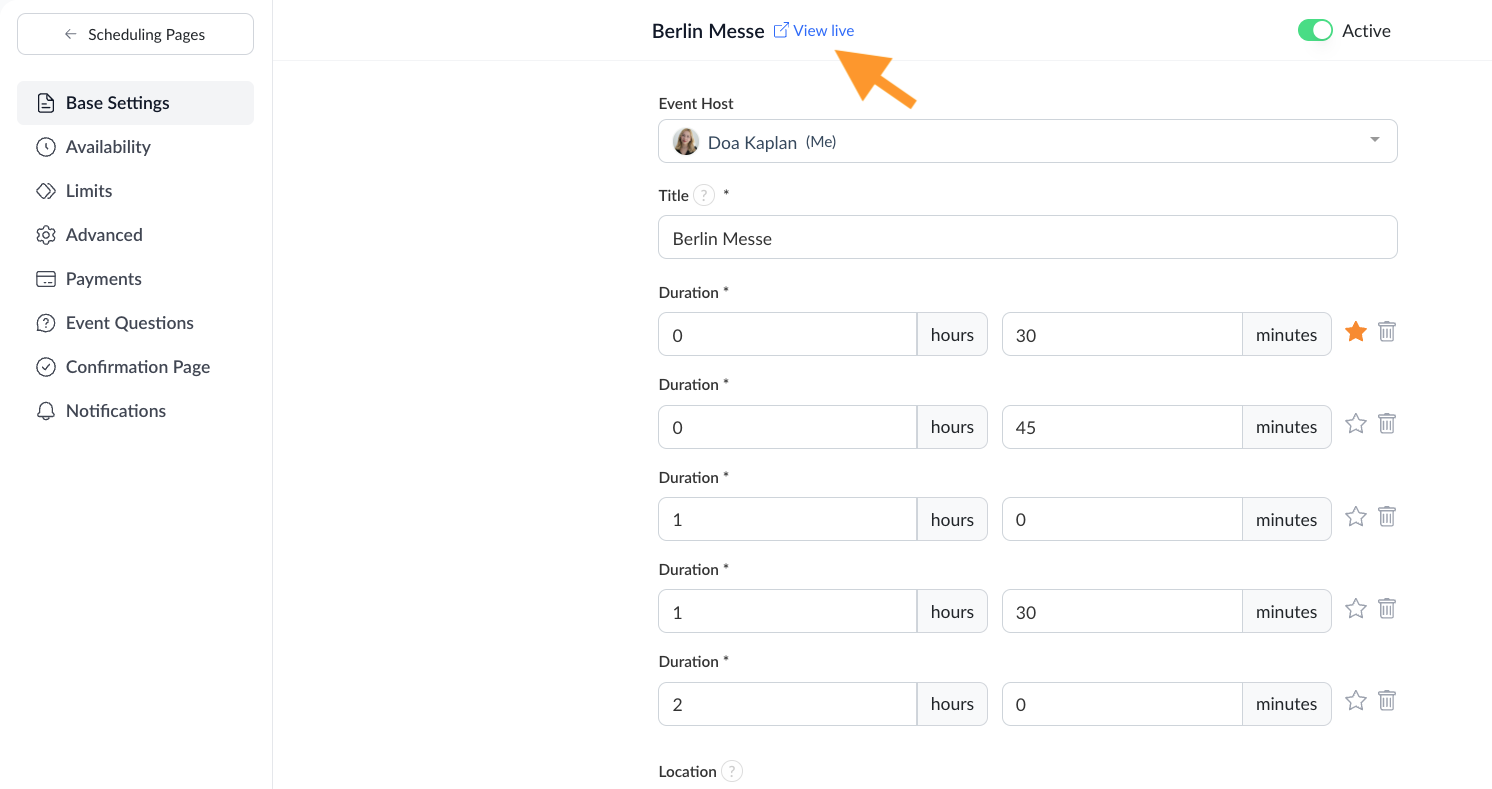
That's it! Your professional scheduling page is ready to share.
Automating Zoom meeting invites with Zeeg
With your Zeeg link, you can forget manual invite busywork. Benefits include:
- Recipients book times that automatically generate Zoom details
- Availability is shown clearly before attendees select a slot
- Confirmations are emailed to attendees and updates sync across connected calendars
Zeeg does all the heavy lifting for you so you can focus on prepping for an engaged meeting!
And why choose Zeeg to schedule Zoom meetings and invite others?
Planning virtual meetings shouldn't be complicated. Zeeg connects with Zoom to make scheduling, managing, and hosting your video calls easier. From automatic link generation to post-meeting follow-ups, here's how Zeeg will improve your Zoom experience:
Seamless scheduling for Zoom calls through a Zeeg page or link. Create Zoom meetings instantly with automatic link generation and smart time zone detection. When someone books through your Zeeg page, they'll receive all meeting details without any manual work from you.
Smart meeting organization. Collect important information before meetings through custom intake forms, while Zeeg handles group coordination and calendar syncing (Google Calendar, Apple Calendar and Microsoft 365). This preparation makes sure that your Zoom calls start with everyone on the same page.
No duplicated meetings. Prevent double-bookings automatically through real-time calendar syncing. Zeeg checks your availability across connected calendars to make sure each time slot is booked only once.
Efficient meeting follow-up and reminders. Keep participants engaged with timely reminders before meetings, and meaningful follow-ups after. Zeeg sends automated notifications, thank-you messages, and helps schedule next steps while tracking meeting patterns to optimize your schedule.
Easy rescheduling. Life happens, and sometimes meetings need to change. Zeeg simplifies this process by automatically updating Zoom links and notifying all participants when schedules shift, keeping everyone in sync without extra effort.
Flexible scheduling options. Set buffer times between calls to avoid back-to-back meetings, or use stack mode to organize multiple appointments in specific time blocks. These features help you maintain a balanced schedule that works for your style.
Secure and compliant meetings. Host meetings confidently knowing your data is protected. Zeeg stores all information on European servers with end-to-end encryption, ensuring full GDPR compliance for businesses serving clients worldwide.
Zeeg creates Zoom meetings automatically when someone books time with you. No more email tennis, no more double-bookings. Start with a free plan or try any paid plan free for 14 days.
Start scheduling smarterSome clients would rather call than click a link. Zeeg's agent answers those calls and books the meeting into a free slot, and the invitee gets the same confirmation with the Zoom link as an online booking. Your team sees the call summary on the contact before the meeting starts.
Some clients would rather call than click a link. Zeeg's agent answers those calls and books the meeting into a free slot, and the invitee gets the same confirmation with the Zoom link as an online booking. Your team sees the call summary on the contact before the meeting starts.
Zeeg is Europe's leading AI phone agent and scheduling software in one: Zeeg answers your business's calls, gets every request to the right person and books appointments straight into your calendar, with the customer record written and synced to Google, Microsoft, Salesforce and HubSpot. GDPR-compliant, hosted in Europe. More about Zeeg →
Frequently Asked Questions
Is Zoom free to use?
Zoom offers a free basic plan allowing 40-minute meetings with up to 100 participants. Paid plans provide longer durations, larger participant capacities, and advanced features like cloud recording and admin controls. The free tier works well for basic video conferencing needs.
Can I set up a Zoom meeting without scheduling it in advance?
Yes, you can start an instant meeting by clicking "New Meeting" in the Zoom app. This creates an immediate session with a unique meeting link you can share. While this works for spontaneous conversations, scheduling in advance is recommended for better organization and participant preparation.
How do I create a Zoom meeting invite via email?
Connect your Zoom account to your email calendar (Google Calendar or Outlook), then create a new calendar event and click the video conferencing option to add Zoom. Alternatively, copy your Zoom meeting invitation from the Zoom portal and paste it into your email body. Recipients will get all necessary joining information.
What's the difference between setting up a Zoom call and a Zoom meeting?
While often used interchangeably, a Zoom call typically refers to an immediate, unscheduled conversation, while a Zoom meeting is usually planned in advance with specific settings and participants. Meetings can include additional features like waiting rooms, registration requirements, and pre-assigned breakout rooms.
When I set up a Zoom meeting, does it automatically send invitations?
Zoom doesn't automatically send invitations unless you've integrated it with a calendar app like Google Calendar or Outlook. When using these integrations, invites are sent automatically to the email addresses you specify during setup. Otherwise, you'll need to share the meeting link manually.
How do I share a Zoom meeting link?
After scheduling your meeting, you have several options to share the link. Click the "Copy Invitation" button to get all meeting details, or use the shorter "Copy Link" option for just the URL. You can share this through email, messaging apps, or calendar invites. For recurring meetings, the same link works for all sessions.
Can meetings record automatically?
Yes, enable "Record the meeting automatically" when scheduling. Choose between local or cloud recording storage, and set whether participants can record. The recording starts automatically when the meeting begins, saving you from remembering to press record.
How do I manage waiting rooms?
Enable "Waiting Room" in your meeting settings to create a virtual lobby where participants wait until admitted. This security feature lets you control who enters your meeting and when. You can admit participants individually or all at once.
Can I schedule Zoom meetings from my mobile device?
Yes, download the Zoom mobile app and sign in to your account. Tap the "Schedule" button and enter your meeting details. The mobile app offers most desktop features, including setting passwords, enabling waiting rooms, and sending invitations.
How do I set up breakout rooms on Zoom in advance?
Use "Breakout Room pre-assign" when scheduling to organize participants into smaller groups before the meeting starts. You can manually assign participants to specific rooms or let Zoom distribute them randomly. This feature helps organize breakout discussions efficiently.
What should a complete invitation include?
Include the meeting topic, date, time, joining link, password if applicable, and brief agenda. Add any preparation requirements and your contact information. Keep the tone professional but friendly, and organize information clearly with visual breaks for readability.
How do I invite participants effectively?
Share your meeting details through either the direct Zoom link or by using the "Copy Invitation" button. This provides all necessary information including time, date, and access details. For a quick invite, use this format: "You're invited to [event] on [date] at [time]. Join here: [link]."
Can I schedule recurring Zoom meetings?
Yes, select "Recurring meeting" when scheduling and specify the frequency and end date. This creates one consistent meeting link for all sessions, making it easier for regular attendees. You can set meetings to repeat daily, weekly, or monthly with specific end dates.
How do I schedule a Zoom meeting for a future date?
Log into your Zoom account and click "Schedule a Meeting." Enter the meeting details including title, date, time, and duration. You can then customize settings like waiting rooms or passwords. After setting your preferences, click "Schedule" to confirm and generate your meeting link.
How do I create a Zoom meeting link with a password?
Enable "Require meeting passcode" in your meeting settings when scheduling through the Zoom portal. You can use Zoom's generated password or create your own. Once enabled, the password will be included in your meeting invitation, ensuring only invited participants can join.