
How to Block Off Time in Calendly: A Step-by-step Guide


Managing your availability is crucial for maintaining a productive schedule, and people often want to do this with Calendly. Whether you need to create focus time, plan for meetings, or ensure you have breaks between appointments, knowing how to block off time in Calendly is an essential skill for Calendly users.
We’ll show you various methods to block dates on Calendly, set up buffer times, and implement best practices for efficient calendar management. And you’ll also get to know Zeeg scheduling tool and why you should use it instead of Calendly.
Why block time on Calendly?

Before jumping into the how-to steps, let's talk about why blocking time on your Calendly schedule is so valuable. When you take control of your calendar, you'll experience several important benefits:
First, it prevents meeting burnout by creating natural breaks between your appointments. These pauses give your brain time to reset between conversations.
Second, it carves out dedicated focus time for your most important work. By blocking off chunks of your day, you protect the time you need to complete critical tasks without interruption.
Third, it helps you maintain a healthy work-life balance. By blocking personal time—whether for lunch, exercise, or family commitments—you ensure your professional schedule respects your personal needs.
Fourth, it gives you the preparation time you need before important meetings. Having even 15 minutes to review notes or gather your thoughts can dramatically improve your performance.
Finally, it creates a more structured and predictable rhythm to your workday. When you know when you'll be in meetings versus when you'll have time to focus, you can plan your energy and attention accordingly.
How to block off time in Calendly
Blocking off time in Calendly ensures that you're not available for meetings during specific periods. This can be done by adjusting your availability settings or by adding time off. Here's a step-by-step guide:
Method 1: Using the availability tab
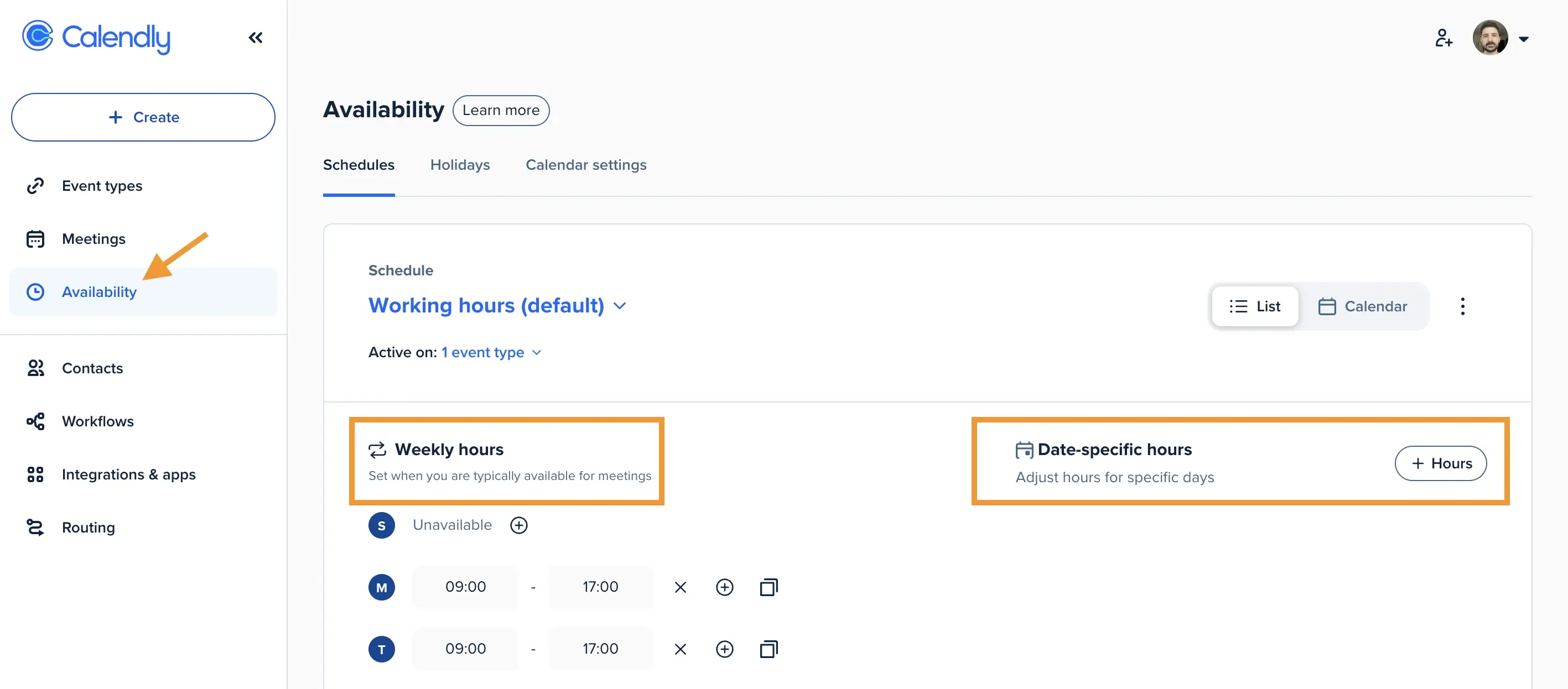
- Click on the 'Availability' tab on the left sidebar
- Click on the plus button under 'Weekly hours' or on the 'Add date-specific hours' button
- Select the times you want to block
- Enter the start and end date/time for the period you want to block off
- Click the 'Apply' button to block off this time
By following these steps, you can effectively manage your availability on Calendly and block off time as needed to avoid being scheduled for meetings during those periods.
Method 2: Creating date overrides on specific events
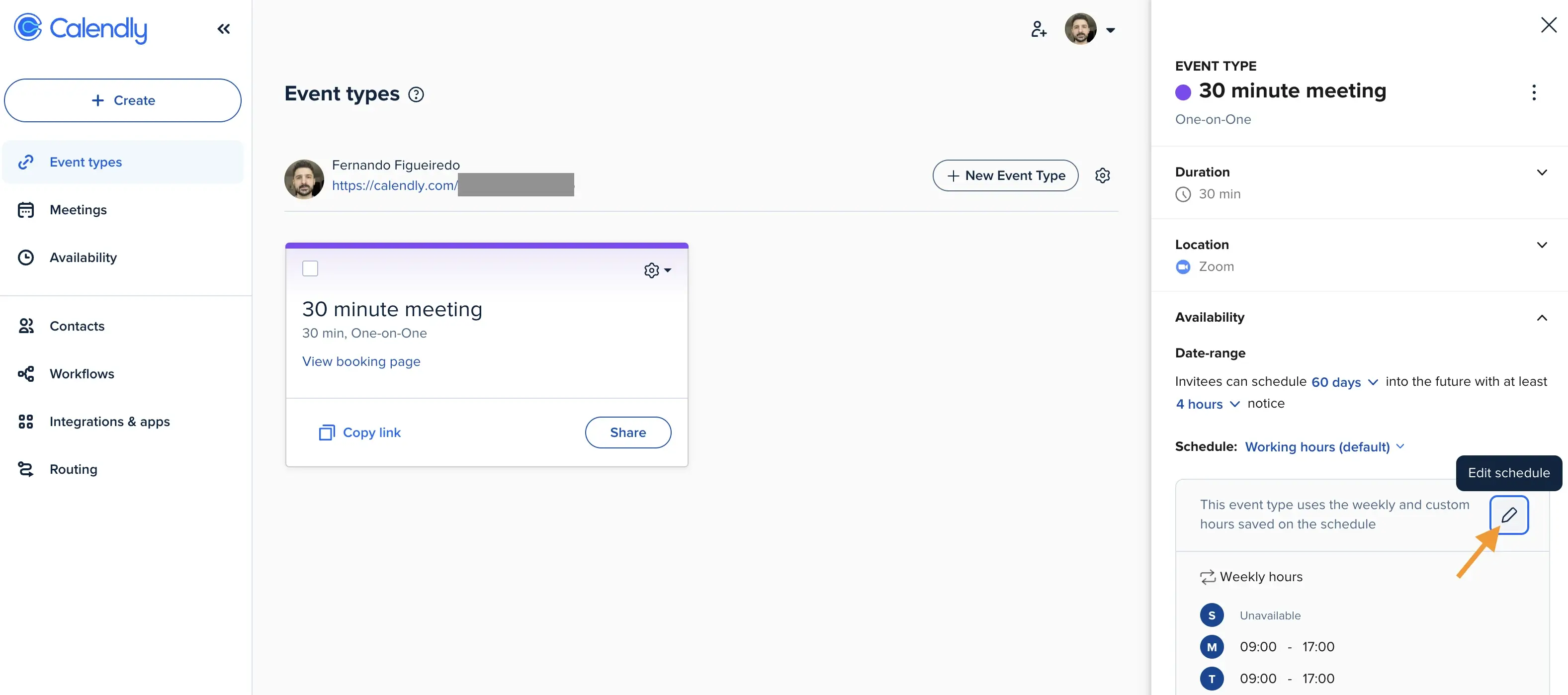
Date overrides are perfect when you need to block out times on Calendly for specific event types:
- Navigate to your Calendly dashboard
- Select the event type you want to modify
- Click on 'Schedule Settings'
- Go to 'Available Hours'
- Select 'Date Specific Hours'
- Choose the dates and times you want to block
- Save your changes
This method is particularly useful when you want to block time in Calendly for certain types of meetings while remaining available for others.
How to block dates on Calendly
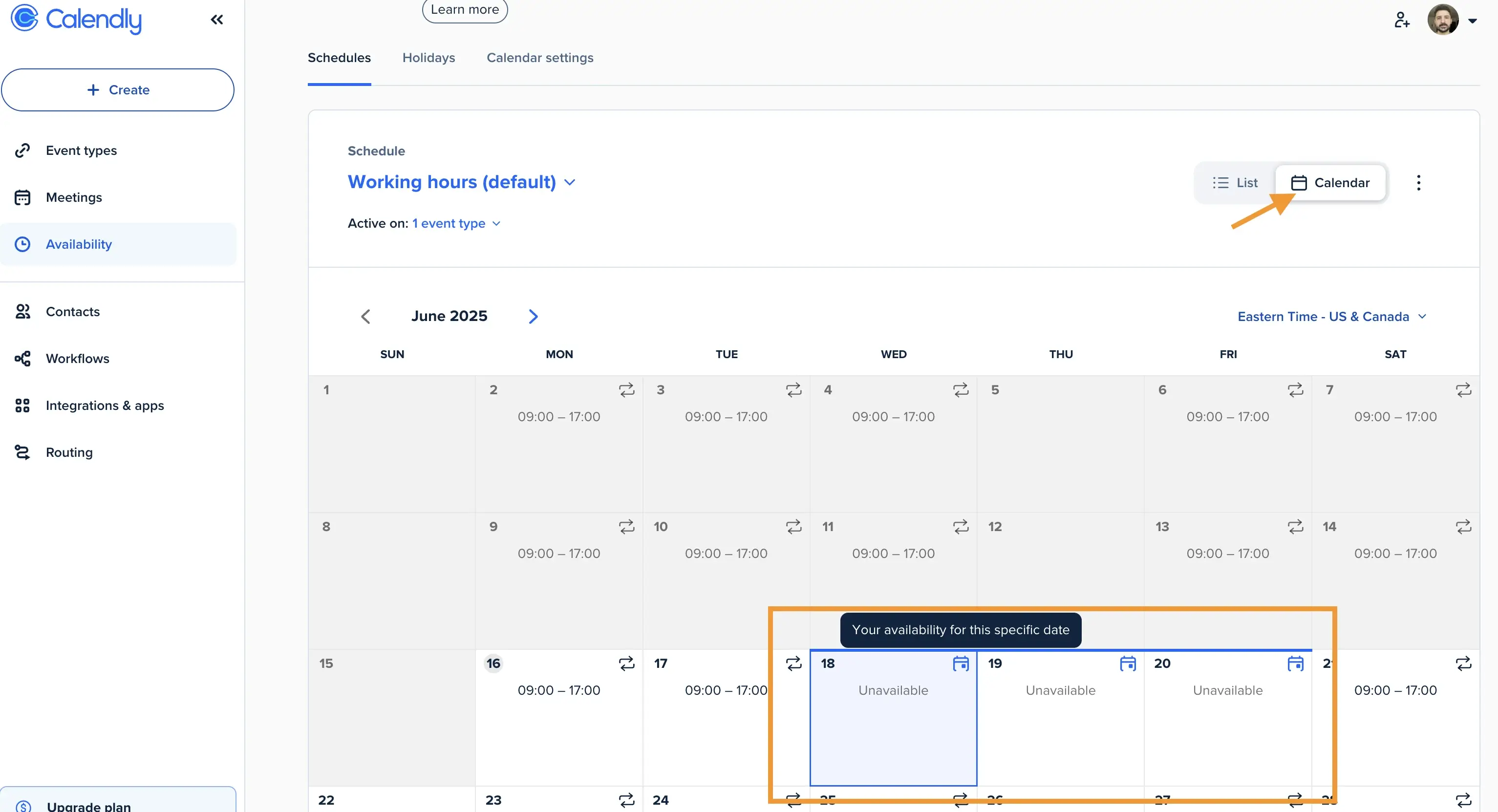
If you need to block entire dates on Calendly (such as for vacations or days off), follow these steps:
- Again, click on "Availability" in the left sidebar
- Choose the "Calendar" view
- Select the dates you want to block by clicking on one day and dragging it to other days in case there are more dates
- Click on the cross under "What hours are you available?", so that it becomes "Unavailable"
- Click on "Apply"
This process ensures that no meetings can be scheduled on your blocked dates, giving you complete control over your calendar. Learning how to block dates on Calendly is especially useful for planning vacations, personal days, or company holidays.
How to block off days in Calendly
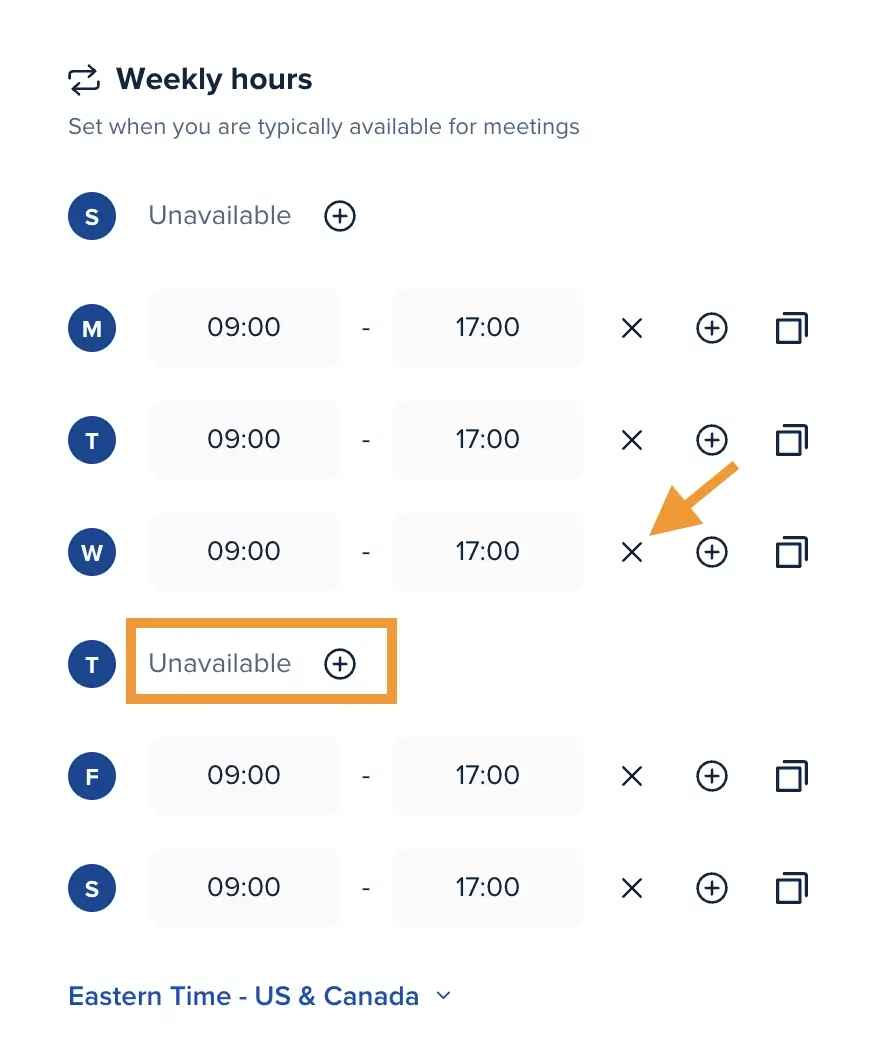
Sometimes you may need to block out days on Calendly regularly, such as keeping weekends free or designating certain days of the week for focused work:
- Again, go to "Availability" in your Calendly account
- Under "Weekly Hours," you'll find the days you want to block
- Just click on the cross of the day in case you want to make it 'Unavailable'
- Save your changes
By blocking off days in Calendly, you can create a consistent weekly schedule that protects your time. This will be especially helpful for maintaining work-life boundaries and ensuring you have dedicated days for specific types of work.
Setting up Calendly buffer time
Buffer time in Calendly is a crucial feature that adds breathing room between your meetings. But what is buffer time in Calendly exactly? It's a set amount of time that Calendly automatically blocks before and/or after your scheduled meetings to prevent back-to-back appointments.
How to add buffer time in Calendly
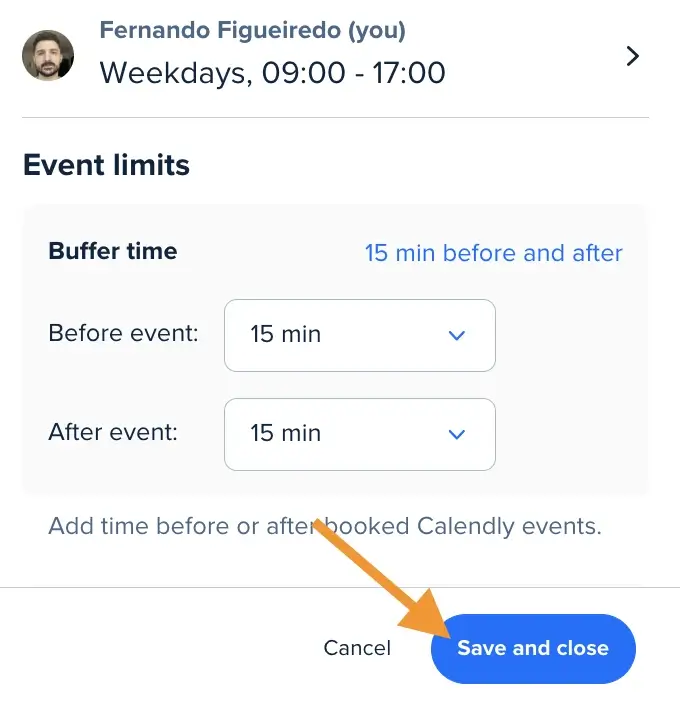
- Go to your Calendly dashboard
- Select the event type where you want to add buffer time
- Click "Event Settings"
- Scroll down to "Buffer Times"
- Set your desired buffer time before and/or after events
- Save your changes
By adding a buffer time on Calendly, you ensure you have time to prepare for meetings, take notes afterward, or simply have a short break. Many professionals wonder how can I add buffer time to Calendly effectively - the key is to be realistic about how much transition time you need between different types of meetings.
Benefits of using buffer time
Calendly buffer times provide several advantages:
- Prevent meeting fatigue from back-to-back appointments
- Allow time for meeting preparation and follow-up
- Provide bathroom breaks and time to grab refreshments
- Enable travel time between physical meeting locations
- Reduce stress by creating a more manageable schedule
If you're wondering what is a buffer time in Calendly and how it differs from blocking time, the main difference is that buffer times are automatically applied around scheduled meetings, while blocked times are specific periods you manually designate as unavailable.
Advanced time blocking strategies
Beyond the basics of how to block out time on Calendly, there are several advanced strategies to optimize your schedule:
Event-specific availability
As mentioned by a Calendly community manager: "There's no getting around the fact I'm pretty Zoomed out by the afternoon, which means that I'd love to block off my afternoons, but only on some of my event types."
The solution is to use date overrides for specific event types:
- Click into your event
- Go to schedule settings
- Select available hours
- Choose date-specific hours to adjust availability for that specific event
This approach gives you granular control over your availability for different meeting types. For instance, you might block out afternoons for client calls but remain available for internal team check-ins.
Scheduling blocks for vacations and time-offs
For longer periods away, such as vacations, you'll want to create date overrides:
- Navigate to Calendly
- Click on "Availability"
- Click on "Add a date override"
- Select the dates for your vacation
- Select "Unavailable all day" during those days
- Click on "Apply"
This ensures that no meetings will be scheduled during your time off, allowing you to enjoy a worry-free vacation. Learning how to block out dates on Calendly for vacations is essential for maintaining a healthy work-life balance.
Why you should use Zeeg as a Calendly alternative

While Calendly offers great scheduling features, Zeeg is a better alternative. It will give you equally good scheduling capabilities, but with some additional benefits worth considering.
CRM capabilities
Unlike Calendly, Zeeg includes built-in CRM features that allow you to:
- Store detailed information about your prospects under businesses and people
- Track interactions and meeting history
- Manage relationships more effectively
Apple Calendar integration
If your company uses Apple calendar instead, then you should already know that Calendly doesn't connect to Apple Calendar. But Zeeg does. And it's seamless. So you don't need to just use Microsoft or Google calendars. You can use them all and even merge them on Zeeg.
Enhanced privacy features
For organizations concerned with data protection, Zeeg offers robust GDPR compliance, making it an excellent choice for companies operating in or dealing with European clients.
Time blocking best practices
Whether you're using Calendly or Zeeg, these time-blocking best practices will help you maximize productivity:
1. Block time for deep work
Reserve large chunks of uninterrupted time for your most important and challenging tasks. During these periods, block off time in Calendly completely to avoid any meeting interruptions.
2. Use buffer time strategically
Don't just add buffer time to Calendly randomly - think about which types of meetings require more preparation or decompression time. For example, you might need more buffer time after client presentations than internal check-ins.
3. Consolidate meeting types
Group similar meetings on specific days to minimize context switching. For instance, schedule all client calls on Tuesdays and Thursdays while blocking Mondays and Wednesdays for internal collaboration and focused work.
4. Review and adjust regularly
Your ideal schedule will evolve as your responsibilities change. Review your time blocks monthly and adjust as needed to ensure they still align with your priorities.
5. Communicate your availability clearly
Make sure team members understand your blocked times and the reasons behind them. This reduces the likelihood of colleagues trying to schedule "just a quick meeting" during your focus time.
6. Honor your own boundaries
The most sophisticated time-blocking system is useless if you don't respect it. Treat your blocked time with the same commitment as you would a meeting with an important client.
FAQs about blocking time in Calendly
Can you block someone on Calendly?
While Calendly doesn't have a direct "block user" feature, you can effectively prevent specific individuals from booking by:
- Creating a custom event type with limited sharing
- Using Calendly routing forms with qualification questions
- Setting up Calendly webhooks for advanced screening
How do I change buffer time in Calendly?
To change buffer time in Calendly:
- Go to the event type settings
- Scroll to the "Buffer Times" section
- Adjust the before/after meeting buffer durations
- Save your changes
How to set buffer times in Calendly for different event types?
Buffer times must be set individually for each event type. Navigate to each event type's settings and configure the buffer time separately. This allows you to customize transition times based on the nature of different meetings.
How to block out a day on Calendly for recurring events?
For recurring unavailability:
- Go to "Availability"
- Click "Add a date override"
- Select "Repeats" and choose your frequency
- Set the time as "Unavailable all day"
- Save your settings
Does blocking time affect all event types?
When you block off time on Calendly through the main Availability tab, it applies to all event types. For event-specific blocking, you need to adjust availability within individual event settings, as described in the "Event-Specific Availability" section above.
Conclusion
Mastering how to block off time in Calendly is essential for maintaining control over your schedule and protecting your productivity. By implementing the strategies outlined in this guide, you can create a more balanced calendar that respects your need for focus time, preparation, and personal commitments.
For those seeking additional features like CRM capabilities and enhanced Apple Calendar integration, exploring free Calendly alternatives like Zeeg may provide a more tailored solution for your scheduling needs.
Remember that effective time management isn't just about the tools you use, but how intentionally you implement them. Whether you choose Calendly or another scheduling solution, the key is to establish clear boundaries and honor the time blocks you create.
By learning how to block dates on Calendly, set up buffer times, and implement advanced time-blocking strategies, you're taking a significant step toward a more controlled and productive professional life.
Zeeg is Europe's leading AI voice agent and appointment scheduling software in one solution — GDPR-compliant, made in Germany. Start for free →


