How to Use Calendly Buffer Time: A Complete Guide


Setting up buffer times in your scheduling system can transform your daily workflow completely. If you constantly find yourself rushing between meetings without a moment to breathe, buffers provide that essential breathing room you need. This guide explores everything about Calendly's buffer time – what it is, how to set it up, troubleshooting common issues, and why you might want to consider a complete alternative like Zeeg with the same advanced scheduling capabilities but additional advantages.
What is buffer time in Calendly?
Buffer time in Calendly refers to extra periods automatically added before or after your scheduled meetings. These protective time blocks serve several practical purposes that can dramatically improve your meeting experience. First, they give you valuable preparation time before a meeting starts, allowing you to gather your thoughts and materials without feeling rushed. They also provide necessary travel time between meeting locations, whether that's between conference rooms or different buildings entirely.
After meetings conclude, buffers offer space to take notes or follow up on action items while the conversation remains fresh in your memory. Perhaps most importantly, these scheduled breaks help prevent burnout by creating natural pauses throughout your day, giving you time to decompress between intense conversations or presentations.
Calendly applies buffers per event type, which means you can customize them based on each meeting's specific requirements. For instance, you might add longer buffers for client presentations that require more preparation, while keeping shorter buffers for quick internal check-ins. This buffer time option is available on all Calendly plans, including the free version.
👉 Want to read about other Calendly features?
How to add buffer time in Calendly
You've landed here, so you might just want to know how to set buffer times in Calendly. And it's pretty simple:
Desktop method:
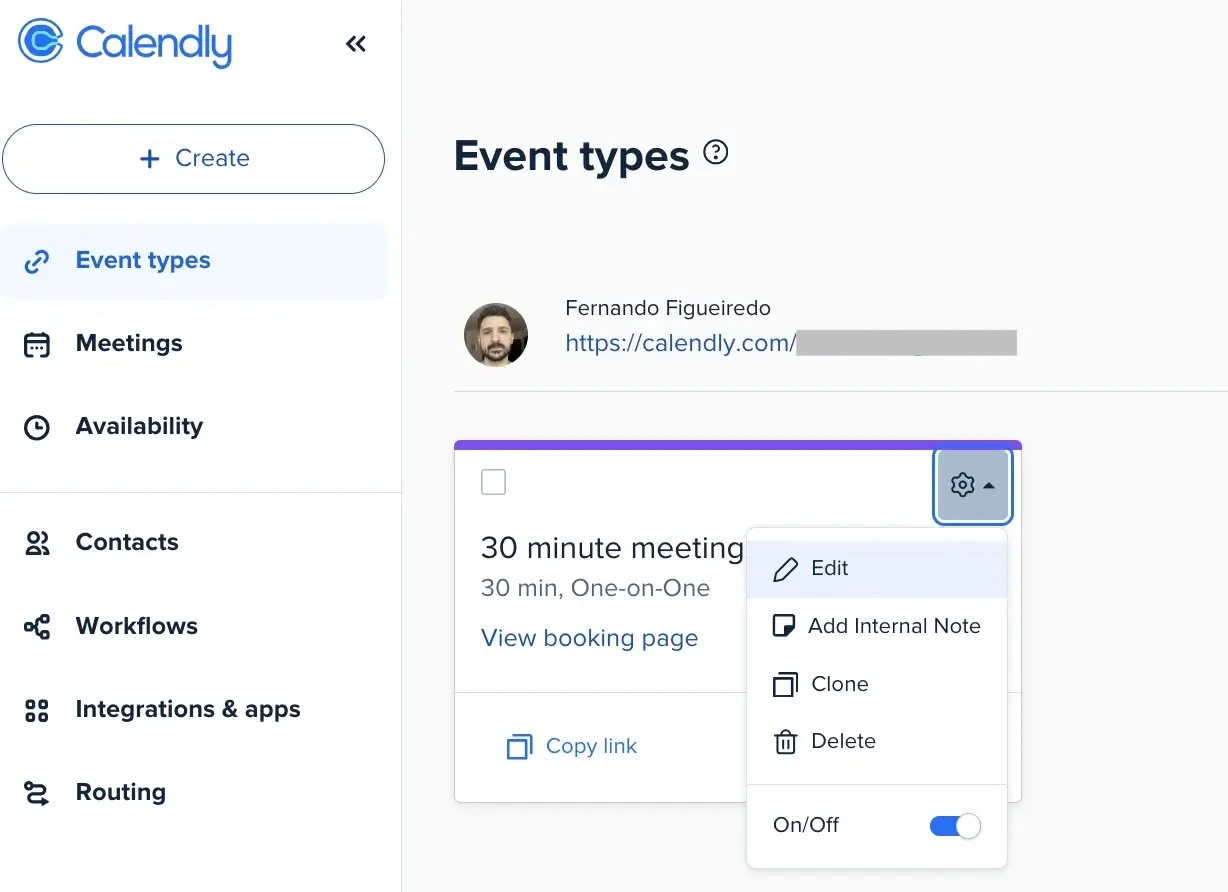
1. Navigate to your “Event types” page
2. Select the event type you want to update
3. Click on the wheel and select “Edit”
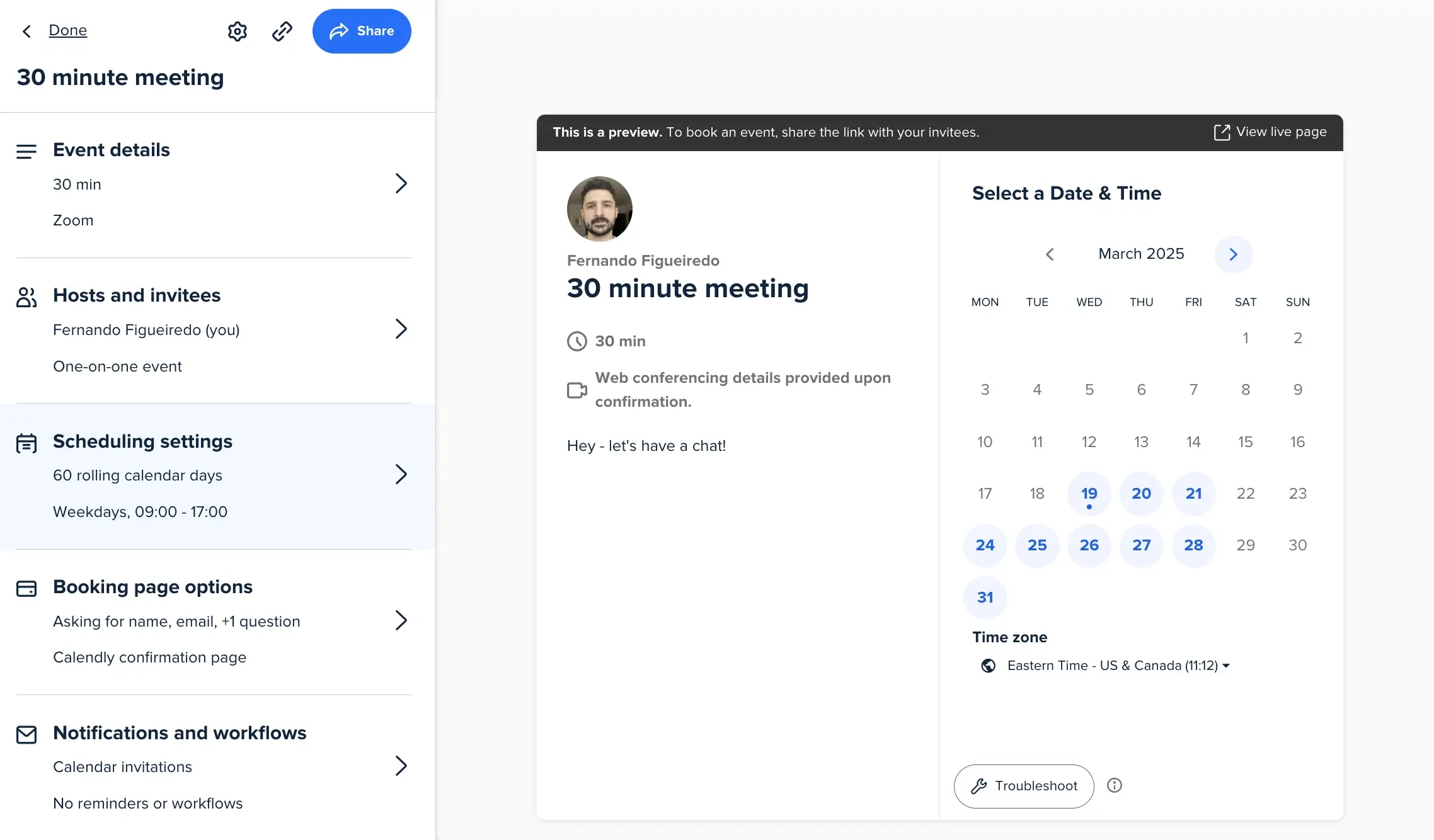
4. Expand the "Scheduling settings" section from the menu on the left
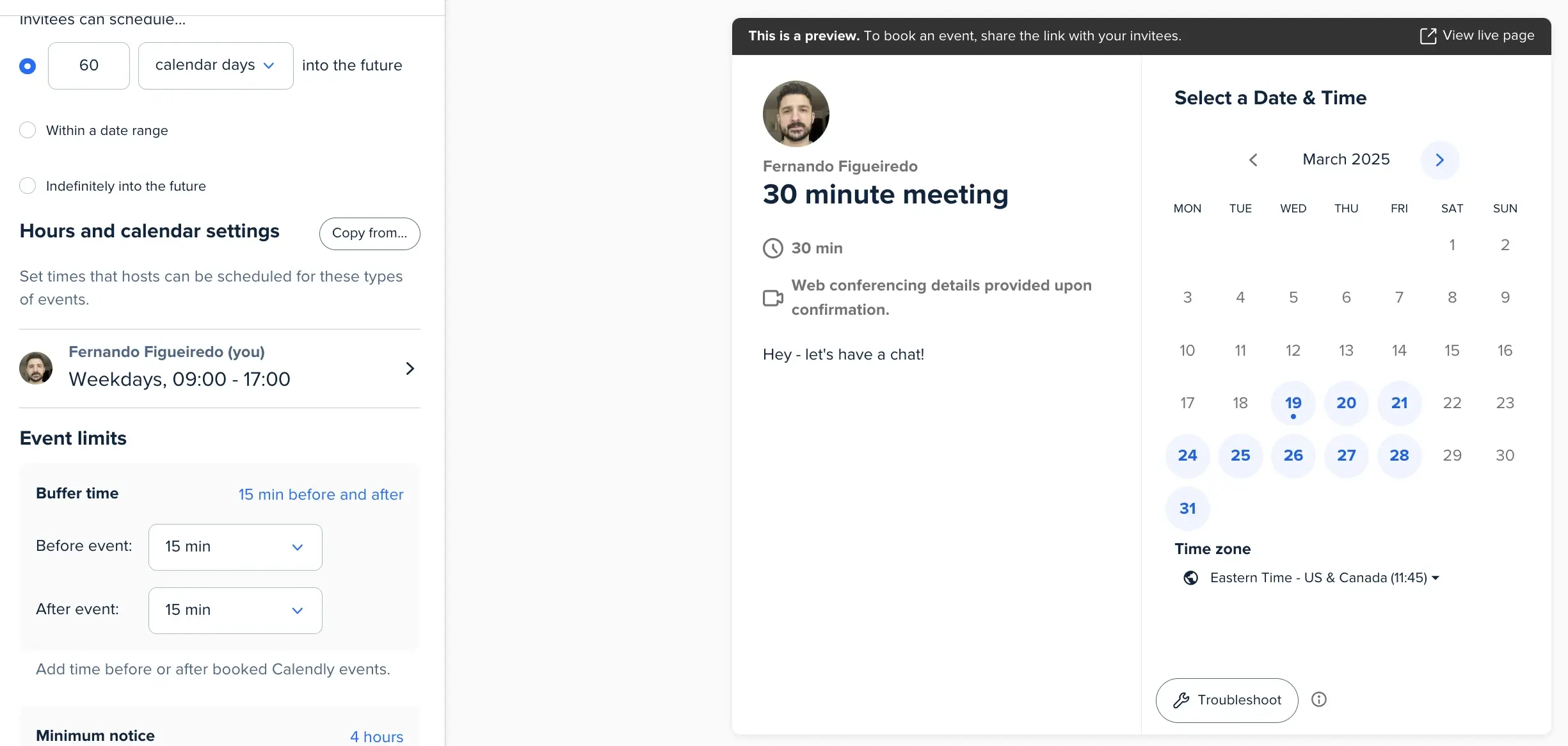
5. Under “Event limits”, click on "Buffer time" and choose your desired buffer times “Before event” and “After event”
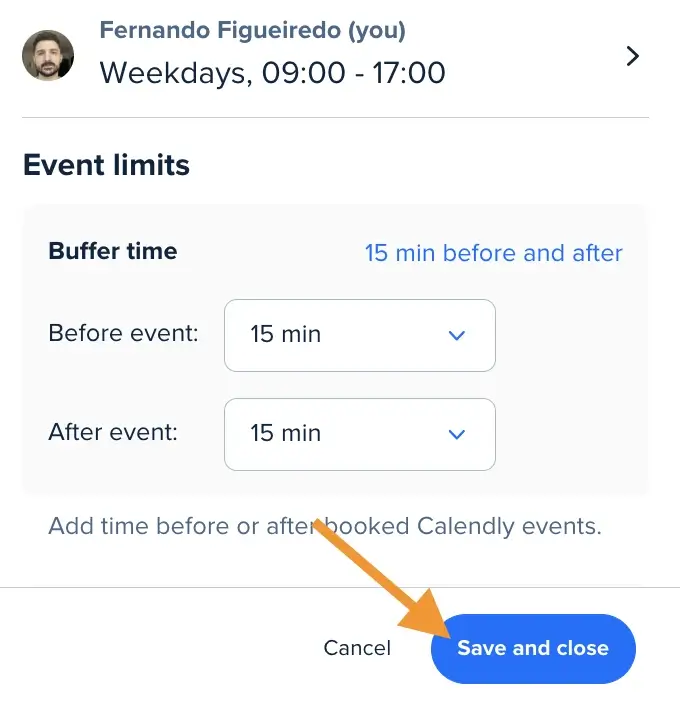
6. Click "Save changes" to apply
How can I add buffer time to Calendly on iOS mobile?
- From the mobile homepage, select the event type you want to edit
- Tap "View event type details"
- Scroll to the bottom and select "Edit this event type" (this opens a webpage within the app, so you might have to login again)
- Select "Scheduling settings" to expand the section
- At "Buffer time," choose how much time you want to add before or after your event
- Scroll to the bottom and select "Save & Close," then tap "Done"
Note: While you can technically add a Calendly buffer between appointments both before and after meetings, many scheduling experts recommend choosing just one option to prevent potential booking conflicts.
How buffers work in practice
Understanding buffer logic is essential for effective scheduling. Buffers only apply to meetings booked through Calendly, creating protected time around your appointments. However, Calendly is smart enough to consider non-Calendly events to avoid overlaps, ensuring buffers cannot conflict with events from your connected calendars. When planning, remember that the total time needed for a meeting includes both the event duration and any buffers. For example, if you schedule a 30-minute meeting with 15-minute buffers before and after, you'll need a full 60-minute slot of free time for that meeting to be bookable on your calendar.
Buffer settings also have important implications for multi-user event types. With round-robin events, individual users' buffer settings on their other event types could lead to uneven meeting distribution across team members. For collective events, buffer settings on individual users' other events might prevent certain collective meetings from being booked in time slots that otherwise appear to be free. Understanding these interactions helps prevent scheduling confusion.
Calendly buffer times: Visibility options
You can control how and where buffers appear in your scheduling system:
- On your Meetings page: Use the "Show buffers" toggle to display or hide buffers
- On your connected calendar: In Calendar settings on the Availability page, you can select "Include buffers on this calendar"
When enabled on your connected calendar, deleting or canceling a buffer from your calendar will remove it from Calendly as well, giving you flexibility in managing your time.
How to remove Calendly buffers
You might need to adjust or remove buffers as your scheduling needs change:
For future scheduled meetings:
- Go to your Event types page and select the event type
- Click "More options" and expand "Limits and buffers"
- Change your buffer time to 0 minutes
For existing scheduled meetings:
- From your Meetings page (with "Show buffers" enabled), select the meeting
- Click the pencil icon next to the buffer you want to edit
- Edit or delete the buffer as needed
From your connected calendar:
If you've enabled buffers to appear on your connected calendar, you can delete them directly from there.
Troubleshooting Calendly buffer times issues
The "BUFFER" message in Calendly's troubleshooting tool indicates when buffer settings are blocking certain meeting times. This message typically appears in two scenarios: when buffers attached to a scheduled meeting are blocking a time slot, or when the meeting you're trying to book doesn't fit due to its total length (meeting duration plus buffer time). Understanding these messages helps you identify why certain time slots aren't available for booking.
Several common buffer-related issues might arise during your scheduling. When a BUFFER message appears despite having no visible Calendly meetings, non-Calendly events may be creating conflicts. In this case, you can either remove the conflicting calendar event (or set its status to "free"), or you can change the buffer settings of the event type to 0 minutes to resolve the issue.
Another common scenario occurs when the BUFFER message doesn't match your current settings. This happens because scheduled meetings retain the buffer settings that were in place when they were initially booked. New buffer settings only apply to future bookings, not to meetings already on your calendar.
You might also notice large blocks of time that appear free but aren't actually bookable. This often results from "double buffers" – having both before and after buffers can cause them to stack up and eliminate large time slots from your scheduling page. Consider using only a single buffer (either before or after) to maximize available booking slots.
Why Zeeg is a better scheduling CRM alternative
While Calendly handles buffer functionality well, many businesses discover they need more than just scheduling: they need a system where booking and CRM work together. Zeeg delivers exactly this: professional scheduling with built-in customer relationship management that automatically captures every appointment as a trackable opportunity.
When someone books through your Zeeg scheduling page, they're instantly captured in your CRM with all their information and follow-up workflows triggered automatically. Your buffer times work as expected, giving you breathing room between meetings while making sure each appointment flows into your sales pipeline without manual data entry.
Complete GDPR compliance with German hosting
For European businesses, Zeeg offers complete data sovereignty with German servers and built-in GDPR compliance. Your scheduling data stays within EU borders, eliminating cross-border transfer complexities that US-based tools create. Data protection officers approve Zeeg without reservations.
Enterprise features at transparent pricing
Zeeg has round-robin distribution, multi-person coordination, and custom booking pages across all plans. You get enterprise-grade scheduling without enterprise costs or complexity. Plus, create custom data structures to track projects or services directly connected to your appointments: flexibility that grows with your business needs.
For businesses ready to move beyond simple appointment booking, Zeeg transforms scheduled meetings into trackable business relationships while maintaining the professional scheduling experience your clients expect.
Final thoughts
Buffer times are a powerful feature that can transform your scheduling experience, creating space between meetings and helping you maintain your productivity and wellbeing throughout the day. Whether you choose to implement them in Calendly or explore alternatives like Zeeg, finding the right balance of accessibility and breathing room is key to mastering your calendar.
Zeeg is Europe's leading AI voice agent and appointment scheduling software in one solution — GDPR-compliant, made in Germany. Start for free →