The 10 Best Shared Calendar Apps in 2026


Need a better way to coordinate with your team? The right shared calendar app can make all the difference in keeping everyone in sync. Whether you're part of a small team or managing schedules across departments, having the right calendar tool helps everyone stay on track with meetings, deadlines, and shared projects.
We'll explore top team calendar apps and collaborative calendar solutions, from well-known options like Google Calendar to specialized tools like Asana. You'll learn how each one handles group scheduling, team coordination, and shared calendars. Plus, we'll explore how Zeeg's calendar booking app lets your clients and colleagues book meetings based on rules you set - perfect for teams who meet regularly with people inside and outside their organization.
Why your team needs a collaborative calendar software
Improves productivity
When teams use a shared calendar, coordinating becomes much simpler. Instead of sending multiple emails to find a meeting time that works for everyone, people can see when others are free. This clear overview helps team members plan their work and schedule meetings more efficiently. For example, sales teams can block specific hours for client meetings, while keeping other times free for internal catch-ups. Team leads can also set buffer times between meetings to avoid back-to-back sessions, ensuring everyone has time to prepare and take breaks.
Better team communication
A collaborative calendar creates clarity about who's doing what and when. Team members can quickly spot when colleagues are busy, in meetings, or available. This visibility is especially helpful for teams working across different time zones, making it easier to find times when everyone can meet. For instance, when a team member in New York needs to schedule a meeting with colleagues in London and Singapore, a shared calendar automatically shows available times that work for everyone. Plus, team members can add their working hours and time zones, preventing accidental scheduling during someone's off-hours.
Reduce conflicts
Meeting reminders and follow-ups help keep everyone on schedule. When your calendar sends notifications about upcoming meetings and includes key details, you'll have fewer missed appointments and schedule conflicts. Teams can prepare better when they know what's coming up. Many calendars now send reminders at different intervals - like a day before for preparation and an hour before to get ready. Some even notify you about travel time based on your current location, ensuring you're never late for in-person meetings.
Better meeting preparation
Joint calendars let you include meeting materials right in the event details. Adding agendas, documents, and notes means everyone comes prepared. Plus, with some tools, you can ask the person booking if there's any extra requests from their side. This extra context helps teams make the most of their time together. For example, a consulting firm might include a brief questionnaire for clients to fill out when booking, helping consultants prepare specific solutions before the meeting even starts.
Smart routing to the right people
For businesses meeting with clients, calendar intake forms ensure meetings happen with the right team members. When someone books time, they can share what they need help with, making it easy to connect them with the most qualified person on your team. A software company, for instance, might route technical questions to their engineering team and pricing inquiries to sales, all through simple booking forms.
Resource management
Advanced team calendar apps help teams manage more than just time - they can handle meeting rooms, equipment, and other resources. Teams can book conference rooms along with their meetings, reserve presentation equipment, or schedule shared resources like company vehicles. This prevents double-booking of resources and ensures everything needed for a meeting is available when required.
Optimize customer experience
A good calendar booking app improves how clients interact with your business. They can book appointments at their convenience, receive immediate confirmation, and get all the information they need upfront. For example, a healthcare practice might let patients book appointments online, automatically send them preparation instructions, and remind them about upcoming visits. This self-service approach saves time for both clients and staff while reducing phone calls and emails.
Track team availability
Modern shared calendars make it easy to track when team members are out of office, working remotely, or in focus mode. This transparency helps with planning and ensures coverage during busy periods or holidays. Teams can mark vacation days, sick leave, or work-from-home days, helping managers maintain appropriate staffing levels and colleagues know the best times to schedule collaborative work.
Calendar sharing app features comparison
Best team calendar apps: In detail
1. Zeeg - Best for team scheduling and external appointments
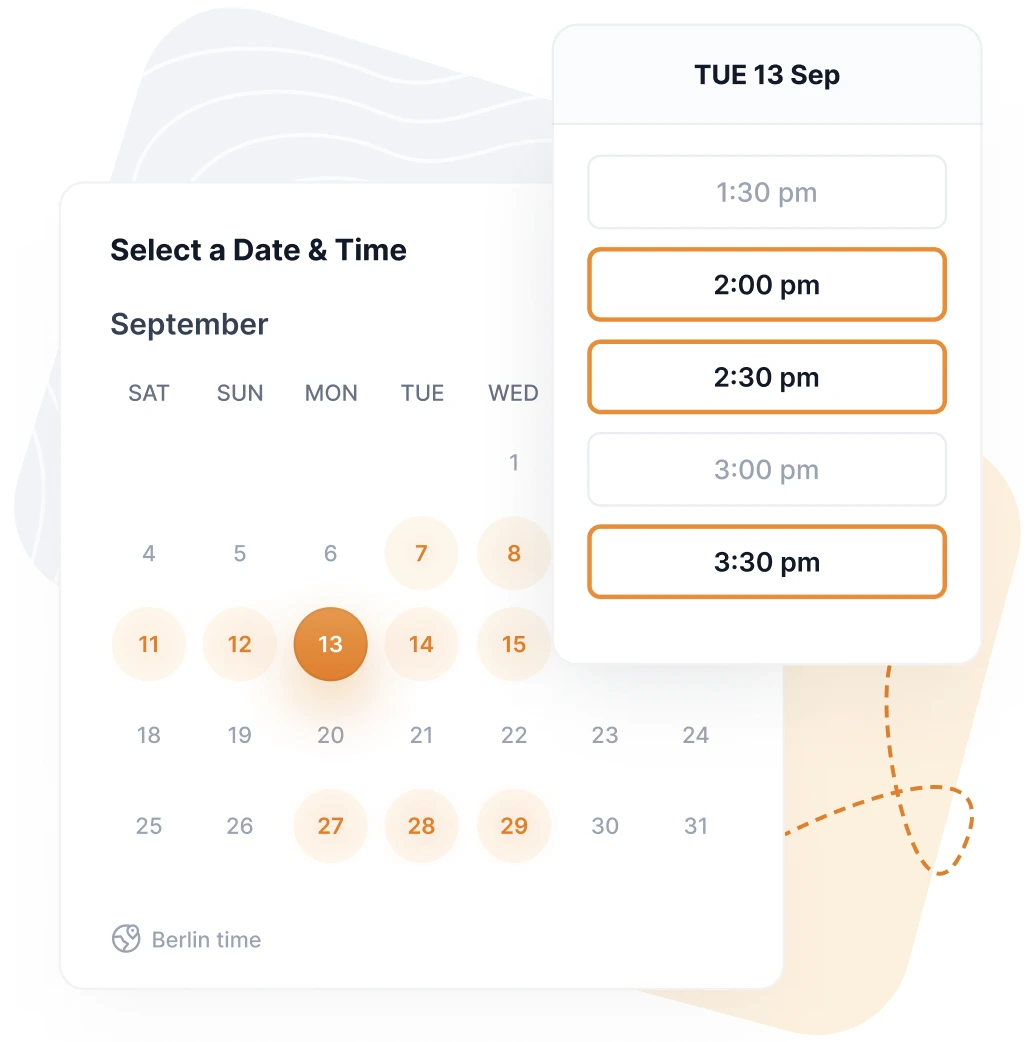
Zeeg makes it easy to schedule meetings with people outside your organization while keeping your team coordinated. It's particularly useful for teams who regularly meet with clients, partners, or job candidates.
Key features
- Custom booking pages
- Team routing options
- Group availability settings
- Self-scheduling for clients/stakeholders
- Payment processing integration possibility
- Video conferencing integration
- Meeting rooms booking
Zeeg brings a fresh approach to team scheduling, excelling at both as a team calendar app and calendar booking app. The platform stands out for how it handles group availability - team members set their schedules, and Zeeg automatically shows times that work for everyone adjusted to time zones, eliminating the usual email back-and-forth.
What also makes Zeeg better for teams is its smart routing system. When someone books a meeting, they can answer questions that direct them to the right team member automatically. For instance, a software company can route technical questions to developers and pricing discussions to sales, while a fitness studio might gather health information before consultations.
For growing teams, Zeeg simplifies scheduling with automated appointment distribution and integrations with tools teams already use - from Google Calendar, Outlook Calendar, and Apple Calendar to Zoom, Teams, Meet, Stripe, PayPal, HubSpot, Pipedrive, Zapier, Google Analytics, and many more.
Among team calendar software options, Zeeg offers one of the best privacy features with European-based servers and end-to-end encryption to ensure data privacy. This is making it ideal for teams handling sensitive meetings worldwide.
While Zeeg is relatively new to the market and still developing features like its mobile app, it's gaining positive recognition for its thoughtful approach to team scheduling.
Pros and cons
✅ Clear booking system, easy to work with
✅ Good for small businesses and teams, and bigger companies
✅ Team booking pages with many customization options
✅ Great integration possibilities
✅ Team member routing with smart intake forms
✅ Increases lead acquisition in external booking
✅ Automated workflows that increase efficiency
✅ Privacy and security focused
✅ Affordable pricing when compared to the best appointment software for small businesses
❌ Focused on appointment booking
❌ Mobile app not yet available
❌ Still building its name in the market
Pricing
Zeeg's pricing works for different team sizes, even though you can get a free version to keep as yours forever. Nonetheless, if you want to try the more advanced features, you can get a 14-day trial, with no costs associated. And you’re free to decide in the end.
- Free: Two scheduling pages, unlimited 1:1 meetings
- Professional: from $10/month - adds team features
- Business: from $16/month/user - includes routing and API
- Enterprise: Custom pricing for large teams
Starting with a Free plan, users get unlimited events and two scheduling pages, complete with automated notifications and a digital business card - perfect for testing the waters with simple scheduling needs. But when teams need more, the Professional plan opens up unlimited scheduling pages alongside four calendar connections, workflow automation and group scheduling features. This level works perfectly for consultants, coaches, and small teams who coordinate meetings regularly.
For businesses handling complex scheduling needs, the Business plan unlocks unlimited scheduling pages, routing forms, and round-robin scheduling. Teams can customize their experience by removing Zeeg branding, connecting up to six calendars, and creating up to 10 team divisions. Larger organizations, however, typically opt for the Enterprise plan, which adds advanced features like flex scheduling and SSO, while providing unlimited team creation and custom security options.
2. Google Calendar - Best for Google Workspace teams
.webp)
For teams already using Google's tools, Google Calendar fits naturally into their daily workflow. It helps teams coordinate schedules and manage meetings without extra hassle.
Key features
- Group calendar sharing
- Meeting room scheduling
- Focus time settings
- Work hours display
- RSVP options
- Resource scheduling
As team calendar software, Google Calendar integrates seamlessly with Google Workspace, making it suitable for teams who already use Google Workspace. This shared team calendar lets you coordinate group schedules easily - you can see when colleagues are free, set up joint meetings, and manage department calendars all in one place. For teams spread across locations, the shared calendar automatically adjusts meeting times across different time zones.
The collaborative features within the Google environment are pretty good, overall. Schedule a team meeting, and you'll get a Google Meet link automatically. Teams can attach Google Docs for agendas directly to calendar events, and when someone mentions a meeting in Gmail, you can add it to your shared calendar instantly.
While this shared calendar app works well for basic team coordination, Google's joint calendar system has its limits. While calendar sharing is straightforward, the group permission settings are basic, and scheduling features for external meetings remain simple. The collaborative calendar also struggles with non-Google tools - syncing isn't always reliable, and teams often need features Google Calendar doesn't provide, like routing meetings to specific team members or managing complex shared schedules.
Think of Google Calendar as a solid starting point for team calendar management within the Google ecosystem, but teams with more complex needs might need to look elsewhere.
Pros and cons
✅ Works perfectly with Google tools
✅ Helpful scheduling suggestions
✅ Simple to share with teams
✅ Available on all devices
✅ Good for recurring team meetings
✅ Easy to set up department calendars
✅ Create and share appointment booking pages
❌ Limited features outside Google ecosystem
❌ Basic design options
❌ Shared appointment booking pages require the Standard plan (paid)
❌ No built-in scheduling page for external bookings
❌ Can't customize booking forms for different types of appointments
❌ Limited options for complex team availability rules
Pricing
The basic version of Google Calendar is free, as it comes with your normal Google account. However, for business features, there's Google Workspace, which requires a monthly payment
- Free: Basic calendar use
- Google Workspace Business Starter: from $6.80/user/month
- Google Workspace Business Standard: from $13.60/user/month
- Google Workspace Business Plus: from $21.10/user/month
Google Calendar’s features vary by tier. The Business Starter ($6.80/user/month) includes basic shared calendars but doesn't offer appointment scheduling pages. Business Standard ($13.60/user/month) adds key team features like appointment scheduling pages and the ability to create bookable slots for external meetings. Business Plus ($21.10/user/month) just keeps the same calendar features as Standard, but adds more storage and security on top. For Enterprise (custom pricing), you get additional admin controls and security features, but, to be honest, the core calendar functionality remains similar to Business Standard and Plus plans, so it won’t be super advanced.
3. Outlook Calendar - Best for Microsoft users

Key features
- Advanced team permissions
- Room and resource scheduling
- Teams meeting integration
- Shared calendar management
- Booking page customization
- Group policy controls
Microsoft 365 Calendar takes a different path to collaborative scheduling. Where many calendars focus on simplicity, this platform emphasizes control and security - essential for larger organizations managing multiple teams. The shared calendar system integrates deeply with Active Directory, letting companies set precise permissions about who can view and manage team schedules.
The calendar really proves its worth in corporate settings. Team leads can manage multiple department calendars, book resources like meeting rooms, and set delegate access - all while maintaining security standards. When someone schedules a meeting, they'll automatically get Teams integration, file sharing permissions, and the ability to check coworkers' availability across the organization.
However, this enterprise focus means smaller teams might find the system overly complex. While the calendar handles internal coordination well, external scheduling lacks the finesse of dedicated booking tools. Plus, the deep Microsoft integration that makes it powerful for Microsoft-focused teams can become a limitation when working with other platforms.
Pros and cons
✅ Enterprise-grade security
✅ Excellent Teams integration
✅ Strong permission controls
✅ Resource scheduling
✅ Works offline
✅ Multi-language support
❌ Complex setup process
❌ Requires Microsoft 365
❌ Limited external scheduling
❌ Can feel overwhelming
Pricing
Microsoft 365 Calendar comes with Microsoft 365 subscriptions:
- Business Basic: $6/user/month
- Business Standard: $12.50/user/month
- Business Premium: $22/user/month
- Enterprise: Custom pricing
The Business Basic plan covers essential team calendar needs - sharing schedules and basic meeting coordination. Standard adds important features like desktop Outlook access and better scheduling tools. While Premium keeps the same core calendar features as Standard, it adds security and control features that matter for larger teams. And Enterprise mainly adds admin and security features, without significantly changing the calendar functionality.
4. Apple Calendar - Best for Apple users

Apple Calendar keeps things simple and clean. It's a good fit for teams who mainly use Apple devices and want a straightforward way to share schedules.
Key features
- Family sharing options
- Time zone support
- Location-based alerts
- Natural language input
- Perfect integration with Apple ecosystem
- Calendar sharing/delegation
Apple Calendar keeps things simple when it comes to team scheduling. If your team uses Apple devices, you'll find it easy to share schedules and coordinate meetings. There's no fancy stuff here - just straightforward calendar sharing that works well within the Apple world.
Teams appreciate how everything stays in sync across their Apple devices. Create a calendar on your MacBook, and your colleagues can see it right away on their iPhones and iPads. You can set up different calendars for different projects or teams, control who sees what, and even ask Siri to check your schedule or add new meetings.
But if your team works with people using other platforms, things can get tricky. Apple Calendar works great if everyone's on Apple devices, but mix in Windows or Android users and you might run into problems. Besides that, you won't find features like booking pages or advanced team scheduling here, and connecting with non-Apple tools can be a hassle - see, for example, Calendly Apple Calendar integration issue: the scheduling tool announced that new connections between the two won’t be supported. Apple Calendar is really built for teams who live in the Apple ecosystem.
Pros and cons
✅ Clean, intuitive interface
✅ Perfect Apple ecosystem sync
✅ Family calendar sharing
✅ Works offline
✅ Location-aware
❌ Limited team features
❌ Basic sharing options
❌ Other apps might not integrate so easily with it
❌ No booking pages
❌ Cross-platform sync issues
Pricing
Apple Calendar comes free with Apple devices, but storage needs affect iCloud+ pricing:
- Free: 5GB iCloud storage
- iCloud+ 50GB: $0.99/month
- iCloud+ 200GB: $2.99/month
- iCloud+ 2TB: $9.99/month
- iCloud+ 6TB: $29.99/month
- iCloud+ 12TB: $59.99/month
The calendar features stay the same across all tiers - what changes is your storage space for calendar data and other Apple services. Most small teams find the 50GB plan sufficient for calendar sharing, while larger groups might need more space if they store lots of calendar attachments and shared data.
5. Asana Calendar - Best for project teams

Asana's calendar helps teams see their projects laid out in time. It's useful for groups who need to connect their tasks with their meeting schedule.
Key features
- Timeline calendar views
- Project milestone tracking
- Team workload calendar
- Task-calendar integration
- Custom calendar fields
- Sprint planning views
Asana's calendar does things a bit differently from regular shared calendars. While most calendars focus on meetings, Asana brings your team's tasks, deadlines, and meetings together in one view. This works great for teams who need to see both their schedule and their work in one place.
The team calendar helps you spot potential problems before they happen. You can see if someone has too many deadlines on the same day, or if a project phase might run into holidays. Plus, each team member can customize how they see their work - some might prefer a monthly view of all projects, while others might focus on their weekly task list.
But Asana isn't trying to be your main calendar. While it works well for project planning and team coordination, you'll probably still need another calendar for managing everyday meetings. And although it connects with Google Calendar and Outlook, setting up these integrations takes some work. Think of it more as a project planning tool with helpful calendar views.
Pros and cons
✅ Great for project timelines
✅ Visual team workload view
✅ Flexible calendar layouts
✅ Good for deadline tracking
✅ Works for agile teams
❌ Not ideal for meeting scheduling
❌ Can get expensive for larger teams
❌ Takes time to learn
❌ Calendar sync can be tricky
❌ Basic meeting features
Pricing
Asana offers several plans with different calendar and team features:
- Free: Basic calendar views and task management for up to 15 people
- Premium: $10.99/user/month - adds timeline views and custom fields
- Business: $24.99/user/month - includes workload management and advanced reporting
- Enterprise: Custom pricing - for larger teams needing extra security and control
The Premium plan usually works best for teams who need proper project calendar features. While the free version gives you basic task scheduling, Premium adds the timeline view that makes Asana's calendar really useful for project planning. Business adds tools for managing team workloads across multiple projects.
6. TeamUp - Best for activity groups

If you've ever tried to manage schedules for multiple groups at once, you know how messy it can get. TeamUp solves this by letting you create separate calendars for different activities or teams.
Key features
- Sub-calendar system
- Color-coded schedules
- Public calendar sharing
- Event sign-up forms
- Access level controls
- Direct calendar embedding
Instead of focusing on personal schedules, TeamUp lets you create separate calendars for different groups or activities. Think of a school managing sports teams, clubs, and faculty schedules, or a gym coordinating different class schedules and trainer availability.
The calendar system makes sense for groups handling lots of different schedules at once. Each department or team can have their own calendar, and you can overlay them to see everything together or keep them separate. You don't even need accounts for people to view calendars - just share a link with the right permission level, and they can see what they need to.
One nice thing about TeamUp is how it handles calendar access. You might give coaches full editing rights to their team calendars, while parents only get viewing access to game schedules. But it's not trying to be a personal calendar - you won't find features like meeting scheduling or video call integration here. It's built specifically for organizing group activities and sharing schedules publicly.
Pros and cons
✅ Great for multiple schedules
✅ Easy calendar sharing
✅ No accounts needed for viewing
✅ Simple permission settings
✅ Good for public events
❌ Not for personal scheduling
❌ Basic mobile experience
❌ Limited integrations
❌ Can get pricey with many sub-calendars
❌ No meeting scheduling tools
Pricing
TeamUp bases its pricing on how many sub-calendars you need:
- Free: Up to 8 sub-calendars, up to 8 users, 1-year history
- Plus: $10/month - up to 12 sub-calendars, 12 users, 5-year history, daily agenda
- Pro: $25/month - up to 25 sub-calendars, 25 users, custom fields
- Business: $60/month - up to 70 sub-calendars, 50 users, faster syncing
- Enterprise: $105/month - up to 150 sub-calendars, 100 users, callback support
All plans include core features like color coding, event sharing, and time zone support. Plus adds password protection and daily agenda views; Pro brings in custom fields and faster syncing; Business users get more storage and quicker iCal feed updates; And Enterprise adds single sign-on and branding removal options. Take in mind that each plan charges $3/month for additional users beyond the included limit.
7. Any.do - Best for personal and small team planning

Any.do brings together your to-do list and calendar. It works well for individuals and small teams who want their tasks and meetings in one place.
Key features
- Task and calendar integration
- Location-based reminders
- Voice entry for events
- Recurring task management
- Cross-device syncing
- Calendar widget options
Like other tools, Any.do mixes your tasks and calendar events together. Instead of keeping your to-do list separate from your schedule, it shows everything in one view. This works particularly well for small teams who need to manage both meetings and action items throughout the day.
The calendar makes day-to-day planning straightforward. You can quickly add tasks or meetings using natural language or voice commands, and everything syncs across your devices. What's neat is how it handles location - you can set reminders that pop up when you're near a place where you need to do something, like picking up supplies for the team meeting.
But Any.do isn't built for complex team scheduling. While it's great for personal organization and small group coordination and has great unique features, you won't find advanced features like booking pages or sophisticated team permissions here. Think of it more as a personal assistant that can handle some team tasks, rather than a full-featured shared calendar system.
Pros and cons
✅ Great task integration
✅ Clean, simple design
✅ Smart location reminders
✅ Works across devices
✅ Good for small teams
❌ Limited team features
❌ Basic calendar sharing
❌ Few business features
❌ No booking page
❌ Simple permission settings
Pricing
Any.do offers several plans with different team and calendar features:
- Personal: Free - basic tasks and calendar features
- Premium: $4.99/month (billed annually) - full calendar features, unlimited tasks
- Family: $8.33/month (for 4 members, billed annually) - shared lists and calendars
- Teams: $4.99/user/month (billed annually) - team collaboration features
Premium works well for individuals needing full calendar features, while the Teams plan adds basics for group coordination. Most smaller teams find the Teams plan sufficient, though you won't get advanced calendar sharing or scheduling tools. Enterprise mainly adds security features and admin controls.
8. Fantastical - Best for detailed planners on Apple

Fantastical helps you manage complex schedules with plain language input and helpful features. It's good for people who want more control over their calendar.
Key features
- Natural language event creation
- Calendar sets for teams
- Group availability checking
- Shared scheduling templates
- Multi-team calendar views
- Conference call integration
The tool brings a fresh take on shared calendars, especially for teams using Apple devices. When someone on your team types "lunch meeting with marketing next Tuesday at noon," the calendar understands and creates the event with all details. For busy teams managing multiple schedules, this natural approach saves time.
The shared calendar features shine when coordinating group schedules. Teams can create calendar sets - like one for client meetings, another for internal catch-ups - and switch between them instantly. The collaborative tools help everyone stay in sync, whether you're planning team events or coordinating project deadlines. Plus, you can create templates for regular team meetings, saving time on recurring scheduling tasks.
But Fantastical's team features come with some downsides too. While it works great for Apple-focused teams, collaboration won’t be as good if some team members use Windows or Android. And though the calendar sharing options are solid, you won't find advanced features like customizable booking pages or automated meeting routing.
Pros and cons
✅ Smart language processing
✅ Good team calendar sets
✅ Clean interface for groups
✅ Strong Apple integration
✅ Good meeting templates
❌ Limited to Apple ecosystem
❌ Pricier than alternatives
❌ Basic web version
❌ No booking pages
❌ Limited cross-platform use
Pricing
Fantastical comes as part of Flexibits Premium, which includes both Fantastical and Cardhop across all your devices:
- Personal: $5.84/month (billed annually) - full features for individuals
- Family: $8.34/month (billed annually) - for families up to 5 users
- Teams: $5.84/user/month (billed annually) - each user gets their own Premium account
The Premium version unlocks collaborative features like unlimited calendar sets, advanced scheduling tools, and video conferencing integration. You get everything from event templates to team availability checking, plus priority support and better weather forecasts. All plans come with a 14-day free trial to test the full feature set.
9. Toggl - Best for visual team planning

Toggl Plan shows your team's schedule as a visual timeline. It's helpful for groups who like to see their work laid out over time.
Key features
- Timeline calendar view
- Team workload tracking
- Project milestone planning
- Resource allocation
- Group scheduling tools
- Drag-and-drop planning
Unlike traditional online group calendars that show you boxes and time slots, this tool turns your team's schedule into a flowing timeline. You'll see projects, deadlines, and team workload all mapped out in front of you.
The collaborative calendar makes sense of busy schedules by showing everything visually. Each team member gets their own row, with colored blocks showing what they're working on and when. Need to reschedule? Just drag a task to a new date, and the whole team's view updates instantly. It's particularly helpful for spotting schedule conflicts - like when three projects are due in the same week, or when someone's taking on too much work.
The catch? Toggl Plan isn't built for managing everyday meetings or client appointments. You won't find features like booking links or meeting scheduling here. It's more about helping teams see the big picture of their shared work schedule, perfect for project managers and creative teams who need to coordinate multiple deadlines and resources.
Pros and cons
✅ Clear visual timeline
✅ Good for team planning
✅ Easy workload tracking
✅ Simple resource planning
✅ Project-friendly views
❌ Not for regular scheduling
❌ Limited meeting tools
❌ Basic sharing options
❌ No external booking
❌ Learning curve for new users
Pricing
- Free: $0 - up to 5 users, includes Google and Outlook Calendar integration, basic team features
- Starter: $9/user/month - adds project templates, time estimates, and basic team tools
- Premium: $18/user/month - includes team time tracking, project forecasts, and advanced calendar features
- Enterprise: Custom pricing - adds multiple workspaces and dedicated support
The Starter plan works for small teams needing shared project views. Premium adds important team coordination features like calendar reminders, report scheduling, and time tracking tools. Both include calendar integrations with popular tools, though Premium adds more options for connecting multiple calendars and managing team schedules. Enterprise brings additional workspace management and custom calendar solutions for larger organizations.
All plans include essential calendar views and basic team management, but Premium makes more sense for teams who need detailed schedule tracking and reporting. Each tier comes with more sophisticated tools for coordinating group work and managing shared timelines.
10. ClickUp - Best for all-in-one team workspace

ClickUp combines your calendar with project tools, documents, and team chat. It works well for teams who want everything in one place.
Key features
- Calendar and timeline views
- Resource management
- Unlimited task tracking
- Team workload views
- Collaborative workspaces
- Real-time team chat
ClickUp looks at team scheduling from a different angle. Where most calendar tools start with meetings, ClickUp builds around your team's entire workflow. Even the free plan gives you a solid calendar view that connects with tasks, team chat, and basic collaboration tools. Your shared calendar becomes part of a bigger picture - tasks turn into calendar events, project deadlines show up automatically, and your team can discuss everything in real time.
What makes the calendar click for teams is how it fits into your workflow. When someone schedules a team task, they can attach documents, set up sprint timelines, or start a group chat right there. The shared views are flexible too - switch between a traditional calendar grid, Gantt charts, or Kanban boards. Teams using the Business plan get extra features like workload management and custom timelines to keep everyone's schedule balanced.
Just keep in mind that ClickUp might be more than you need if you're just looking for simple team scheduling. While its calendar features work well, they're part of a complete work management platform. You'll get powerful team coordination tools, from basic task management to advanced automation, but expect to spend some time learning how to use everything effectively. Also, in terms of appointment scheduling, there’s more complete tools out there.
Pros and cons
✅ Deep task integration
✅ Flexible team views
✅ Good workflow automation
✅ Custom calendar layouts
✅ Team booking pages
✅ Rich collaboration tools
❌ Can feel overwhelming, and comes with a learning curve
❌ Not the most complete for appointment booking
❌ Setup takes time
❌ Complex for basic needs
Pricing
- Free Forever: $0 - basic features including unlimited tasks, calendar view, and real-time chat
- Unlimited: $7/user/month - adds unlimited storage, integrations, and custom fields
- Business: $12/user/month - includes unlimited teams, workload management, and timelines
- Enterprise: Custom pricing - adds advanced security and custom roles
If you're just getting started with team scheduling, the free plan covers the basics - you get a shared calendar, unlimited tasks, and team chat. Moving up to Unlimited makes sense when your team needs more control over how they work together, with tools like resource management and custom fields. For mid-sized teams, the Business plan adds features that help manage bigger groups, like workload tracking and detailed timelines. And larger organizations should probably go for the Enterprise plan, which adds the security features and custom controls that IT departments often require.
Bottom line: How to choose the best collaborative calendar app
Choosing the right shared calendar app comes down to your team's specific needs. If you're mainly focused on internal coordination within one ecosystem, tools like Google Calendar or Apple Calendar might be enough. But if you need to manage external meetings professionally, especially with clients or partners, specialized tools like Zeeg offer more control and better scheduling features.
Consider these key factors:
- Team size and location: Larger or distributed teams need better coordination features and time zone management
- External scheduling needs: If you meet regularly with people outside your organization, look for booking pages and routing capabilities
- Integration requirements: Make sure the tool works with your existing systems (email, video conferencing, etc.)
- Security requirements: Organizations handling sensitive data should prioritize tools with strong privacy features and regional compliance
- Ease of use: The best tool is one your team will actually use - complex features aren't helpful if they create adoption barriers
Start with a free plan to test the basics, then upgrade as your team's needs grow. Remember: The best team calendar software combines ease of use with the advanced features your team needs to stay organized and professional.
Frequently Asked Questions
Which calendar app is best for team collaboration?
The best collaborative calendar depends on your team's specific needs. For teams already using Google Workspace, Google Calendar offers seamless integration and basic sharing features. Microsoft users often prefer Outlook Calendar for enterprise security and Teams integration. However, if you need advanced external scheduling with clients, Zeeg provides superior routing features as a calendar booking app while maintaining strong privacy standards. For simple internal coordination, Apple Calendar works well for Apple-focused teams, while tools like Asana better serve project-based collaboration.
What are the top calendar apps for team collaboration?
The leading team calendar apps include Google Calendar for Google Workspace users, Microsoft Outlook Calendar for enterprise teams, and Zeeg for businesses needing external client scheduling. Apple Calendar serves Apple-ecosystem teams well, while specialized tools like Asana Calendar help project-focused teams coordinate deadlines and milestones. TeamUp excels for organizations managing multiple group schedules, and ClickUp works for teams wanting calendar features integrated with project management tools. Choose based on your existing tech stack and collaboration requirements.
How do calendar booking apps help with client scheduling?
Calendar booking apps eliminate the email back-and-forth typically required to schedule client meetings. Clients can view your available times and book appointments instantly, receiving immediate confirmation. Advanced solutions like Zeeg offer smart routing features that direct different types of inquiries to appropriate team members automatically. Many also include payment processing, automated reminders, and customizable intake forms that gather important information before meetings. This team calendar software approach streamlines the entire scheduling process while presenting a professional image to clients.
What's the difference between team calendar software and basic calendars?
Team calendar software includes collaborative features that basic personal calendars lack. While basic calendars focus on individual scheduling, team solutions offer shared viewing permissions, group availability checking, and coordinated scheduling across multiple people. Advanced options include features like automated meeting routing, external booking pages, resource management for meeting rooms and equipment, and integration with business tools like CRMs and video conferencing platforms. These tools also typically provide better security controls and administrative features for managing multiple users and permissions.
What features should I look for in team calendar software?
Essential features include calendar sharing with customizable permissions, group scheduling that shows team availability, and integration with your existing tools (email, video conferencing, etc.). For client-facing businesses, look for booking page creation, automated routing to appropriate team members, and payment processing capabilities. Advanced collaborative calendar features worth considering include resource management for meeting rooms, automated reminders and follow-ups, custom intake forms for gathering meeting information, and analytics to track scheduling patterns. Security features like data encryption and compliance with privacy regulations are important for businesses handling sensitive information.
Sources - all prices were checked on each tool's official website on September 15th, 2025, and are subject to change:
- Google Workspace pricing page
- Microsoft 365 plans pricing
- Apple pricing page
- Asana pricing page
- TeamUp pricing page
- Any.do pricing page
- Fantastical pricing page
- Toggl pricing page
- ClickUp pricing page
Zeeg is Europe's leading AI voice agent and appointment scheduling software in one solution — GDPR-compliant, made in Germany. Start for free →