How to Embed Calendly in WordPress: Complete Guide


Are you looking to add Calendly to WordPress? Integrating scheduling tools with your website creates a seamless booking experience for visitors. This guide walks you through various methods to embed Calendly into WordPress, whether you're using WordPress.org or WordPress.com. We'll also introduce Zeeg, a GDPR-compliant scheduling alternative that offers similar WordPress integration capabilities with enhanced privacy features.
Pre-steps to embed your Calendly on Wordpress
Determine your WordPress version
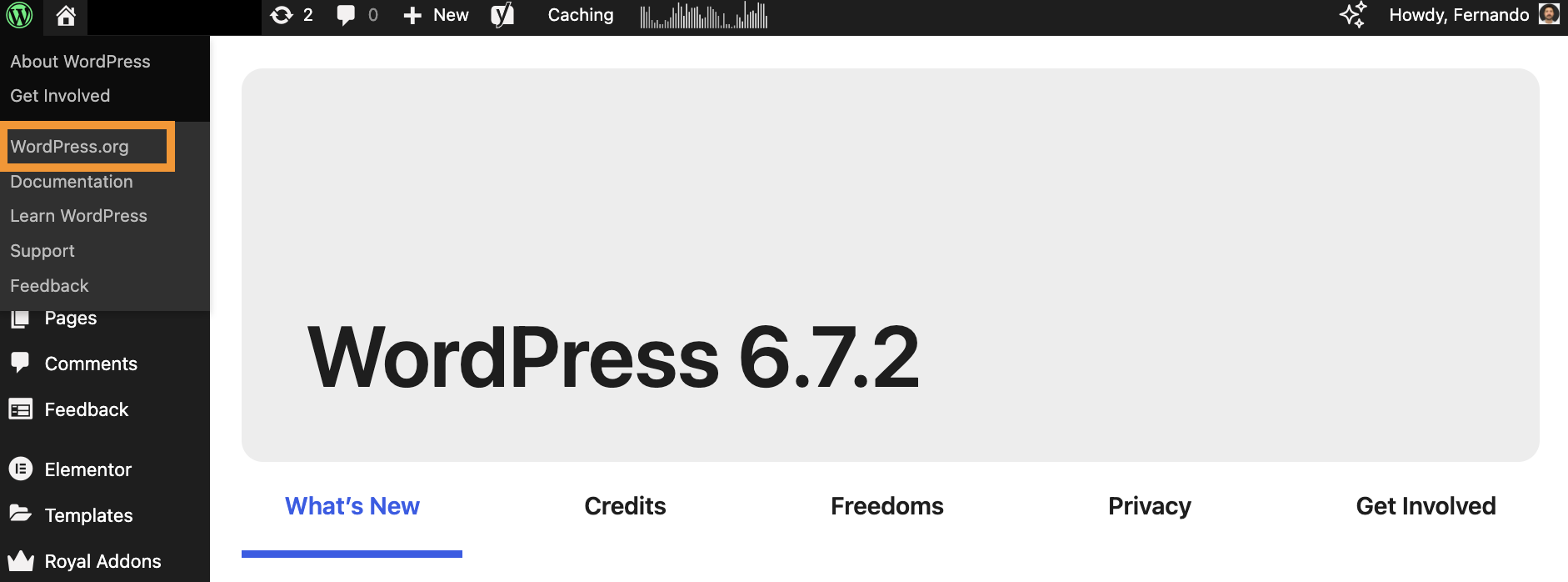
Before starting the integration process, you need to identify which WordPress version you're using since the embedding process differs between WordPress.org and WordPress.com.
To check your WordPress version:
- Log in to your WordPress admin dashboard
- Hover over the WordPress logo in the top left corner of the page
- If a drop-down menu appears with options, you're using WordPress.org
- If no menu appears, you're using WordPress.com
🤔 Confused? If you're new to Wordpress, you might have not fully grasped the difference between Wordpress.com and Wordpress.org. But I'll try to clarify it. When creating a website with WordPress, you'll need to choose between one of those two platforms - they offer different experiences despite sharing the same name.
WordPress.org is the self-hosted version that gives you complete control over your site. You'll need to purchase hosting separately, but you'll have full freedom to install any plugins or themes, modify code, and monetize your site however you wish. This option is usually chosen by businesses, professional websites, and anyone who knows or wants to learn the ropes of website building and customization.
WordPress.com, on the other hand, is a hosted service where everything is managed for you. While it offers a free plan, you'll face limitations on customization unless you upgrade to paid tiers. It's more beginner-friendly as you don't need to worry about hosting, security, or technical maintenance.
So, the main tradeoff is between convenience (WordPress.com) and control (WordPress.org), with your choice depending on your specific needs and technical expertise.
Generate your Calendly embed code

In order to embed Calendly on your website, you'll need to generate the appropriate embed code. And, just so you know, you can create this code for a single event type or for your account's booking page.
WordPress.org supports all three of Calendly's embed options:
- Inline embedding (shows the calendar directly on your page)
- Pop-up text (opens the calendar when text is clicked)
- Pop-up widget (displays a floating button that opens the calendar when clicked)
How to embed Calendly on WordPress.org

WordPress.org gives you flexibility with embedding options. You can add Calendly to a single page or as a widget across your entire site.
Option 1: Embedding Calendly on a single page
- Sign in to WordPress and visit the admin area
- Go to Pages and decide which one you want to edit
- Select the "+" to add a new block
- Choose "Custom HTML" from the Formatting drop-down list
- Paste your Calendly embed code into the block
- Click "Preview Changes" to ensure everything looks good with your theme
- Select "Update" to save your changes
Option 2: Adding the Calendly pop-up widget across your entire site
- Navigate to the "Appearance" section and open the "Editor"
- Find the "Theme Files" sidebar on the right side of the page
- Scroll down to locate the "Theme Footer"
- Find the </body> tag at the bottom of the footer
- Paste your Calendly pop-up widget code just above this tag
- Save your changes
Note: The Calendly embed code requires JavaScript. If your WordPress theme doesn't support JavaScript or has restrictions, the embed may not display correctly or its appearance might be affected.
How to embed Calendly on WordPress.com

WordPress.com has different embedding options depending on your plan. Some plans allow plugin installation, while others don't.
Important: Calendly's embedded widgets are only compatible with WordPress.com plans that allow you to add plugins. If your plan doesn't support plugins, you can still add a hyperlink to your scheduling page.
Option 1: For plugin-enabled plans
- Navigate to the page where you want to add Calendly
- To add the Custom HTML block, click the "+" Block Inserter icon and search for "HTML"
- Add the Custom HTML block
- Paste your Calendly embed code into the block
- Preview the changes to ensure everything works properly with your theme
- Click "Update" to save
Option 2: For non-plugin enabled plans
- While editing a page, highlight the text you want to link
- Select the "Insert/edit link" button from the toolbar
- Paste the URL to your Calendly scheduling page, event type page, or team page
- For images, select the image first, then follow the same steps
Using Elementor to embed Calendly in WordPress
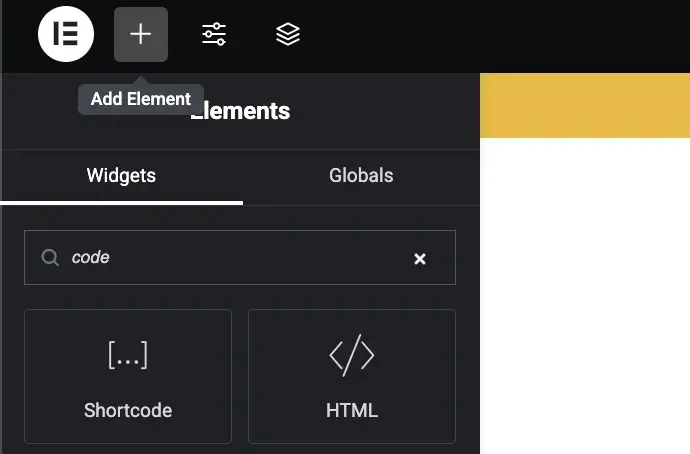
Elementor is a popular page builder that works with both WordPress.org and WordPress.com, making it easy to add Calendly to any WordPress site. It's a third-party page builder that lets you easily customize your WordPress site, regardless of whether you're using WordPress.com or WordPress.org. To embed Calendly using Elementor:
- Edit your page with Elementor
- Add a new section where you want your calendar to appear
- Drag and drop the HTML widget onto your page
- Paste your Calendly embed code into the HTML widget
- Use Elementor's styling options to adjust the container's appearance
- Save and publish your changes
Calendly and Elementor: building dynamic scheduling sections
For businesses that rely heavily on appointment scheduling, combining Calendly with Elementor can allow you to create dynamic scheduling sections:
- Create a dedicated appointments or contact page using Elementor
- Structure the page with introductory text explaining your services
- Add the Calendly embed in a prominent position
- Use Elementor's design tools to ensure the calendar matches your brand aesthetics
- Consider adding testimonials or service information around the calendar
If you're building a dedicated scheduling site, our guide on how to make a booking website provides additional insights for creating effective booking experiences.
WordPress Calendly plugin options

If you prefer using plugins, there are dedicated WordPress Calendly plugins that make that integration:
- Go to the WordPress admin dashboard
- Navigate to "Plugins" > "Add New"
- Search for "Calendly WordPress plugin"
- Install and activate the plugin
- Follow the plugin's specific instructions for configuration
The advantage of using a Calendly plugin for WordPress is that it can provide additional customization options and simpler implementation, especially if you're not comfortable with HTML. However, in terms of scheduling options, they might feel short. And there's always some risks with Wordpres plugins: they might not get updated often, they might not be compatible with other plugins, and the list goes on. Investigate first if you're not sure about this.
Also, if you're exploring various options for your site, you might also want to review our guide to the best WordPress booking plugins to compare alternatives.
Meet Zeeg: The best scheduling for your WordPress site

Looking to add powerful scheduling capabilities to your WordPress site? Zeeg integrates perfectly with both WordPress.org and WordPress.com platforms, enhancing your site with professional booking features without the technical headaches.
Whether you're running a business site or a personal blog, Zeeg's WordPress integration offers several advantages:
- Easy embedding - Add your booking page, button or inline embeding to any WordPress post or page using a simple shortcode or block
- Custom branding - Match your scheduling page to your WordPress theme for a consistent brand experience
- Automated workflows - Set up appointment confirmations, reminders, and follow-ups that work behind the scenes
- Smart routing - Direct bookings to the right team member based on availability or expertise
- Payment processing - Collect payments directly at booking time, ideal for service-based WordPress businesses
- And many more features...
But why choose Zeeg over Calendly? While Calendly is a popular scheduling tool, Zeeg, a newer platform, has many advantages. Unlike Calendly, it has full iCloud Calendar integration, perfect for Apple users who were left behind when Calendly discontinued this feature. Zeeg also offers great value with a more generous free plan and affordable paid options starting at just $10 per month. Plus, with its advanced scheduling tool like team routing features, comprehensive analytics, and stronger privacy protections in terms of GDPR compliance, Zeeg delivers a complete scheduling solution at a low price point.
Troubleshooting common Calendly WordPress integration issues
If you encounter problems with your Calendly WordPress integration, here are some solutions:
- Calendar not displaying: Check if JavaScript is enabled in your theme
- Styling conflicts: Use CSS to adjust the calendar's appearance to match your site
- Mobile responsiveness issues: Test on multiple devices and adjust container widths
- Loading speed problems: Consider using the pop-up widget instead of inline embedding for better performance
Understanding Calendly integrations with other tools can also help you troubleshoot or enhance your WordPress setup.
Bottom line
In conclusion, optimizing your Calendly WordPress integration is essential if you want to give your visitors or potential customers a seamless scheduling experience. By carefully selecting the appropriate embed type for your page goals, clearly communicating your availability, and strategically positioning your scheduling tool within the natural flow of your site, you can create an intuitive booking process.
Remember to take the time to thoroughly test the entire booking journey and make sure mobile responsiveness will also improve the user experience. And whether you're running a WordPress.org site with complete customization control or a WordPress.com site with managed hosting, implementing these optimization strategies will help you maximize the effectiveness of your scheduling solution. The result is a more professional website that converts visitors into booked appointments, saving you time and enhancing your business operations regardless of which scheduling tool you ultimately choose.
And for WordPress site owners seeking a better alternative to Calendly, Zeeg offers compelling advantages over Calendly.
Zeeg is Europe's leading AI voice agent and appointment scheduling software in one solution — GDPR-compliant, made in Germany. Start for free →