Apple Calendar Zoom Integration: Complete How-to Guide


Looking to connect your Zoom with Apple Calendar but not sure where to start? You're not alone. Many Apple users want to add Zoom meeting links directly to their calendar events, but the process isn't as straightforward as you might expect.
This article will show you how the different possible ways to integrate Zoom with Apple Calendar, from native options to smart workarounds.
We'll also introduce Zeeg, a powerful scheduling solution that offers great integration capabilities between Zoom, Apple Calendar, and other tools, giving you more advanced options to streamline your company's scheduling.
Apple Calendar Zoom Integration: The Basics
If you want to know how to use Apple Calendar and Zoom effectively, this is something you need to know: it is indeed possible to connect Apple Calendar and Zoom, but with some limitations. Unlike Microsoft 365 or Google Calendar, which have direct integration options within Zoom, Apple Calendar integration with Zoom works a bit differently. Just like how you can see on the image below:
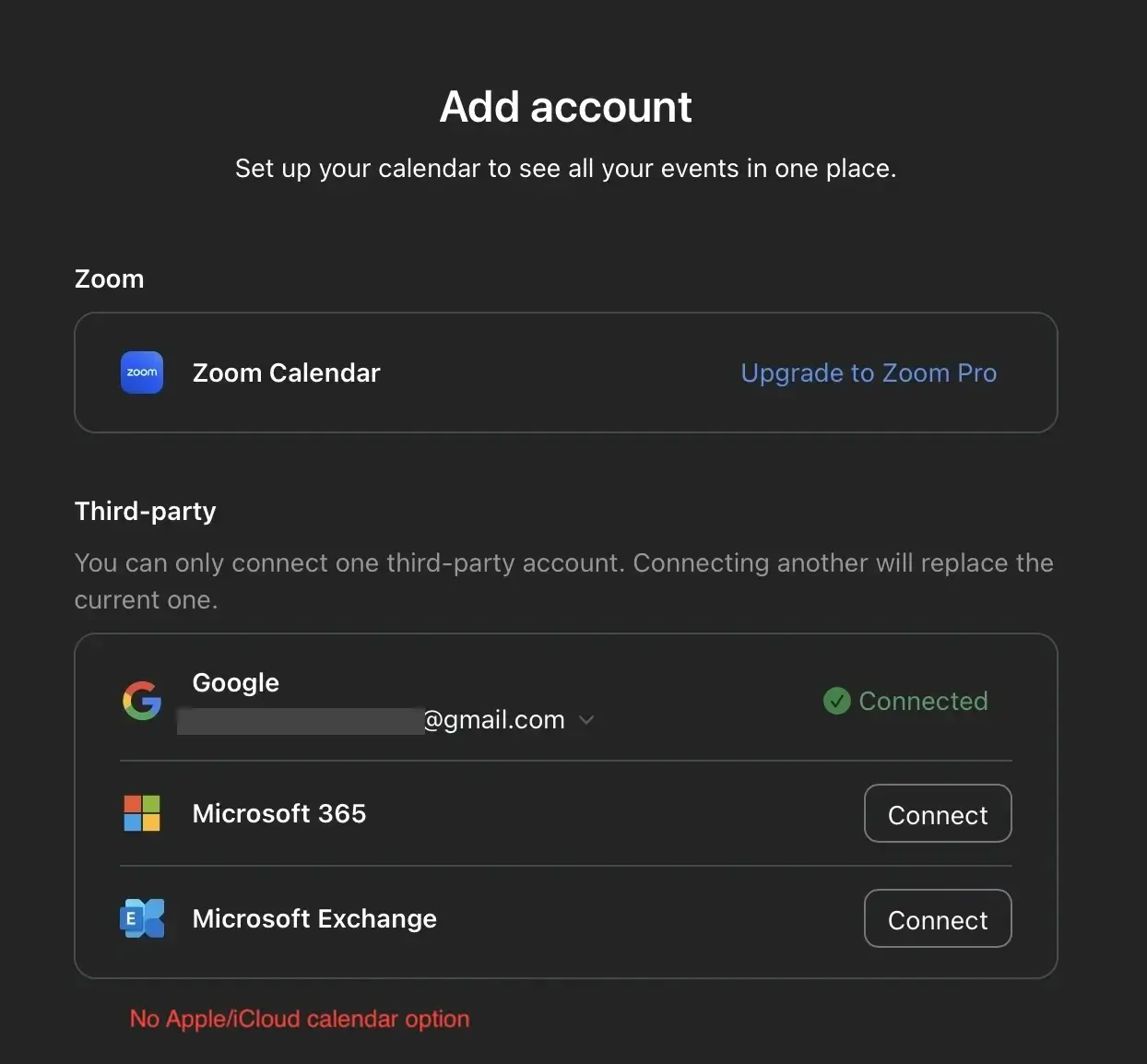
Zoom doesn't provide a dedicated Apple Calendar integration option in its desktop settings. When checking Zoom's calendar integration settings, you'll typically only see other options explicitly mentioned - Google, Microsoft 365 and Microsoft Exchange. This has led many users to wonder if connecting Zoom to Apple Calendar is even possible.
However, there are several methods to make these platforms work together:
- Using Zoom's iOS mobile app
- Creating events in Apple Calendar with Zoom links
- Using a third-party scheduling tool like Zeeg
Let's explore each of these options in detail.
👉 Read more about:
- Apple Calendar vs Google Calendar
- How to connect Zoom to Outlook Calendar
- How to connect Zoom to Google Calendar
Benefits of Apple Calendar-Zoom integration
Integrating Apple Calendar with Zoom delivers several key advantages for Apple users who rely on video conferencing for their professional and personal communication:
✓ Centralized meeting management: By connecting Zoom to Apple Calendar, you can view all your video meetings alongside other appointments in a single place. This unified view helps prevent scheduling conflicts and gives you a complete picture of your day.
✓ Time-saving automation: Once properly connected, your Zoom meetings automatically appear in your meetings list on the Zoom app. This eliminates the need to manually search for meeting links when it's time to join a call.
✓ Improved meeting preparation: When Zoom meetings are properly integrated with your Apple Calendar, you receive timely reminders about upcoming calls. These notifications help you prepare adequately and join promptly.
✓ Cross-device synchronization: Apple's ecosystem excels at keeping information synchronized across devices. When your Zoom meetings are in Apple Calendar, you'll have access to meeting details whether you're using your iPhone, iPad, or Mac.
✓ Enhanced productivity: The integration supports a smoother workflow by reducing context switching between apps. You can start your day by checking your calendar and have confidence that all your Zoom commitments are visible.
✓ Offline access to meeting details: Even without internet access, your Apple Calendar maintains local copies of your schedule, including Zoom meeting details. This ensures you can review upcoming meetings even when connectivity is limited.
✓ Better time zone management: Apple Calendar excels at handling different time zones, which complements Zoom's global meeting capabilities. This is particularly valuable for users who collaborate with teams across different regions.
✓ Natural integration with Apple ecosystem: For users deeply integrated into Apple's ecosystem, keeping Zoom meetings in Apple Calendar allows you to leverage features like Siri, Spotlight search, and system-wide calendar access.
How to sync Zoom with Apple Calendar on iOS

The most direct way to connect Zoom with Apple Calendar is through the Zoom iOS mobile app. This method allows Zoom to check your Apple Calendar for upcoming Zoom meetings and display them in your Zoom app.
Here's how to set up synced calendars on iOS:
- Sign in to the Zoom mobile app on your iOS device
- In the bottom-right corner, tap More (the three dots)
- Under Settings, tap Meetings
- Under Calendar, tap Synced calendars
- Tap the "Sync Zoom Meetings from Calendars" toggle to enable it
- Select the Apple calendars you want to sync with Zoom
Once enabled, your Zoom app will check the selected calendars for Zoom meeting links and add them to your upcoming meetings list in the Zoom app. If you have reminders enabled, Zoom will also send you notifications for meetings from these calendars.
This integration allows you to:
- View all your Zoom meetings in one place
- Join meetings directly from the Zoom app
- Receive timely reminders about upcoming meetings
What you need to know about iOS requirements
For the Zoom-Apple Calendar sync to work properly on iOS, you need:
- Zoom mobile app for iOS at the global minimum version or higher
- Calendars added in the iOS Calendar app
- Necessary permissions enabled for Zoom to access your calendar
The app will request permission to access your calendars the first time you attempt to set up the sync. Without this permission, the integration won't function.
How to add Zoom meeting to Apple Calendar manually
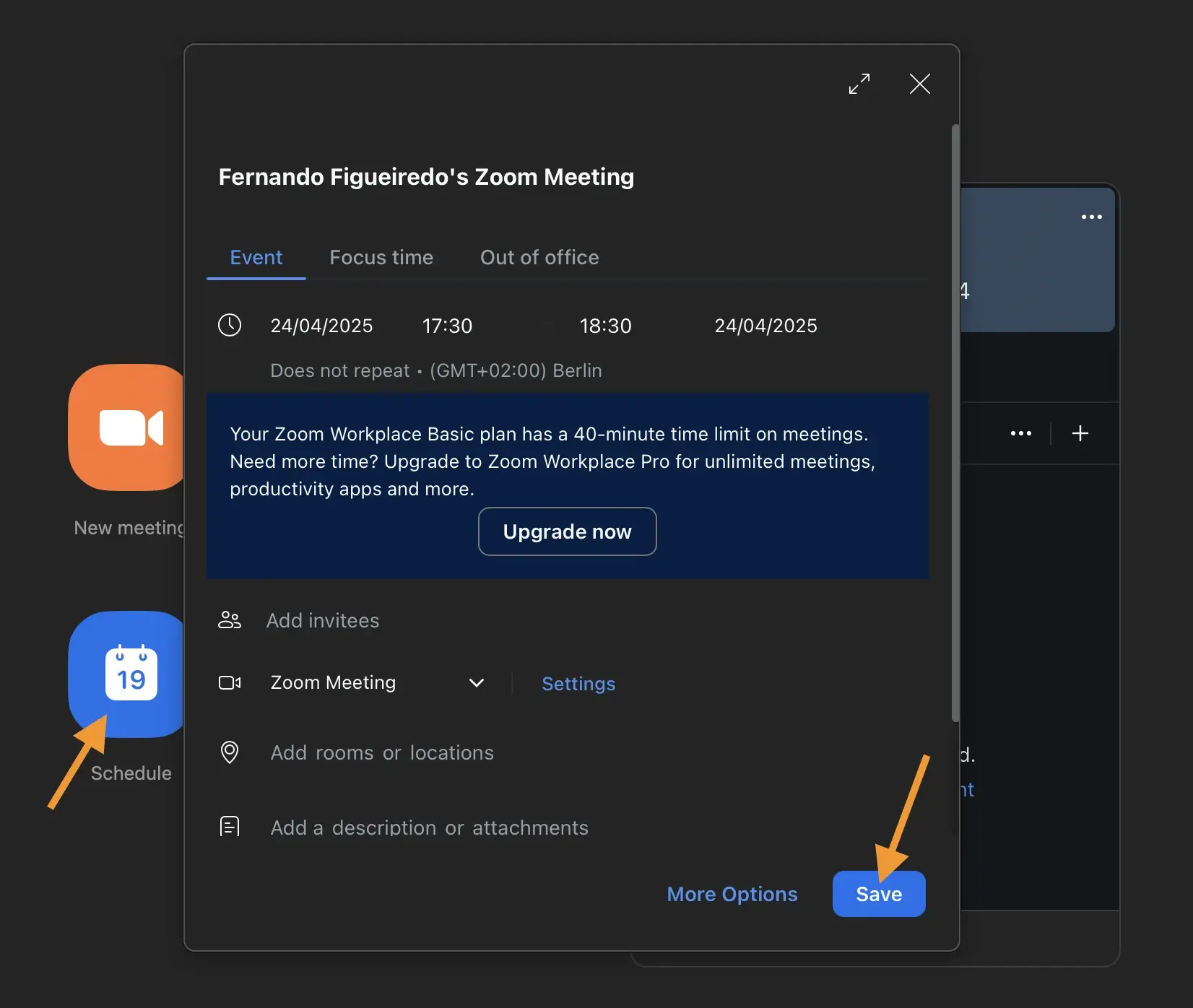
If you're scheduling Zoom meetings yourself, you can add the Zoom link directly to your Apple Calendar events. Here's the process:
- First, create your Zoom meeting in the Zoom app or website
- Copy the Zoom meeting link, ID, and password
- Open the Calendar app on your Apple device
- Create a new event or edit an existing one
- Paste the Zoom meeting details in the event notes or location field
- Save the event
While this method requires a few extra steps, it ensures that your Zoom meeting details are readily available when you open the calendar event. You can also include additional meeting information like agendas or preparation materials in the same event.
Pro tip for better visibility
For easier access to your Zoom link, consider adding it to both the location field and the notes section. Placing it in the location field makes it immediately visible when viewing your calendar, while including it in the notes provides space for the complete meeting information including ID and password.
You can format your notes section like this:
Zoom Meeting Link: https://zoom.us/j/1234567890
Meeting ID: 123 456 7890
Passcode: zoom123
Agenda:
1. Project updates
2. Timeline review
3. Next steps
Can I create a Zoom meeting from Apple Calendar?
Unfortunately, there's no direct way to create a Zoom meeting directly from Apple Calendar as you might with Microsoft Outlook or Google Calendar. This limitation is one of the main challenges when working with this combination of tools.
When you need to schedule a Zoom meeting from scratch, you'll typically need to:
- Create the meeting in Zoom first, which you can do from your Zoom app or using Zoom scheduler
- Then add those details to your Apple Calendar manually
This workflow requires switching between apps and copying information, which can be time-consuming if you schedule many meetings.
👉 You can also learn more about what the Zoom scheduler app is
Workaround using Zoom's personal meeting ID
For impromptu meetings, you can save time by creating an Apple Calendar template event with your Zoom personal meeting ID (PMI):
- Create a new event in Apple Calendar
- Add your personal Zoom meeting room details
- Save it as a template (by duplicating it whenever needed)
This way, you can quickly schedule recurring or impromptu meetings without generating new Zoom links each time.
Workaround: Automate your Apple-Zoom meeting scheduling with Zeeg
One way to fix this is by creating a Zeeg account, which you can link directly to iCloud Calendar and to Zoom. It's a pretty quick setup. Having done that, you can share your scheduling links so that others can book meetings with you, according to the scheduling availability that you define. As soon as the meetings are booked, they'll have a Zoom link and will show up directly to your Apple Calendar. Just make sure you define Zoom as the location for your scheduling page.
Is there a Zoom plugin for Apple Calendar?
Unlike some calendar platforms, Apple Calendar doesn't support a direct Zoom plugin or extension. This means there's no official Zoom Apple Calendar plugin that you can install to enhance functionality between these two platforms.
The lack of a Zoom extension for Apple Calendar creates some limitations in the seamless scheduling workflow that users of other calendar systems might enjoy.
Using Siri with Zoom and Apple Calendar
For a more seamless experience, you can use Siri to help manage your Zoom meetings on iOS. This integration allows you to use voice commands to view meetings and join them.
To set up Siri shortcuts for Zoom:
- Open the Zoom app on your iOS device
- Tap Settings
- Tap Siri Shortcuts
- Choose the shortcut you want to add (like "Join next meeting" or "View today's meetings")
- Tap Add to Siri
- Record the phrase you'll use to activate this shortcut
- Tap Done to save
Once configured, you can say commands like:
- "Hey Siri, join my next Zoom meeting"
- "Hey Siri, view my Zoom meetings today"
- "Hey Siri, start my personal Zoom meeting"
You can also start a Zoom meeting with a contact by saying "Hey Siri, call [contact name] with Zoom" without needing to set up a shortcut first.
Advanced Siri shortcut options
If you're a power user, you can create more advanced shortcuts using the Shortcuts app:
- Open the Shortcuts app on your iOS device
- Tap the "+" icon to create a new shortcut
- Add the "Find Calendar Events" action and set your parameters
- Add the "Open URLs" action to open Zoom links
- Save your custom shortcut with a memorable name
This allows you to create context-specific shortcuts like "Join my next client meeting" that filter for particular calendar events.
Best practices for Zoom and Apple Calendar integration
To make the most of working with Zoom and Apple Calendar together:
- Maintain a consistent naming convention for your Zoom meetings so they're easy to identify in your calendar
- Add buffer time before and after Zoom meetings in your Apple Calendar to prepare and transition between calls
- Include all relevant information in your calendar events, including meeting agenda, required preparation, and additional resources
- Set appropriate notifications for Zoom meetings in Apple Calendar to ensure you don't miss important calls
- Regularly check both platforms to ensure your meetings are properly synced, especially for important calls
- Consider time zones carefully when scheduling meetings with remote participants
Calendar color-coding for better organization
Take advantage of Apple Calendar's color-coding feature to visually distinguish your Zoom meetings:
- Create a separate calendar specifically for Zoom meetings
- Assign it a distinct color (like blue to match Zoom's branding)
- Move all your Zoom meetings to this calendar
This visual organization makes it easy to see your video meeting commitments at a glance in your calendar view.
Common issues with Zoom Apple Calendar integration
Users sometimes encounter these challenges when trying to connect Zoom to Apple Calendar:
Calendar events not appearing in Zoom
- Make sure you've enabled calendar syncing in the Zoom iOS app
- Check that you've selected the correct calendars to sync
- Verify that your events contain Zoom meeting links
- Ensure your iOS permissions allow Zoom to access calendar data
Missing meeting links
- Ensure you've properly added the complete Zoom meeting information to your calendar events
- Double-check that you've copied the full meeting link, not just the meeting ID
- Verify the format of your Zoom link (it should start with https://zoom.us/j/)
Timezone confusion
- Verify that both Zoom and Apple Calendar are set to the same timezone
- For international meetings, explicitly state the timezone in the meeting description
- Consider using a world clock app for reference when scheduling across multiple timezones
Sync delays between platforms
- Allow sufficient time for changes to propagate between systems
- Force refresh both apps if events aren't appearing
- Check your internet connection, as syncing requires connectivity
Troubleshooting permission issues
If Zoom can't access your calendars, you may need to adjust your iOS privacy settings:
- Go to your iOS Settings
- Scroll down and tap on Zoom
- Ensure Calendars permission is enabled
- If not, toggle it on and restart the Zoom app
Meet Zeeg and automate your Zoom-Apple Calendar integration
While the native integration between Zoom and Apple Calendar offers basic functionality, Zeeg provides a more comprehensive solution for seamless scheduling.
How Zeeg improves Zoom and Apple Calendar integration
Zeeg connects with both your Zoom account and Apple iCloud Calendar to create a unified scheduling experience with powerful features:
Zeeg + Zoom integration benefits

✓ Automated Zoom conference details: Zeeg automatically generates unique Zoom meeting details for every scheduled event
✓ Built-in Zoom meeting links: Each appointment includes a Zoom meeting link in the calendar invitation
✓ Flexible meeting locations: Offer invitees multiple meeting options including Zoom, phone, or in-person
✓ Location preference: Let attendees choose their preferred meeting method when booking
Setting up the Zoom integration with Zeeg takes just a few clicks:
- Connect your Zoom account to Zeeg in the integrations section
- Select Zoom as a meeting location in your scheduling settings
- Zeeg handles the rest automatically
Zeeg + Apple iCloud Calendar integration

✓ Native Apple Calendar integration: Unlike Calendly, which discontinued Apple Calendar integration for new users, Zeeg maintains full iCloud Calendar support
✓ Smart availability tracking: Zeeg automatically learns which times you're available based on your Apple Calendar
✓ Conflict prevention: Zeeg checks your connected calendars to prevent double-booking
✓ Two-way synchronization: Changes made in either Zeeg or Apple Calendar automatically update in both systems
✓ Custom calendar selection: Choose which specific Apple Calendar receives your scheduled appointments
Connecting your Apple iCloud Calendar with Zeeg:
- Generate an app-specific password from your Apple ID account
- In Zeeg, click on your name and select "Calendar Connections"
- Choose the "+ iCloud account" option
- Enter your iCloud email and the app-specific password
- Select which calendars to sync for conflict checking and event adding
Additional Zeeg benefits
Beyond just connecting with Zoom and Apple Calendar, Zeeg offers:
✓ Streamlined booking: Create personalized scheduling links that respect your calendar availability
✓ Automatic buffer times: Prevent back-to-back meetings by adding breathing room between appointments
✓ Smart scheduling: Find optimal meeting times that work for all participants without email ping-pong
✓ Team coordination: Manage availability across multiple team members with round robin scheduling
✓ Stack mode scheduling: Prevent scattered meetings by grouping them together efficiently
✓ Multi-person scheduling: Coordinate events that require multiple hosts like interviews or sales calls
✓ Customized booking pages: Maintain your brand identity throughout the scheduling process
✓ Pre-meeting questionnaires: Gather important information before meetings to maximize productivity
✓ Digital business card: Create a central hub for clients to connect with you or your team
For professionals who schedule frequent meetings, Zeeg eliminates the back-and-forth typically associated with finding mutually convenient times. Additionally, Zeeg offers full GDPR compliance with European data hosting, making it ideal for privacy-conscious organizations.
Unlike some scheduling platforms that severely limit features on free plans, Zeeg provides great capabilities on its free plan, with affordable pricing for scaling businesses.
When to consider Zeeg for your Zoom and Apple Calendar workflow
If you want to automate your iCloud meeting scheduling, you should know that many of the popular meeting apps can't do it - like Calendly, which doesn't support new Apple Calendar connections anymore. But let's see exactly in what kind of scenarios Zeeg can be useful for your integration between Zoom and iCloud Calendar:
- High meeting volume: If you schedule numerous meetings weekly, Zeeg's automation saves significant time
- Team coordination: For businesses managing multiple calendars and team members
- Client-facing roles: When you need to present a professional booking experience
- Privacy requirements: For organizations needing GDPR-compliant scheduling solutions
- Apple ecosystem users: If you rely primarily on Apple Calendar for your scheduling
Conclusion
While connecting Zoom to Apple Calendar directly has some limitations, there are several viable approaches to make these tools work together. The iOS app integration provides the most direct connection, though it lacks some of the more advanced features available with other calendar systems.
For users who need more sophisticated scheduling capabilities and fuller integration between Zoom and Apple Calendar, Zeeg offers a compelling solution. With its ability to connect both platforms while adding powerful scheduling features, it creates a more seamless experience than either native option.
Whether you choose the direct approach through the Zoom iOS app or enhance your workflow with Zeeg, connecting Zoom to Apple Calendar can help you manage your video meetings more efficiently and ensure you never miss an important call.
Zeeg is Europe's leading AI voice agent and appointment scheduling software in one solution — GDPR-compliant, made in Germany. Start for free →