
Calendly QR Code: How To Make One and Why


Scheduling meetings at events or conferences often means rushing through contact exchanges or typing email addresses on your phone. QR codes offer a faster way to share your calendar, letting people book time with you by simply scanning a code. While Calendly provides this feature, other scheduling tools like Zeeg also offer QR code generation, making it easier to manage in-person scheduling.
In this article we'll cover all aspects of this QR code from Calendly. But we'll also talk about Zeeg scheduling tool and its benefits (and yes, QR codes are also available there).
What is a Calendly QR code?
A calendar QR code is a scannable image that opens your scheduling page when someone points their phone's camera at it. It works just like regular QR codes you might see at restaurants or events, but instead of showing a menu or website, it displays your booking page where people can schedule time with you. Ah, and this one is important: the QR code option is available on all price tiers, at least for now - Calendly Free, Calendly Standard, Calendly Teams, and Calendly Enterprise.
👉 Read more: Calendly Pricing Guide
Why and when should I use a Calendly QR code?
When you're networking or meeting potential clients, QR codes can save valuable time. Instead of collecting business cards or typing email addresses, you can share your calendar instantly. Here's a few examples of when QR codes can become particularly useful:
Sales demos and product showcases
At product launches or industry events, your sales team can use QR codes to schedule demos efficiently. While showing a product's features to an interested prospect, sales reps can have them scan a QR code that links directly to a demo booking page. This lets potential customers choose a time for a more detailed demonstration while their interest is high. For instance, if you're showcasing software at a tech conference, visitors can schedule a personalized walkthrough right after seeing the initial preview. This immediate scheduling option helps maintain momentum in the sales process and prevents leads from going cold after the event.
Quick networking follow-ups
At conferences or business events, you might meet several people in a short time. When someone shows interest in a future conversation, you can show them your QR code. They can scan it and book a follow-up meeting right away, before either of you forgets.
Trade show lead collection
If you're manning a booth at a trade show, having a QR code displayed lets interested visitors book demos or consultations without waiting in line. They can scan the code and choose a time that works for them, even if you're busy with other potential clients.
Between conference sessions
When you're rushing between sessions at a conference and meet someone interesting, you might not have time for a full conversation. A quick QR code scan lets them book time with you later, without missing their next session.
Professional speaking events
As a speaker or panelist, you can include your scheduling QR code in your presentation's final slide. This allows audience members to book follow-up conversations while your insights are still fresh in their minds.
Retail or service locations
For businesses offering consultations or appointments, having a QR code at your front desk or reception area lets customers schedule their next visit before leaving. This works well for services like salons, fitness studios, or consulting practices.
Training sessions
When leading workshops or training sessions, you can display your QR code for attendees who want to schedule one-on-one follow-up sessions. This helps maintain momentum while the material is still relevant to them.
Business meetings
During in-person meetings where next steps involve scheduling follow-ups, sharing your QR code lets participants book their next appointment before leaving the room. This reduces the usual back-and-forth emails that follow most meetings.
How to make a Calendly QR code: Step-by-step
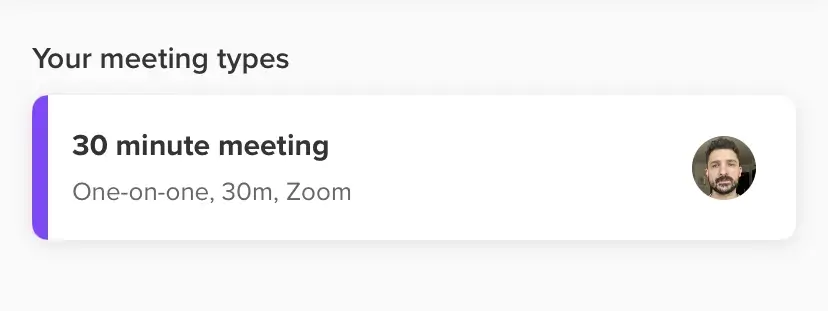
The first thing to know is that you can create this QR code only from the app. On your browser this is not available. So grab your phone and follow the steps below:
1. Open the Calendly mobile app
2.Go to your Event Types section
3. Select the event type you want to share
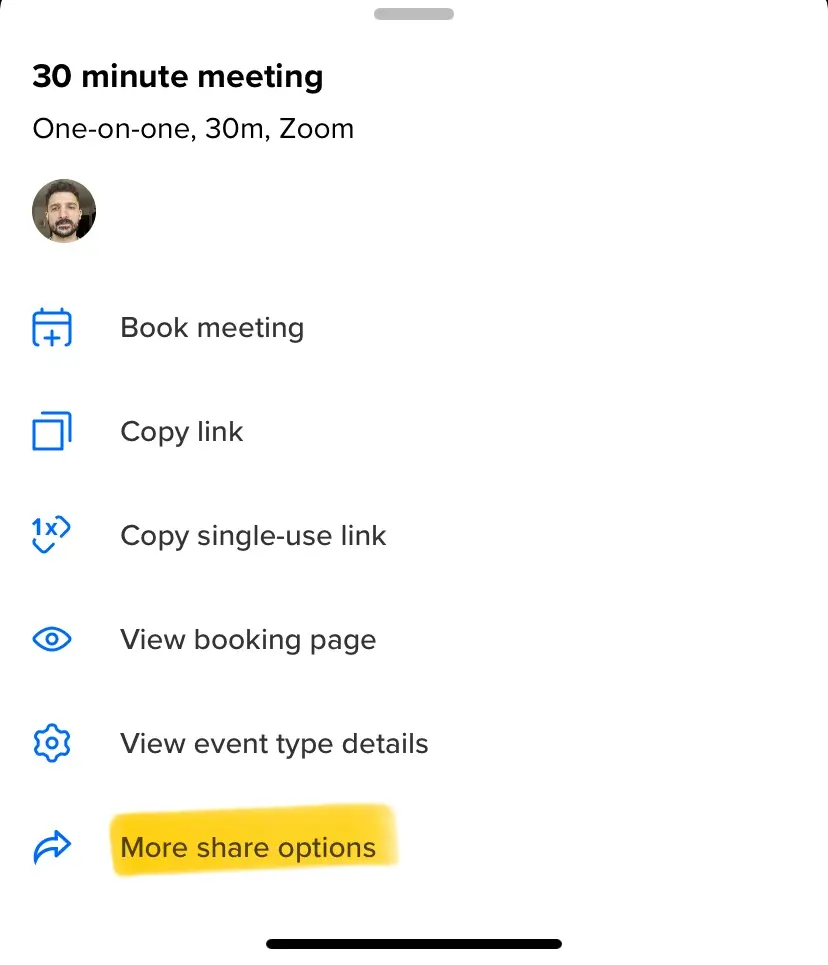
4. Tap "More share options"
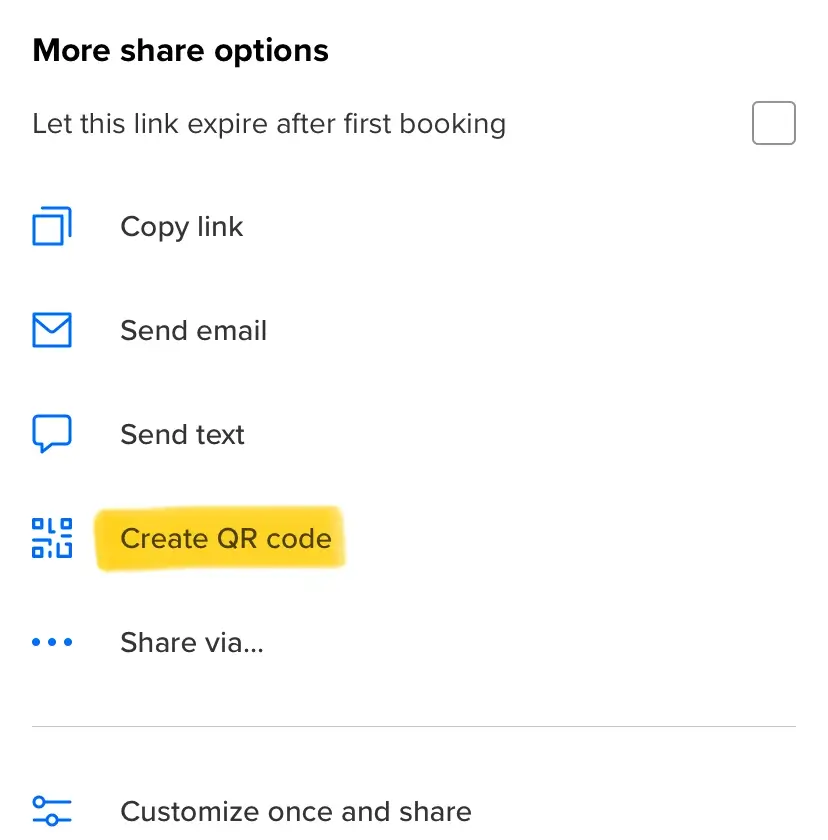
5. Choose "Create QR code"
You can show this code directly from your phone or save it to your photo gallery for offline access.
Making the most of your Calendly QR code scheduling
Setting up your scheduling system properly ensures a smooth experience for both you and your potential clients. Start by connecting your primary calendar, whether it's Google Calendar, Outlook, or Apple Calendar, to prevent any double bookings. Before heading to an event, test your QR code to confirm it works as intended and save it to your phone - this way, you'll have access even with a poor internet connection. Consider creating different QR codes for various meeting types, and when at events, make sure to display your code where people can easily spot and scan it.
Best practices for using scheduling QR codes
Effective QR code scheduling requires thoughtful setup and management. Your booking page should reflect your professional image while making it easy for people to schedule time with you, so consider following these:
- Keep your booking page simple and mobile-friendly, since most people will access it from their phones
- Set appropriate meeting durations that match the type of conversation you expect
- Include clear descriptions of what attendees can expect from the meeting
- Add buffer times between meetings during busy events
- Make sure your availability is updated before sharing your code
By following these guidelines, you'll create a professional and efficient scheduling process that respects both your time and your potential clients' needs. Remember to regularly review and update your settings to maintain an optimal scheduling experience.
Other ways to share your scheduling link
We’ve covered everything about Calendly QR code, but let's also not forget that in other scenarios it might be better to share your Calendly link differently, like by:
- Copying and paste your link in messages or emails
- Sending a direct email invitation through your scheduling tool
- Sharing via text message
- Generating and sharing a QR code
- Using the "Share via..." option for social media and messaging apps
Meet Zeeg, an alternative for your scheduling QR codes
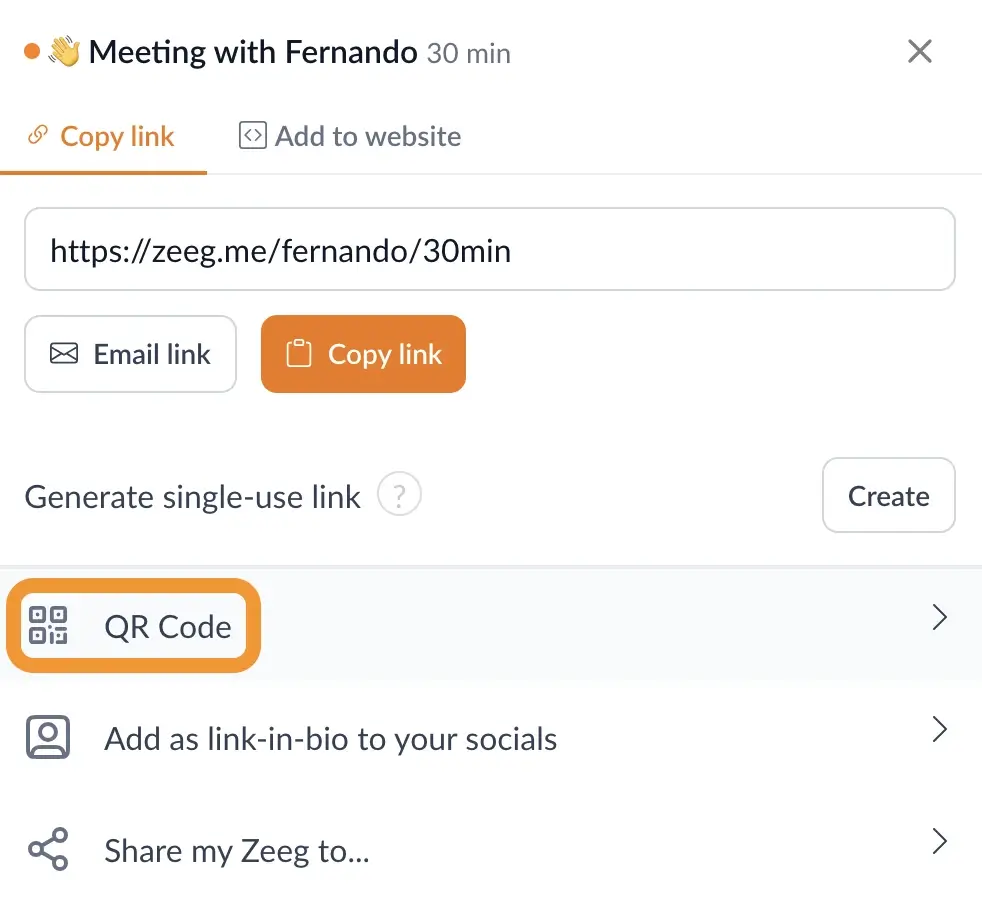
While Calendly offers QR code generation, Zeeg also gives you QR codes and all other sharing possibilities. But, more than that, and as a newer scheduling platform built with modern business needs in mind, Zeeg combines great scheduling features with affordable pricing.
Here's why you should go with Zeeg:
- Complete calendar integration: Unlike Calendly, which doesn't support iCloud connections for new connections, Zeeg seamlessly connects with Apple Calendar alongside Google Calendar and Outlook
- Advanced scheduling tools: Set up routing forms to direct people to the right team member, create group scheduling pages, and establish round-robin distribution for fair lead allocation
- Multiple sharing options: Generate QR codes, copy links, send email invitations, or share via text - all from an intuitive mobile interface
- Enterprise-grade security: End-to-end encryption and full GDPR compliance make Zeeg ideal for businesses working with clients in the UK or EU, even if you're based in the US.
Beyond these core features, Zeeg helps streamline your scheduling workflow with automated reminders, gives you custom booking rules, and payment processing options. The platform's modern interface makes it easy to manage all these features while maintaining a professional appearance for your booking pages.
Zeeg is Europe's leading AI voice agent and appointment scheduling software in one solution — GDPR-compliant, made in Germany. Start for free →


