
How to Connect Zoom to Google Calendar: Integration Guide


Are you looking to streamline your virtual meeting workflow? Learning how to connect Zoom to Google Calendar can save you valuable time and eliminate the hassle of manually sharing meeting links.
This guide will walk you through multiple methods to integrate Zoom with Google Calendar, troubleshoot common issues, and explain how scheduling tools like Zeeg can improve your experience even further.
Why integrate Zoom with Google Calendar?
Before getting into the technicalities of the Google Calendar Zoom integration, and even though you might have already made up your mind, let's just look at why this integration is worth your time. Just to reassure you. Because, whether you're coordinating team check-ins, client meetings, or virtual events, this integration creates a smoother experience for both hosts and participants. Here's why:
✓ Automated meeting links: Add Zoom meetings to your invites on Google Calendar scheduling links with just one click
✓ Simplified scheduling: No more copying and pasting Zoom links into calendar events
✓ Seamless joining experience: Attendees can join meetings directly from calendar notifications
✓ Better time management: View all your scheduled Zoom meetings in one place
✓ Reduced no-shows: Clear meeting details and reminders keep everyone on track
✓ Time zone intelligence: Automatic conversion of meeting times for international participants
✓ Centralized meeting management: Edit or cancel meetings from a single location
👉 Read more:
How to integrate Zoom with Google Calendar
There are several ways to integrate Zoom with Google Calendar. We'll cover each method with detailed instructions so you can choose the one that works best for your situation.
Method 1: Connect Zoom to Google Calendar with the Google Workspace add-on
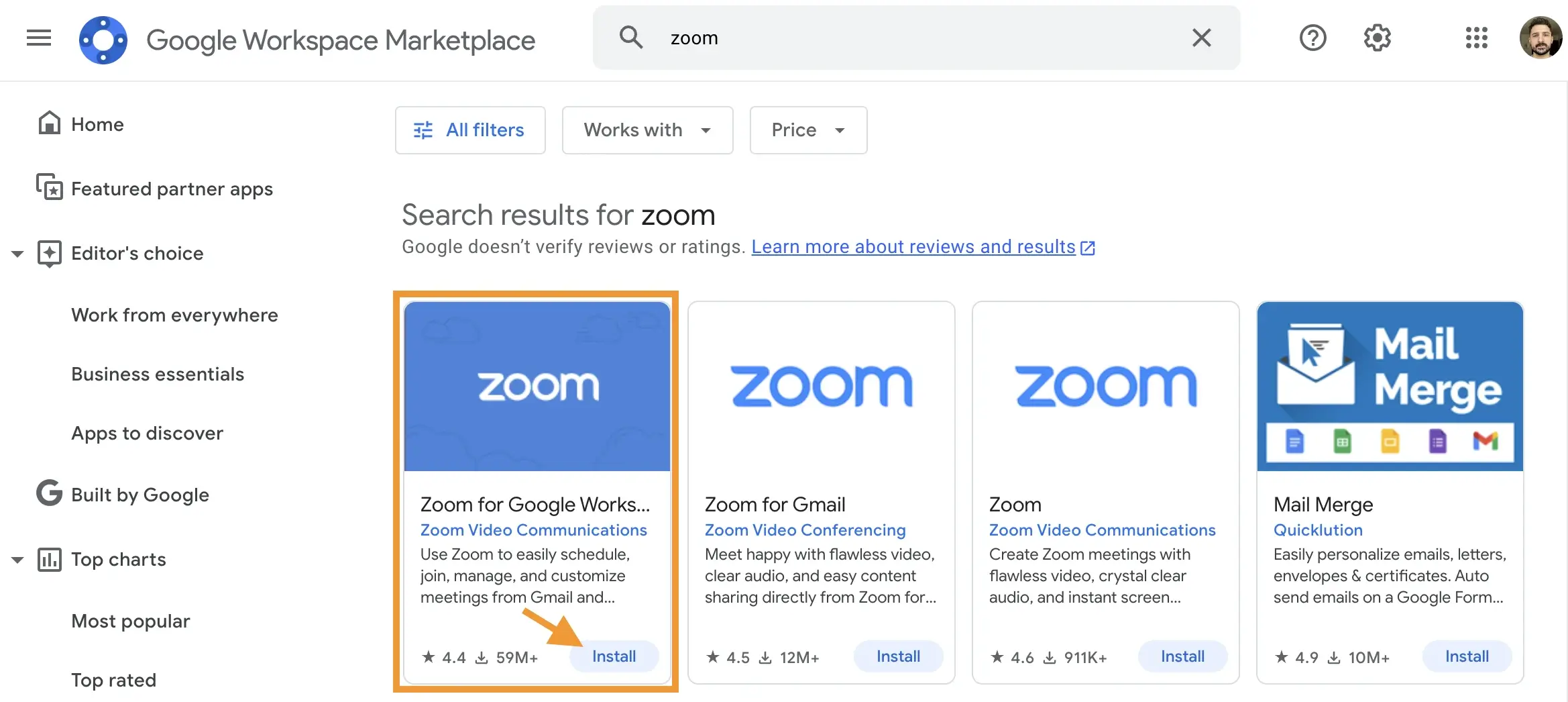
The official Zoom for Google Workspace add-on is the most direct way to connect these platforms. It allows you to schedule, join, and manage Zoom meetings directly from Gmail or Google Calendar.
For individual users:
1. Sign in to your Google account
2. Navigate to the Google Workspace Marketplace and search for "Zoom"
3. Click on the "Zoom for Google Workspace" add-on
4. Click "Install," then "Continue"
5. Review the terms of service and click "Accept"
Important note: When installing the add-on, make sure you're only signed into the Google account you want to use with Zoom. Being signed into multiple accounts simultaneously can cause sync issues.
For Google Workspace administrators (for your entire organization):
1. Sign in to your Google Workspace account as an admin
2. Navigate to the Google Workspace Marketplace and search for "Zoom"
3. Click the "Zoom for Google Workspace" add-on
4. Click "Install," then "Continue"
5. Review the terms of service, specify if you want to make the app available to your whole domain or to a specific team or department
6. Select the agreement box and click "Accept"
Once installed, the integration enables you to:
- Schedule Zoom meetings directly from Google Calendar
- Join Zoom meetings with a single click from calendar events
- Automatically add Zoom meetings when creating calendar events
- Schedule meetings directly from Gmail conversations
Method 2: Setting up calendar and contacts integration in Zoom
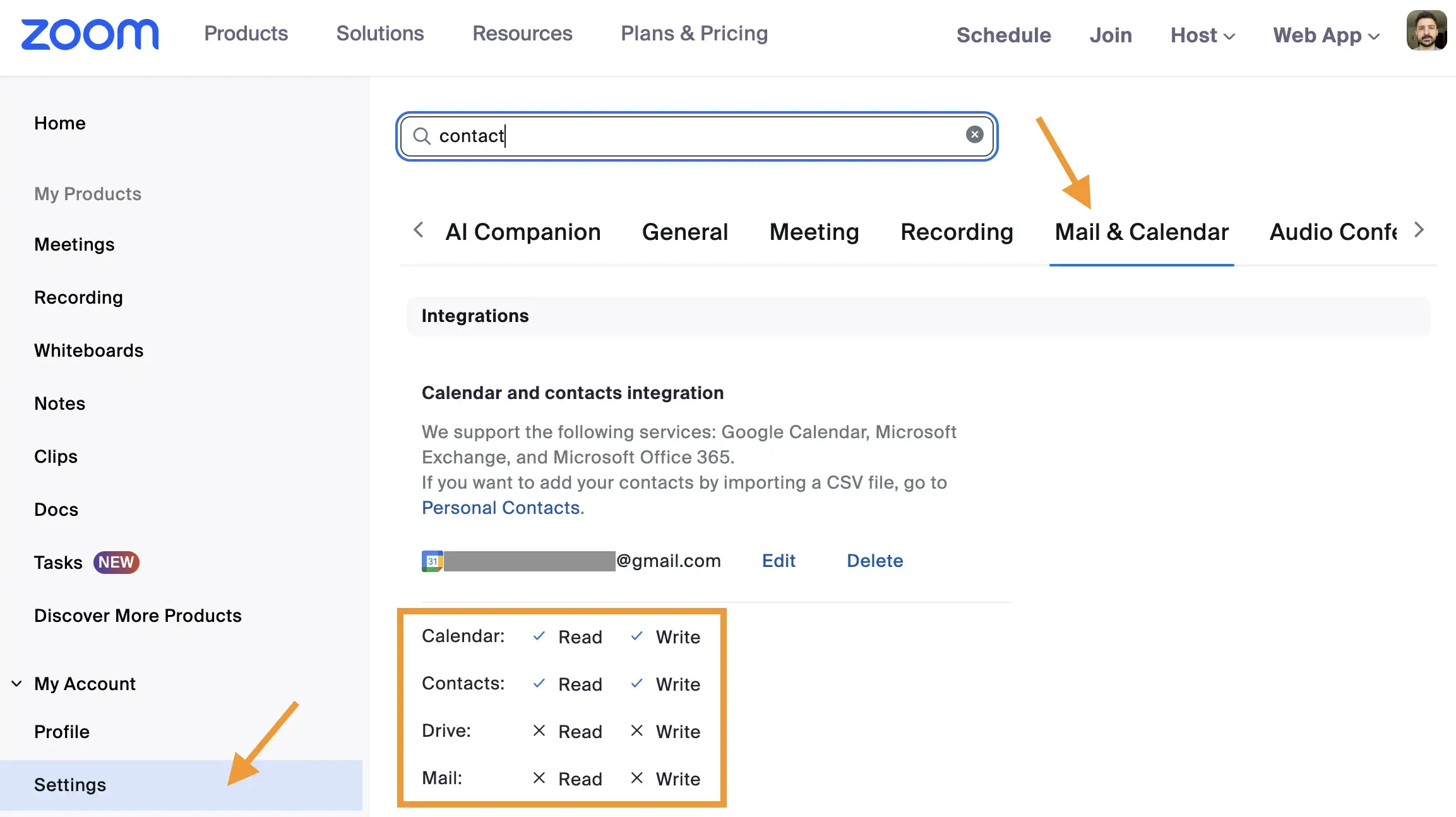
For a deeper integration between Zoom and Google Calendar, you can configure the built-in calendar and contacts synchronization:
1. Sign in to the Zoom web portal
2. On the left side menu, select "Settings"
3. Scroll horizontally to the "Main & Calendar" (or type in "contact" in the search bar)
4. Click "Edit" next to the integration service
5. Select "Google Calendar" as your service
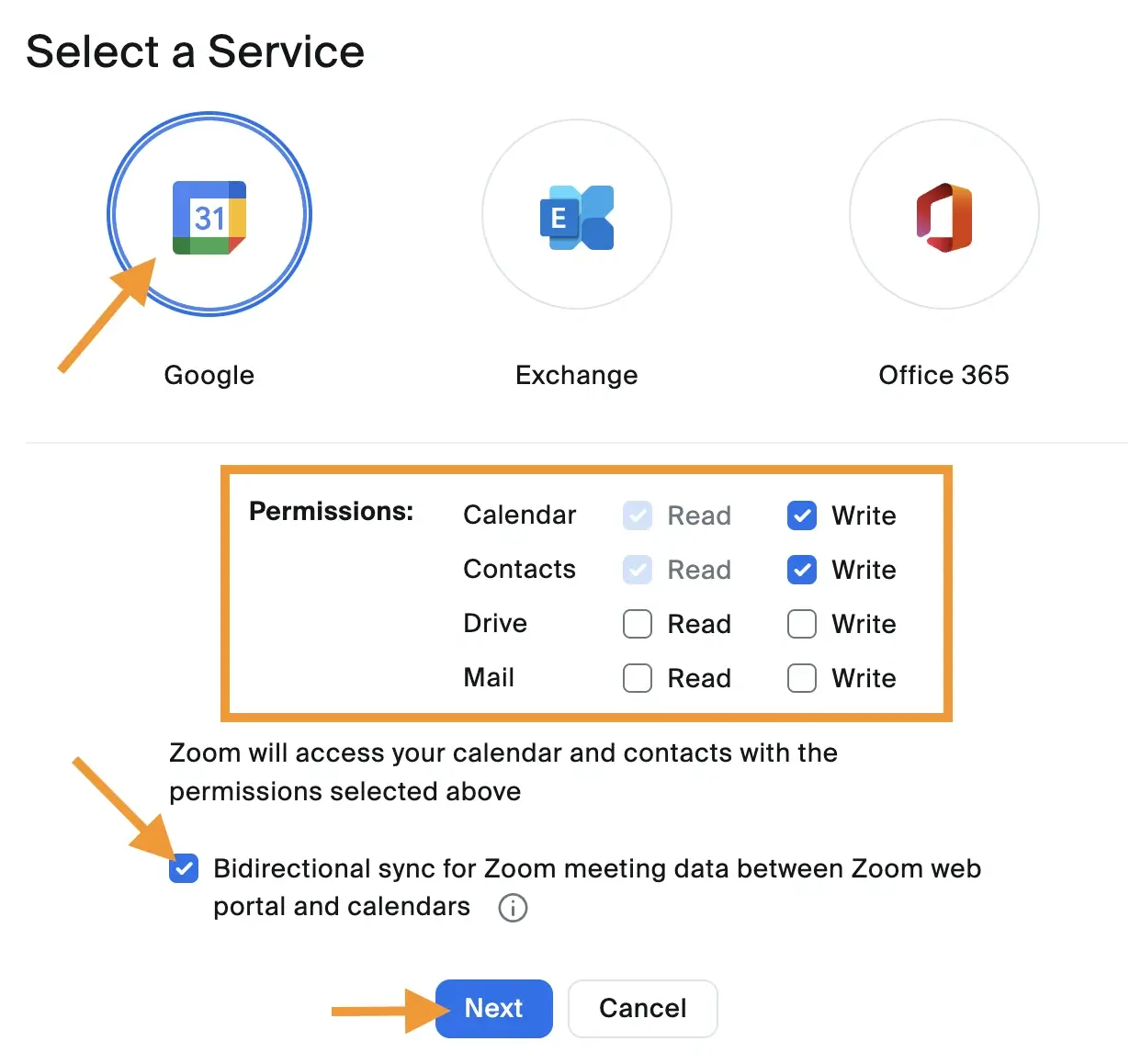
5. Choose your desired permissions:
- Calendar Read: View calendar events in Zoom
- Calendar Write: Create and edit events from Zoom
- Calendar Shared: Access delegated and shared calendars
- Contacts Read: View Google contacts in Zoom
- Contacts Write: Create contacts using Zoom
- Click "Next" and follow the on-screen instructions to authorize Zoom's access to your Google account
This method provides bi-directional syncing, as long as you choose that option (see the image above), ensuring meetings created in either Zoom or Google Calendar will automatically appear in both places.
Method 3: Integrate Zoom and Google Calendar with scheduling tools like Zeeg
If you're looking for advanced scheduling capabilities beyond what the standard integrations offer, third-party scheduling tools can provide additional features while maintaining the Zoom-Google Calendar connection.
For example, Zeeg allows you to:
- Set up personalized booking pages that integrate with both Zoom and Google Calendar
- Create automatic buffer times between meetings
- Offer time slots based on your availability
- Collect pre-meeting information from attendees
- Automatically generate Zoom links for scheduled meetings
These tools handle the technical integration behind the scenes while giving you more control over your scheduling workflow.
How to add Zoom to Google Calendar when scheduling meetings
Once you've set up the integration, here's how to schedule Zoom meetings directly from Google Calendar:
Using a web browser
- Sign in to Google Calendar in your web browser
- Click "Create" or click a time slot on your calendar
- Enter meeting details (title, guests, location, etc.)
- Click "More options"
- In the "Add video conferencing" dropdown menu, select "Zoom Meeting"
- Google Calendar will automatically add Zoom meeting information to the event
- (Optional) In the right-side panel, click the Zoom icon to modify meeting settings
- Click "Save" to create the event and send invitations
Using the Google Calendar mobile app
- Open the Google Calendar app on your phone
- Tap the "+" icon, then "Event"
- Fill in your event details
- Tap the video conferencing dropdown and select "Zoom Meeting"
- If this is your first time, tap "Authorize" and follow the on-screen instructions
- Finish adding event details
- Tap "Save" to create the meeting and send invitations
Scheduling from Gmail
You can also schedule meetings directly from email conversations:
- Open an email thread in Gmail
- In the right-side panel, click the Zoom icon
- Click "Schedule a meeting"
- Adjust the meeting settings as needed (the topic will automatically use the email subject)
- Select "Invite participants via email" to send details to participants
- Click "Schedule Meeting"
👉 Schedule your Google Calendar Zoom meetings with Zeeg
If you want to streamline your scheduling, use Zeeg. Create a Zeeg account, integrate it with Google Calendar and Zoom in a few clicks, and automate your Zoom-Google Calendar integration meeting scheduling.
Zoom Google Calendar integration: Setting Zoom as default
If your organization primarily uses Zoom for meetings, you can set it as the default video conferencing option. For Google Worspace admins, the steps are simple:
- In the Google Admin console dashboard, verify that Google Meet is turned off for everyone (if you want Zoom to be the only option)
- Install Zoom for all users in the Google Workspace Marketplace
- From the Google Admin console, go to Apps > Google Workspace > Calendar
- Click "Sharing settings," then "Video conferencing"
- Select "Automatically add video calls to events users create"
- Click "Save"
If you sometimes need Google Meet alongside Zoom, you can disable Google Meet as the default provider so users can choose which platform to use for each meeting.
How to connect Zoom Rooms with Google Calendar integration
For organizations with physical Zoom Rooms, you can integrate them with Google Calendar to display room schedules and enable one-touch meeting join.
Prerequisites
- Super Admin role on your Google account (or custom role with necessary privileges)
- A dedicated Google user account to manage calendar resources
Setup process
- Create a calendar resource for each physical Zoom Room
- Share each calendar resource with your dedicated management user
- Grant that user "Make Changes and manage Sharing" permissions
- Add the Google Calendar service to your Zoom account:
- Sign in to the Zoom web portal
- Go to Room Management > Calendar Integration
- Click "Add Calendar Service"
- Select Google Calendar and authenticate with your dedicated user account
- Follow the prompts to complete the setup
Once configured, your Zoom Rooms will display scheduled meetings and allow participants to join sessions with a single tap.
Advanced Google Calendar and Zoom features
Scheduling on behalf of others:
If you're an executive assistant or need to schedule meetings for colleagues:
- Have the meeting host share their Google Calendar with you (granting "Make changes to events" permission)
- Have them assign you Zoom scheduling privileges in their Zoom settings
- When creating a calendar event, select their calendar instead of yours
- Add Zoom meeting details as usual
Team scheduling with round-robin:
For teams handling multiple meeting requests:
- Set up Zoom for Google Workspace for all team members
- Configure scheduling permissions for each team member
- Use Google Calendar's appointment slots feature to coordinate availability
- Add Zoom meetings to each appointment slot
Zoom Google Calendar integration: Troubleshooting common issues
"Failed to create conference" error
This error typically occurs due to API rate limits or service disruptions. Check the Zoom Service Status page for outages, or try the following workarounds:
- Use the Zoom Chrome Extension instead of the Google Workspace add-on
- Sign out of all Google accounts except the one you're using for Zoom
- Try scheduling the meeting directly in Zoom, then add it to Google Calendar
Multiple Google accounts causing problems
If you're signed into multiple Google accounts, the integration may behave unpredictably:
- Sign out of all Google accounts
- Sign in only to the account you want to use with Zoom
- Install or use the add-on with this single account
Calendar events not syncing
If calendar events aren't appearing correctly across platforms:
- Verify your calendar permissions are correctly set
- Check that you haven't reached your Google API quota limits
- Sign out and sign back in to both services
- Wait 2-3 minutes for synchronization to complete
- If using a web browser, try clicking on the calendar event with the Zoom meeting to force a sync check
"This is a calendar meeting" or "Google Calendar Meeting (not synced)" placeholders
When scheduling through the add-on, you may see placeholder meetings until synchronization completes:
- Save your Google Calendar event
- Wait approximately 2 minutes for synchronization
- If the placeholder remains, sign out and sign back in to the Zoom add-on
Can't change meeting ownership
The Google Workspace add-on doesn't support transferring Zoom host roles when changing event ownership in Google Calendar. Instead:
- Edit the event through the add-on
- Add an alternative host using the Alternative Hosts field
- Or change the "Schedule For" option if using scheduling privileges
Using Zoom Rooms with Google Calendar
For organizations with physical conference rooms equipped with Zoom hardware:
- Create calendar resources for each physical meeting space
- Share these calendar resources with your Zoom management account
- Configure the integration between Zoom Rooms and Google Calendar
- When scheduling meetings, include the room resource in the invitation
This allows you to see room availability and schedule meetings in specific physical locations, with Zoom automatically handling the video conferencing setup.
How Zeeg automates your Zoom-Google Calendar integration
While connecting Zoom to Google Calendar provides a solid foundation for meeting management, dedicated scheduling tools like Zeeg can significantly enhance this integration.
1. Zeeg + Zoom:
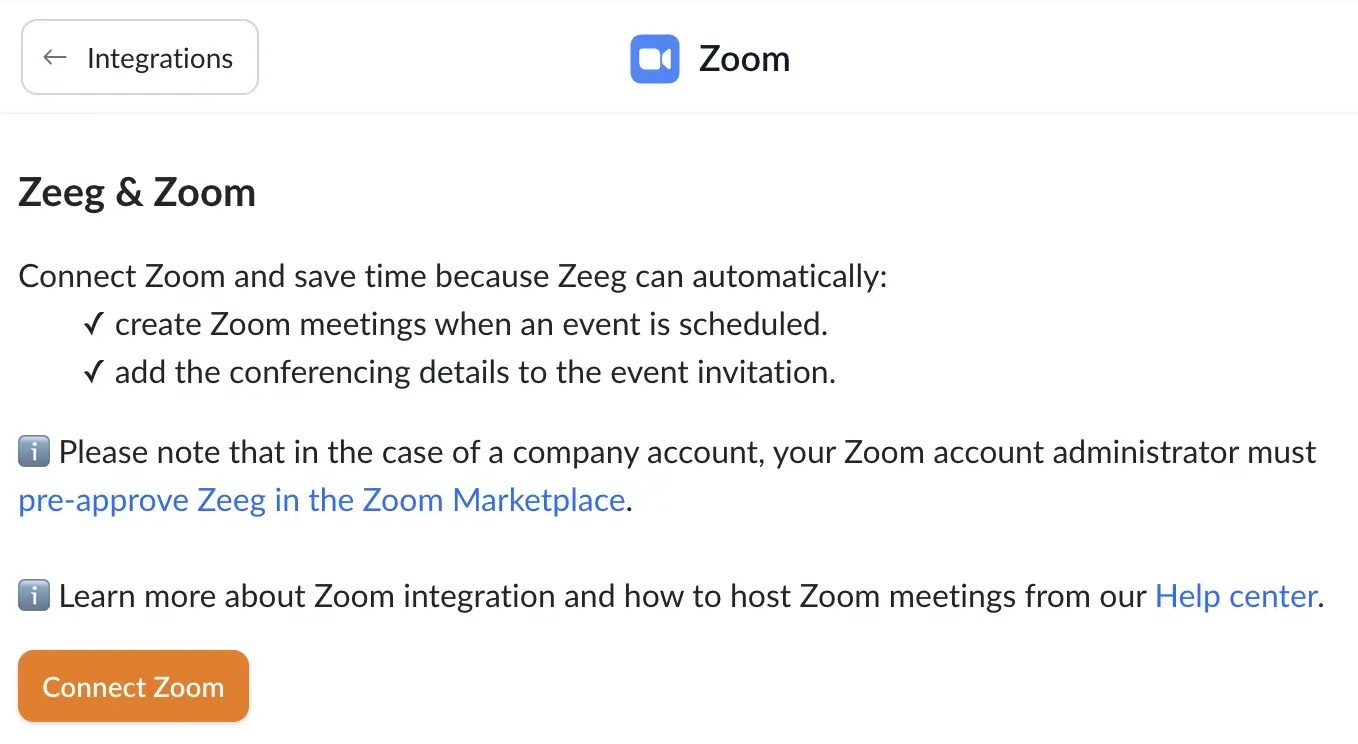
If you connect Zeeg to Zoom, you'll have a powerful scheduling solution perfectly aligned with Zoom. A great connection between scheduling and video conferencing:
✓ Automated Zoom conference details: Zeeg automatically generates unique Zoom meeting details for every scheduled event
✓ Built-in Zoom meeting links: Each appointment includes a Zoom meeting link in the calendar invitation
✓ Flexible meeting locations: Offer invitees multiple meeting options including Zoom, phone, or in-person
✓ Location preference: Let attendees choose their preferred meeting method when booking
Setting up the Zoom integration with Zeeg takes just a few clicks:
- Connect your Zoom account to Zeeg in the integrations section
- Select Zoom as a meeting location in your scheduling settings
- Zeeg handles the rest automatically
2. Zeeg + Google Calendar:
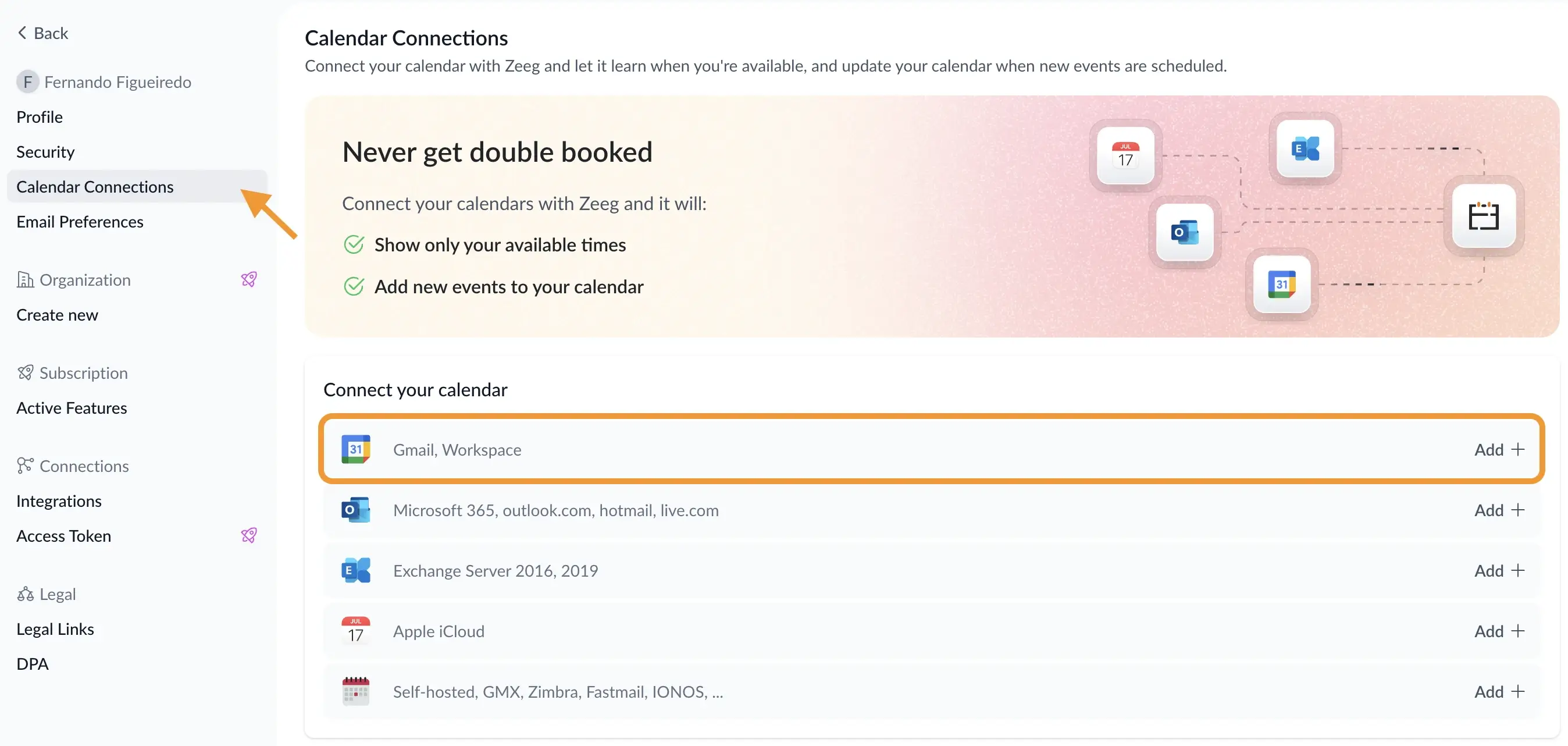
Zeeg creates a deeper connection with Google Calendar that goes beyond basic scheduling:
✓ Smart availability tracking: Zeeg automatically learns which times you're available based on your Google Calendar
✓ Conflict prevention: Zeeg checks your connected calendars to prevent double-booking
✓ Two-way synchronization: Changes made in either Zeeg or Google Calendar automatically update in both systems
✓ Multi-calendar support: Connect multiple Google Calendars to manage personal and work schedules simultaneously
✓ Cancellation syncing: When events are canceled in Google Calendar, they're automatically canceled in Zeeg and vice versa
✓ Custom calendar selection: Choose which specific Google Calendar receives your scheduled appointments
✓ Intelligent busy-time recognition: Zeeg respects your "busy" status in Google Calendar while ignoring "free" time blocks
Setting up this integration is straightforward:
- Click on your name in Zeeg and select "Calendar Connections"
- Select "+ Gmail, Workspace"
- Follow the prompts to grant Zeeg the necessary permissions
3. Additional Zeeg benefits:
✓ Streamlined booking: Create personalized scheduling links that respect your calendar availability
✓ Automatic buffer times: Prevent back-to-back meetings by adding breathing room between appointments
✓ Smart scheduling: Find optimal meeting times that work for all participants without email ping-pong
✓ Team coordination: Manage availability across multiple team members with round robin scheduling
✓ Stack mode scheduling: Prevent scattered meetings by grouping them together efficiently
✓ Multi-person scheduling: Coordinate events that require multiple hosts like interviews or sales calls
✓ Customized booking pages: Maintain your brand identity throughout the scheduling process
✓ Pre-meeting questionnaires: Gather important information before meetings to maximize productivity
✓ Digital business card: Create a central hub for clients to connect with you or your team
For professionals who schedule frequent meetings, Zeeg eliminates the back-and-forth typically associated with finding mutually convenient times. Additionally, Zeeg offers full GDPR compliance with European data hosting, making it ideal for privacy-conscious organizations.
Unlike some scheduling platforms that severely limit features on free plans, Zeeg provides great capabilities with the free plan. After that you'll have some costs, but the prices are quite affordable for scaling businesses.
Connecting Zoom to Google Calendar: Final thoughts
Connecting Zoom to Google Calendar creates a more efficient meeting workflow, eliminating manual steps and reducing the potential for scheduling errors. Whether you choose the official Zoom for Google Workspace add-on, direct calendar integration, or an enhanced scheduling tool like Zeeg, the time you save will quickly justify the setup effort.
The best way to connect Zoom to Google Calendar depends on your needs:
- For individual users or small teams, the Zoom for Google Workspace add-on provides straightforward functionality
- For larger organizations managing multiple meeting rooms, the Zoom Rooms integration offers comprehensive facility scheduling
- For professionals who schedule frequent external meetings, specialized scheduling tools like Zeeg provide the most flexibility and professional appearance
Whichever method you choose, the seamless connection between your calendar and video conferencing platform will streamline your workflow and help you focus on what matters most—the conversations and collaborations that happen in those meetings.
By following the steps in this guide, you'll create a smoother scheduling experience for yourself and everyone you meet with, turning a previously fragmented process into a streamlined workflow that saves time and reduces frustration for all involved.
Sources:
Zeeg is Europe's leading AI voice agent and appointment scheduling software in one solution — GDPR-compliant, made in Germany. Start for free →


