How to Cancel Calendly Subscription: 2026 Guide


Wondering how to cancel your Calendly subscription? Look no further.
This guide walks you through every step, from understanding your options to managing the transition properly. We'll also introduce you to Zeeg, a more affordable and feature-rich alternative that offers better value, European data hosting, and next-level capabilities like lead qualification and CRM features.
Signs it's time to cancel your Calendly subscription

Before learning how to cancel Calendly, let's first have a look at why businesses drop Calendly in the first place.
Data privacy concerns: For companies operating in Europe, data residency is a big deal. Calendly stores data on US servers, which can create compliance challenges for businesses that deal with EU customer information. While Calendly has GDPR compliance measures, companies looking for European data hosting should look elsewhere. This becomes especially pressing when you find yourself managing sensitive meeting information and client data.
Budget optimization: Team growth changes the math. A single user at $10/month scales quickly—a team of 20 costs $200 monthly on the Standard plan, or $320 on Teams. Companies often find out they're paying for features they don’t even use, which prompts a cost-benefit analysis of their scheduling stack.
Team restructuring: Organizational changes affect scheduling needs. Whether you're scaling up, downsizing, or reorganizing departments, your scheduling requirements shift. Some teams need more advanced features as they grow, while others realize they need simpler solutions.
Missing features: Your needs evolve. Perhaps you need Apple Calendar integration (which Calendly discontinued for new users in 2024), better CRM integrations, or more customization options. When your scheduling tool can't keep up with your requirements, it's time to look at alternatives to Calendly.
Understanding the status of your Calendly account
Now, let's assess your current setup before making any changes.
Current plan assessment: Check your subscription plan, billing cycle dates, and active features you're using. Review which team members have access and what integrations you've connected with Calendly. This information is important during the cancellation process.
Data inventory: Before you cancel your Calendly subscription, document what you need to save. Your upcoming scheduled meetings, custom event types, and routing forms all have valuable information. Don't forget about your integration settings and team scheduling rules—recreating these from memory later is frustrating and time-consuming, you will thank yourself later.
Usage analysis: Understanding your actual usage helps plan your transition. Look at meeting frequency per user, which features get used most, and how your team collaborates through the platform. Check which integrations you actively use and when your peak scheduling periods occur.
How to cancel Calendly: different options
Now, let's get down to the bottom of the business. Well, you have two options for cancellation:
Option 1: Downgrade to free plan
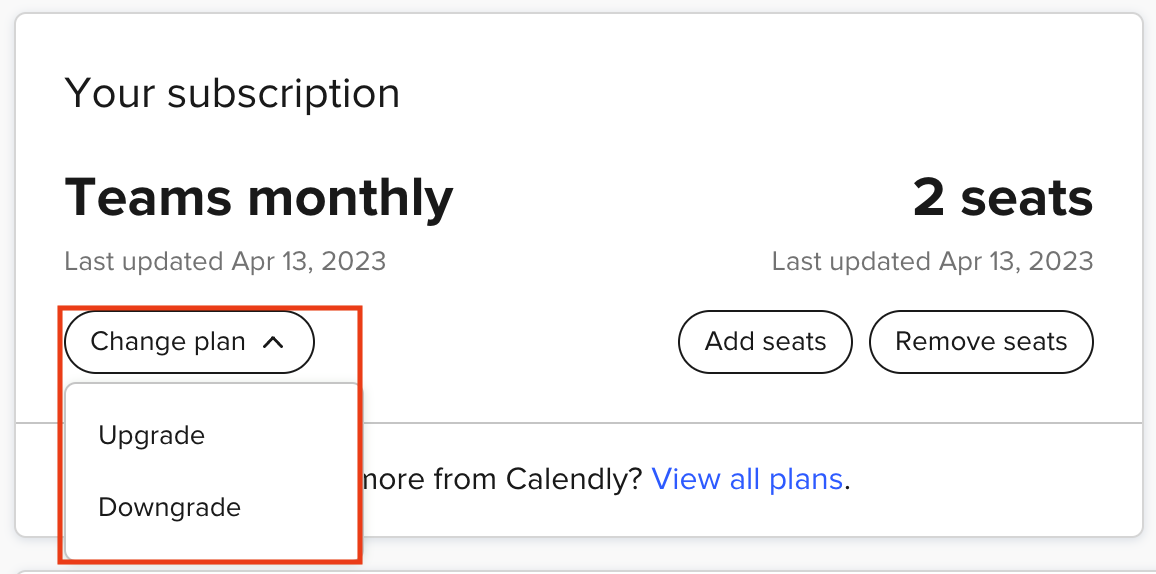
The free plan lets you keep basic scheduling while losing premium features. You'll retain one active event type, basic calendar integration, a simple scheduling page, and email notifications. However, team scheduling capabilities, multiple event types, custom branding, advanced integrations, and automated workflows disappear with the downgrade.
Option 2: Complete account deletion
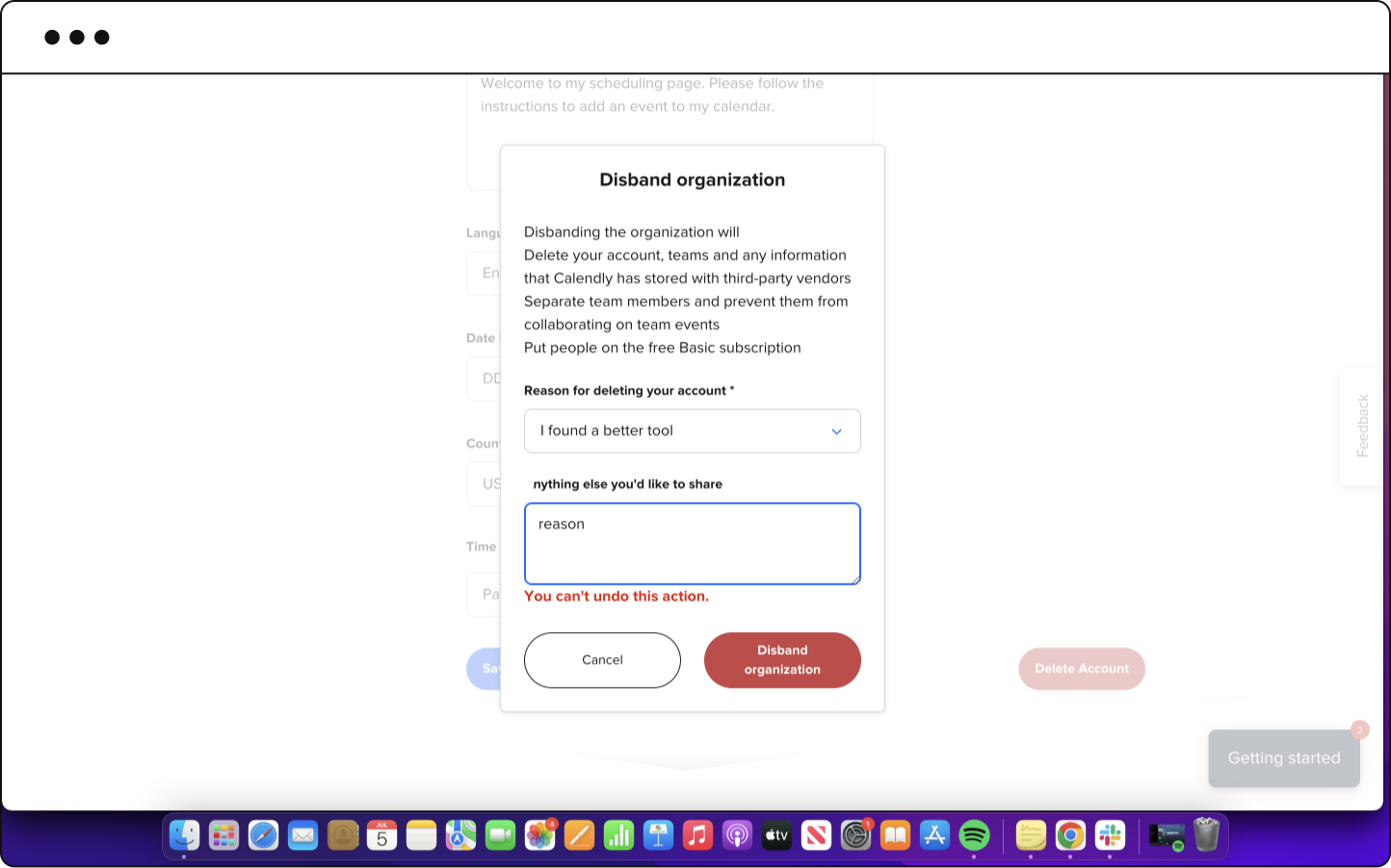
When you delete Calendly account, these actions are permanent. All scheduled meetings get canceled, event types are removed, and team access is revoked. Your integrations disconnect and data gets permanently deleted. Choose this option only when you're certain you won't need any Calendly functionality.
How to cancel your Calendly subscription: Step-by-step guide
Ready to proceed? Here's exactly how to cancel Calendly account.
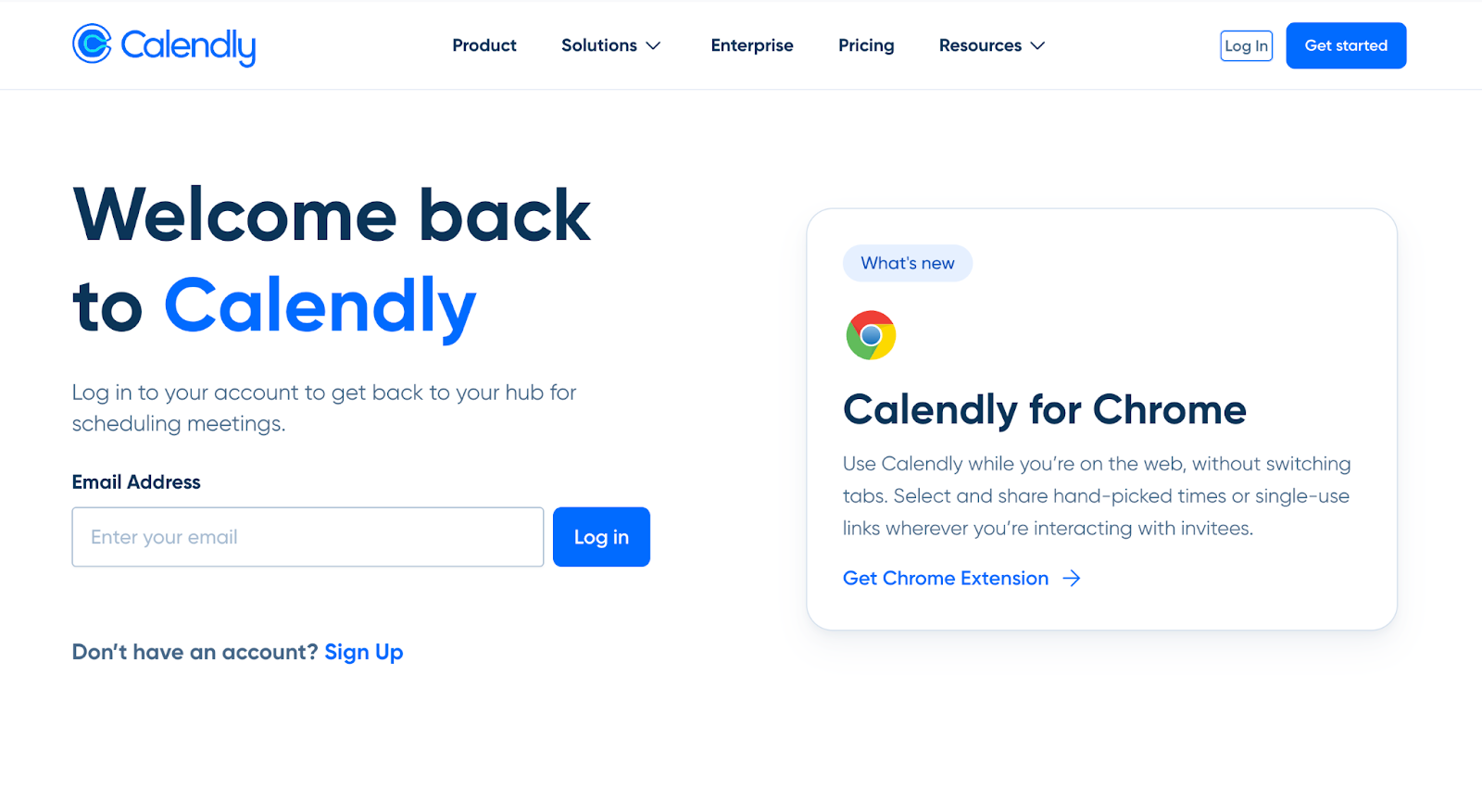
Step 1: Log into your account
Visit calendly.com/login and enter your credentials. For SSO users, select your authentication provider instead.
Step 2: Access account settings
Click your profile picture in the top-right corner, then select "Account Settings" from the dropdown menu.
Step 3: Navigate to billing
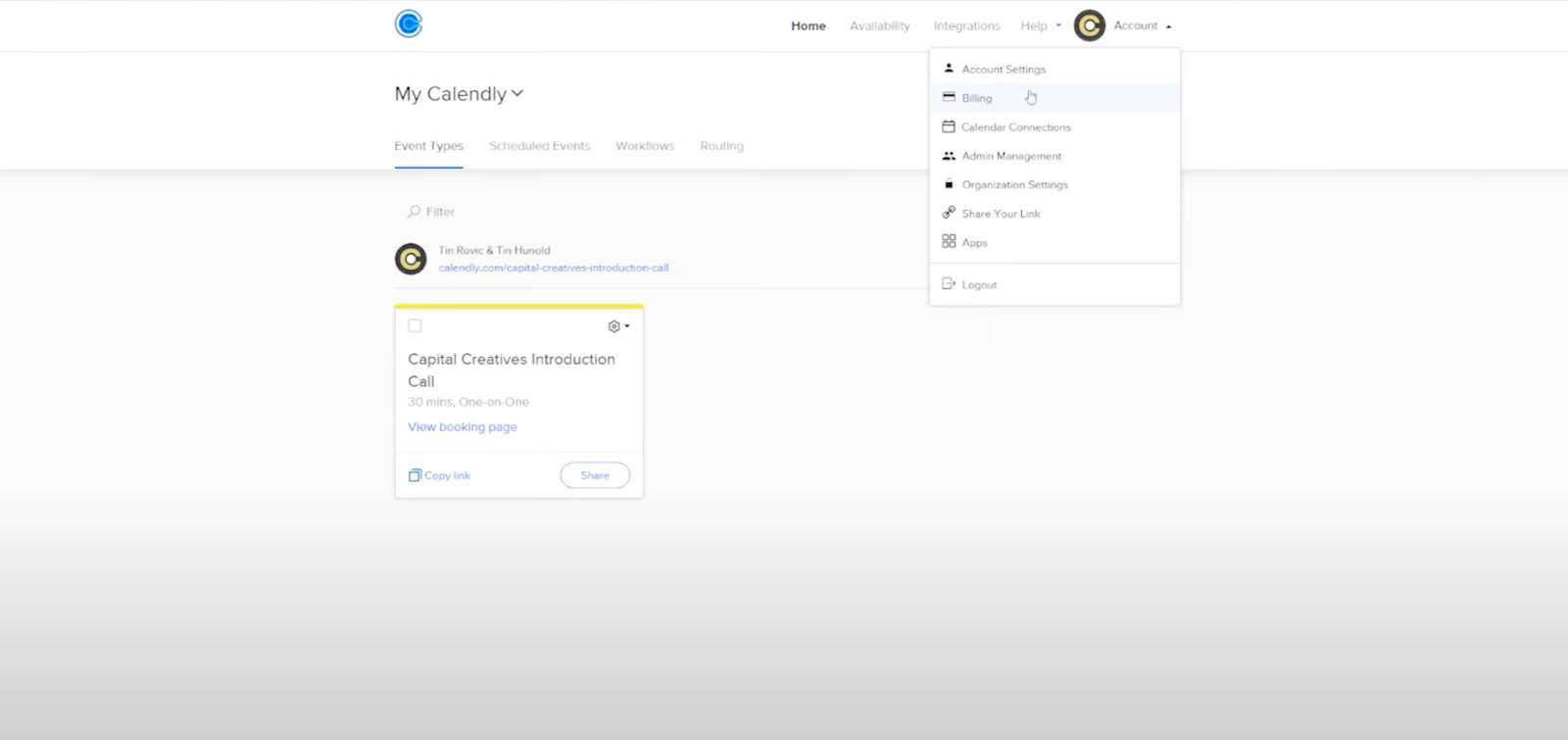
Find "Billing" in the left sidebar, click to open billing settings, and review your current plan details.
Step 4: Choose cancellation option
Select between "Downgrade" for the free plan or "Delete Account" for complete removal. Review carefully—deletion is permanent.
Step 5: Export your data
Before confirming, download scheduled meetings, save event configurations, and backup custom settings. This step is critical because you can't retrieve data after deletion.
Step 6: Confirm cancellation
Provide feedback if you'd like (this is optional), check the final warnings, and confirm your decision.
For team and enterprise administrators: Pre-cancellation planning
Team cancellations require some extra steps:
Communication strategy: Start with clear team communication by scheduling announcement meetings and providing specific timelines. Address concerns openly and set transition expectations. For enterprise customers, contact your account representative first to discuss contractual obligations.
Data management: Export comprehensive organizational data including meeting histories, event types, permission structures, routing rules, and custom workflows. Coordinate with your IT department to ensure compliance with internal security policies.
Documentation: Map your current processes thoroughly. Include routing rules, integration setups, automated workflows, custom API implementations, and SSO configurations. Screenshots and step-by-step instructions prove invaluable when recreating complex processes in your new system.
Transition timeline: Create a structured schedule covering data backup and export, training sessions for your new solution, and phased rollout across departments. Build in buffer time for testing and set a definitive cutover date when Calendly will no longer be used.
For team administrators, focus on communication, data export, documentation, timeline planning, and support designation. Enterprise accounts need additional steps: contract review with your account rep, security compliance checks, API migration planning, department coordination, and client communication plans.
Calendly cancellation policy: What to expect
Now, what happens after you cancel your Calendly subscription?
Access continuation: Your access continues until your current billing cycle ends. All premium features remain functional during this period, giving you time to transition without disruption. This grace period is valuable for businesses that need to gradually migrate their scheduling processes.
Data management: While Calendly has GDPR compliance, take proactive steps. Export crucial scheduling data, save meeting history, document custom workflows, and back up integration settings. Once your account closes, retrieving this information becomes impossible.
Refund policy: Refunds depend on your subscription type. Monthly subscriptions typically don't receive pro-rated refunds. Annual subscriptions may be handled differently—contact support for special cases. Enterprise accounts should discuss refund options with their account representative.
Meet Zeeg CRM: A cost-effective and secure alternative
After canceling Calendly, consider Zeeg with its premium features and European security at budget-friendly prices.
Zeeg offers round-robin distribution for fair meeting allocation across your team. Routing forms qualify leads and direct them to the appropriate person automatically. Team scheduling finds collective availability without the back-and-forth emails. Stack Mode groups meetings efficiently to create focused work blocks, while buffer times prevent back-to-back scheduling burnout.
The platform integrates with Google Calendar, Outlook, Apple (iCloud), Exchange, and Office 365. Meeting platforms like Zoom, Google Meet, and Microsoft Teams connect directly. CRM integrations include Salesforce, HubSpot, and Zapier. Payment processing works through Stripe and PayPal.
Also, Zeeg gives you full GDPR compliance with European data hosting and end-to-end encryption. Your data stays within EU borders with complete data sovereignty. The platform uses ISO27001 certified data centers, with SAML SSO and SCIM available for enterprise needs.
Pricing that scales with you
The Starter plan is free forever, including two scheduling pages, unlimited 1:1 meetings, basic automation, and calendar integrations. It's perfect for testing the platform or running a solo operation.
Professional costs $10 per user monthly and adds unlimited scheduling pages, multiple calendar connections, custom branding, and advanced workflows. This tier works well for individuals and small teams needing professional features.
Business runs $16 per user monthly, bringing team scheduling features, round-robin distribution, routing forms, and an analytics dashboard. Growing companies find this tier hits the sweet spot between features and cost.
Scale at $30 per user monthly delivers enterprise security, advanced analytics, priority support, and custom integrations for larger organizations. Check our our pricing comparison article with Calendly for more detailed information!
Whether you're a solo entrepreneur or managing global teams, Zeeg adapts to your needs. Solo users get professional booking pages with automated reminders. Small teams benefit from timezone handling and basic workflows. Growing companies access team coordination and resource booking. Enterprise organizations use department rules and advanced analytics.
Bottom line
Whether you're looking to cancel Calendly completely or explore alternatives, ensure you've exported necessary data, informed team members, backed up scheduled meetings, and selected a new scheduling solution.
For businesses requiring European data hosting, better pricing, or Apple Calendar integration, Zeeg offers a complete scheduling solution. With GDPR compliance, advanced features, and pricing starting at just $10/month, it's designed for companies that value both security and affordability.
Frequently asked questions (FAQ) on Calendly cancellation policy
How do I cancel Calendly?
Log in, go to Settings, then Billing, choose your cancellation type (downgrade or delete), and confirm your decision.
What is the Calendly cancellation policy?
Access continues until your billing cycle ends, with no automatic refunds for partial months.
Can I get a Calendly refund?
Refund availability depends on subscription type and timing. Contact support for specific cases.
How to cancel my Calendly subscription mid-cycle?
Cancel anytime through billing settings. Access continues until your current billing period ends.
Will my scheduled meetings be canceled if I delete my account?
Yes, complete account deletion cancels all scheduled meetings. Choose the downgrade option to maintain scheduled meetings.
Can I reactivate my Calendly account after deletion?
No, account deletion is permanent. Downgrade to free plan instead if you might need reactivation later.
How long does it take to delete my Calendly account?
Account deletion is immediate once confirmed, though data may be retained for a short period per their privacy policy.
Zeeg is Europe's leading AI voice agent and appointment scheduling software in one solution — GDPR-compliant, made in Germany. Start for free →