
How to Sync Google Calendar with Apple Calendar: Explained


Managing your schedule across different devices can be challenging, especially when you use both Google and Apple products, and syncing Google Calendar with Apple Calendar is simply a great solution that keeps all your events in one place. And more than knowing how to use Apple Calendar and Google Calendar, you should also know how the two can be combined. That's what this guide will cover.
We'll also talk about Zeeg and how you can merge calendars in one simple tool, which allows you to streamline your meeting scheduling with your personal and professional calendars, no matter what calendar app you use. Zeeg is the leading AI agent and appointment scheduling tool in the European market that is made in Germany and delivers GDPR-compliance by design.
Try any of the paid plans for free on a 14-day trial. You can also just keep the free plan forever.
Sign up for freeWhy sync Google Calendar with Apple Calendar?

Most of us juggle multiple calendars to manage our personal and professional lives. You might have an iPhone but prefer using Google for emails and calendar management. Syncing these calendars creates a unified scheduling system with several benefits:
- View all your events in one place without switching between apps
- Real-time updates across both platforms
- Access your complete schedule on any device
- Avoid double-booking by seeing all commitments at once
- Seamless experience when transitioning between Apple and Google devices
- You let others book meetings with you no matter what calendar you use - through Zeeg
👉 Want to automate your scheduling? Meet Zeeg. Or read more about:
- Calendly vs Google Calendar
- Google Calendar Appointment Scheduling tool
- Does Calendly work with Apple Calendar?
Prerequisites for syncing calendars
Before you dive into syncing your calendars, it's important to ensure you have everything prepared for a smooth process.
First, you'll need active Google and Apple accounts—if you don't have these already, you can easily create them at accounts.google.com and appleid.apple.com respectively.
Your devices should also meet the minimum compatibility requirements: iPhones need to be running iOS 10 or later, iPads should have iPadOS 13 or later, and Macs require macOS Sierra (version 10.12) or newer.
Additionally, make sure your devices are updated to the latest operating system available, as this helps prevent potential bugs and adds features that can enhance the syncing experience. To check your device's OS version, go to Settings > General > About on iPhone/iPad, or Apple Menu > About This Mac on a Mac. As a precaution, it's also wise to back up your existing calendar data before making any changes—this ensures you won't lose important events during the sync process.
👉 Read about the differences between Google Calendar vs Apple Calendar
How to sync Google Calendar with Apple Calendar on iPhone and iPad
Adding your Google Calendar to your iOS device is straightforward:
1. On your iPhone or iPad, open the Settings app
2. Scroll down until Calendar or jut type it in

3. Tap Accounts, then Add Account


4. Select Google from the list of options

5. Enter your Google email address and tap Next
6. Enter your password and tap Next (if you use two-step verification and don't have the latest OS, you'll need to use an app password)
7. Make sure the Calendar toggle is turned on (you can also sync Mail, Contacts, and Notes if desired)
8. Tap Save to confirm your choices
After completing these steps, open the Calendar app on your device. Your Google Calendar events should now appear alongside your Apple Calendar events. The synchronization happens automatically whenever your device is connected to the internet.
If you already have a Google account set up on your device and just want to enable calendar sync, simply go to Settings > Calendar > Accounts, tap on your Google account, and turn on the Calendars toggle. And from that moment on you can start sharing your Apple or Google Calendar booking link, and new events will be linked within those calendars.
How to sync Google Calendar with Apple Calendar on Mac
Syncing calendars on your Mac is equally simple:
1. Open Apple Calendar on your Mac
2. In the top left corner, click Calendar > Add Account
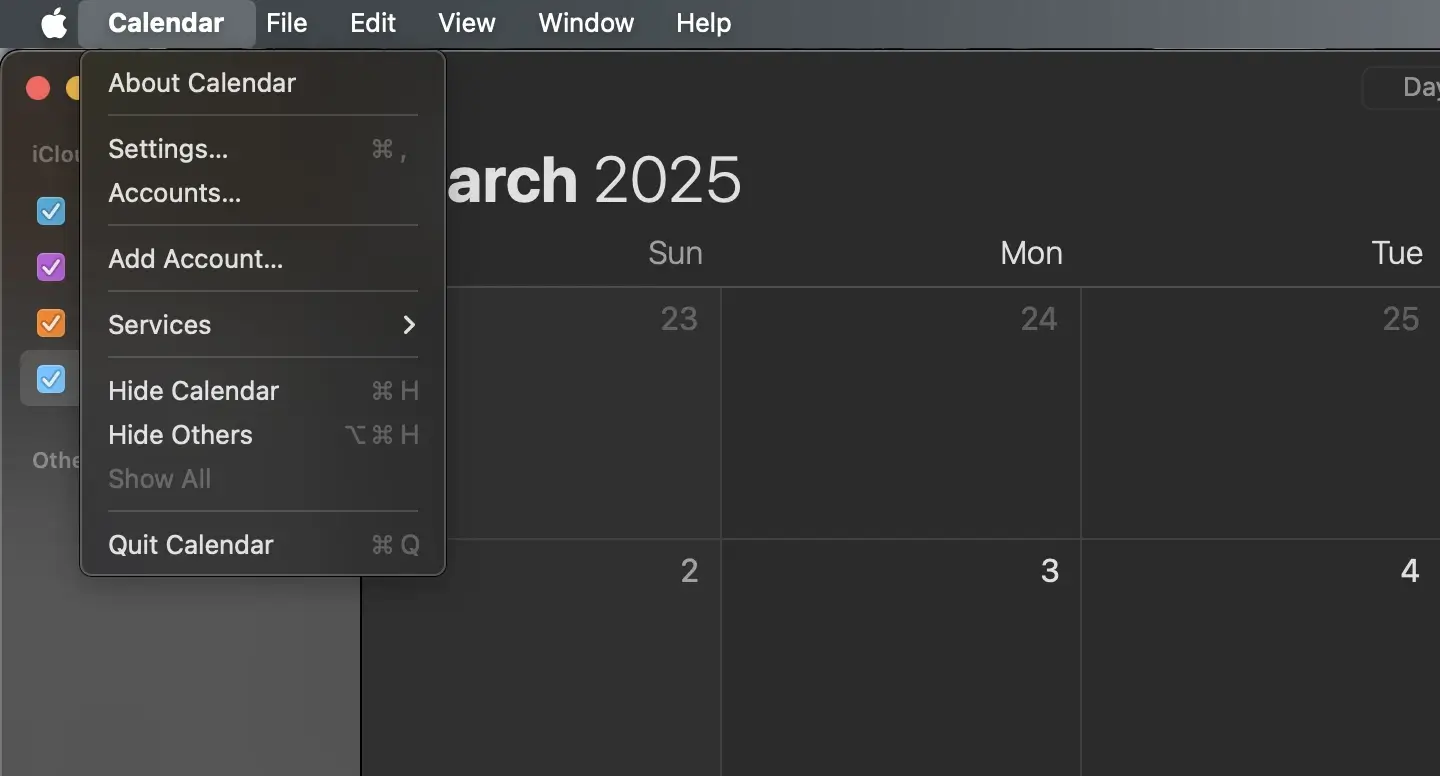
3. Select Google and click Continue
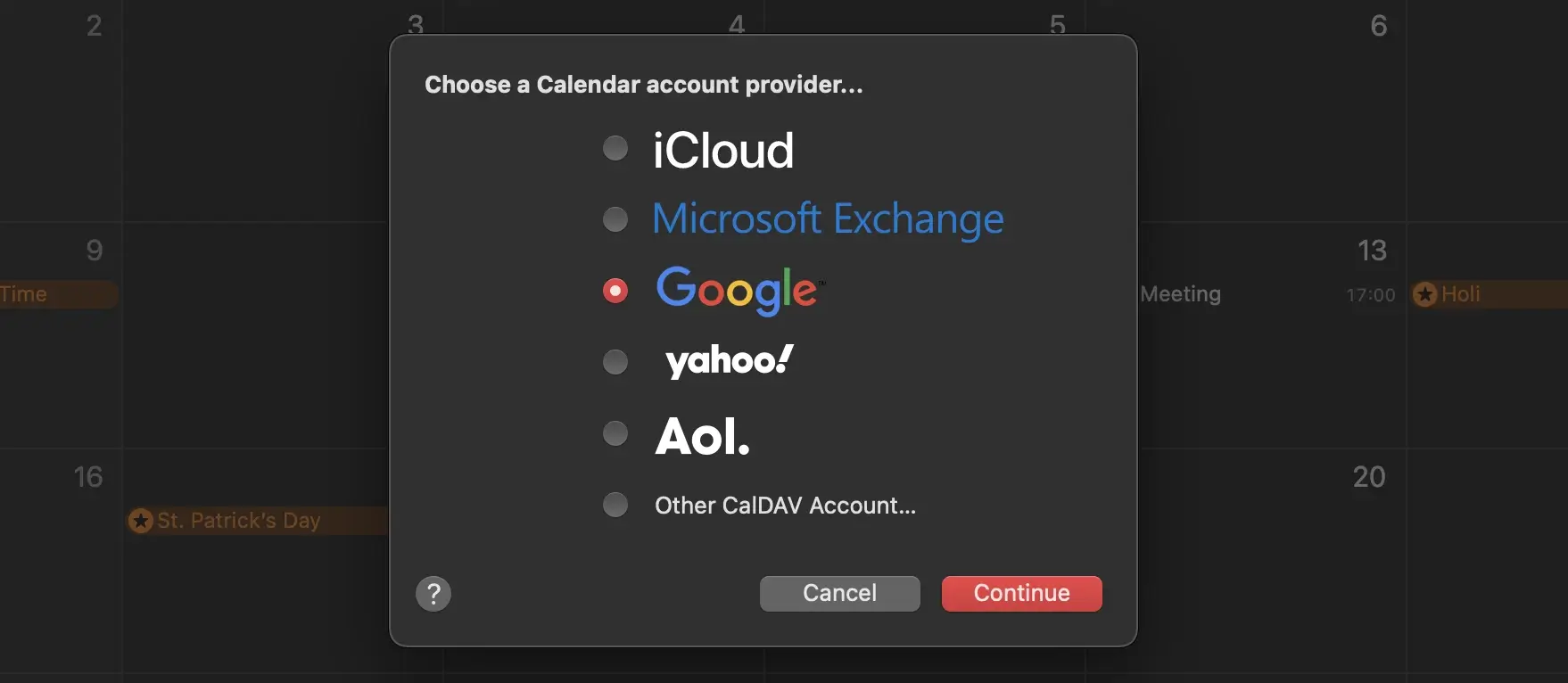
4. Follow the on-screen instructions to add your Google account information
5. Ensure the checkbox next to Calendars is selected
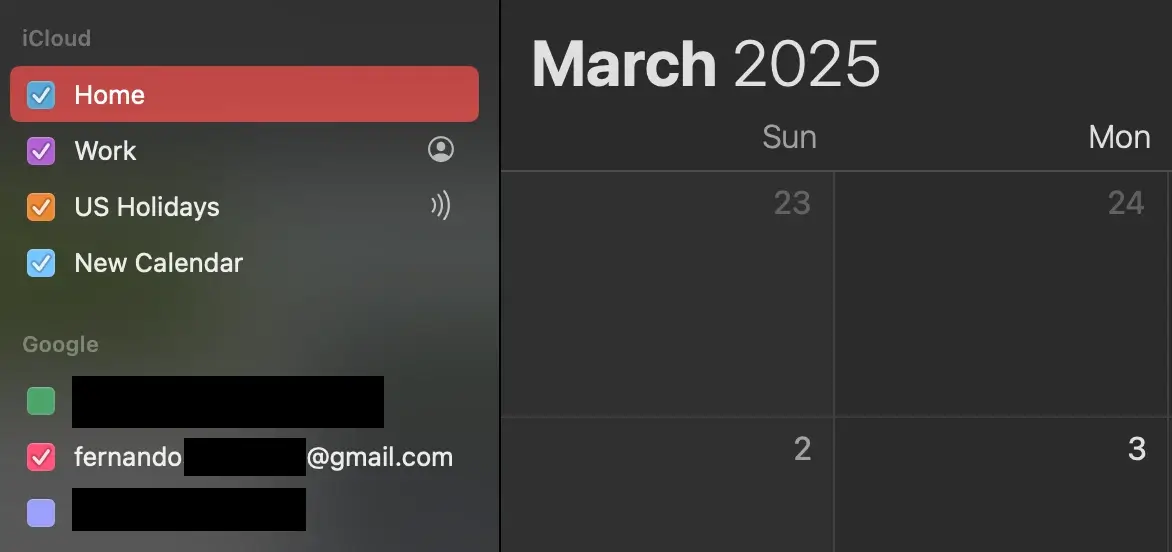
6. On the Accounts tab, use "Refresh Calendars" to choose how often you want your calendars to sync
Once you've completed these steps, your Google Calendar events will appear in your Apple Calendar app. You can verify the sync by opening the Calendar app and checking for specific Google Calendar events.
If you previously used the "Delegation" tool in Apple Calendar, you'll need to turn that off for Calendar sync to work properly:
- Open Apple Calendar
- Click Calendar > Preferences
- Click Accounts > Delegation
- Uncheck all calendars
Managing which Google calendars sync to Apple Calendar
By default, Apple Calendar syncs all calendars found under "My Calendars" in Google Calendar, plus birthdays. If you want to choose specific calendars to sync:
- On your computer, visit the Calendar sync page at calendar.google.com/calendar/syncselect
- Check or uncheck the names of calendars you want to sync (or not)
- Click Save in the bottom right corner
- Refresh your calendar to see the changes
This gives you more control over which events appear in your Apple Calendar, helping you keep your schedule organized and focused on what matters most.
Syncing Apple Calendar with Google Calendar
If you want to sync in the opposite direction—adding your Apple Calendar events to Google Calendar:
- Open Google Calendar on your computer
- Click the Settings icon in the top-right corner
- Go to Settings for my calendars and click Add Calendar
- Select From URL, then paste the link to your iCloud calendar
- Click Add Calendar to complete the process
This allows you to view your Apple Calendar events in Google Calendar, ensuring everything stays in sync across devices.
Google Calendar features that don't work on Apple Calendar
While syncing these calendars is convenient, there are some Google Calendar features that don't work with Apple Calendar:
- Email notifications for events (Apple uses its own notification system)
- Creating new Google calendars (must be done in Google Calendar directly)
- Room Scheduler functionality
- Some customization options may differ between platforms
Despite these limitations, the core functionality—seeing all your events in one place—works perfectly.
Troubleshooting common sync issues
If you run into problems while syncing your calendars, try these solutions:
Calendar not appearing in Apple Calendar
If you're having trouble seeing your Google Calendar events in the Apple Calendar app, there are several troubleshooting steps you can take.
First, verify that your Google account has been properly added to your device by going to Settings > Calendar > Accounts. Once there, ensure the Calendar toggle for your Google account is switched on—this is a common oversight that's easy to fix.
Also, check that your device has an active internet connection, as synchronization requires connectivity to update events. For a more thorough sync, navigate to Settings > Calendar > Sync and select "All Events" to ensure your complete calendar history transfers over.
If you're still experiencing issues, sometimes the simplest solution works best: try restarting the Calendar app or rebooting your device entirely, which often resolves synchronization hiccups by reestablishing the connection between your Google and Apple accounts.
Authentication errors
Authentication issues can be frustrating when trying to sync Google Calendar with Apple Calendar. Start by double-checking that you've entered your email address and password correctly—even a small typo can prevent successful authentication.
If you use Google's two-step verification for added security, make sure it's properly configured on your account. For users with two-step verification enabled, you'll likely need to create an app-specific password for calendar synchronization. To do this, visit your Google Account settings, navigate to the Security section, then find the 2-Step Verification settings. From there, scroll down to App passwords and generate a new password specifically for your calendar sync. This unique password bypasses the need for verification codes and creates a secure, dedicated connection between your Google Calendar and Apple devices.
Missing events
When some of your events aren't appearing after syncing Google Calendar with Apple Calendar, there are several potential culprits to investigate. Start by checking which specific calendars are selected for synchronization on the Calendar sync page (calendar.google.com/calendar/syncselect)—you might need to manually select calendars that aren't syncing by default.
Next, verify that you have the proper permissions for all calendars, especially for shared calendars where your access level might be limited. Within the Apple Calendar app itself, make sure all calendars are visible by checking the colored dots next to calendar names in the calendar list—unchecked calendars won't display events even if they're synced. If events still aren't appearing, try manually refreshing your calendar by pulling down on the screen or restarting the app.
Finally, be aware that Apple Calendar might not sync very old events by default, so if you're looking for historical appointments, you may need to adjust your sync settings to include a longer time period.
Tips for effective calendar management
Once you've successfully synced Google Calendar with Apple Calendar, these tips can help you maintain an organized schedule:
- Use different calendar colors to distinguish between personal, work, and other types of events
- Create separate calendars for different aspects of your life (work, family, hobbies)
- Set appropriate refresh intervals (more frequent for busy schedules)
- Remember to add new Google calendars through the Google Calendar website or app
- Use consistent naming conventions for events across both platforms
- Take advantage of Apple's native calendar features like travel time and location-based alerts
Connect your calendars with Zeeg: Automate your scheduling
While syncing Google Calendar with Apple Calendar is a great first step, integrating a dedicated scheduling tool like Zeeg can take your calendar management to the next level. Zeeg works seamlessly with both Google and Apple calendars, providing advanced scheduling capabilities for professionals and individuals alike. The tool will go through your Google and Apple calendars, and immediately sync with all your events (and not all tools connect with all calendars - for instance, Calendly doesn't sync with Apple Calendar.
When you connect Zeeg to your synced calendars, you gain access to powerful features that simplify appointment booking and time management. Instead of exchanging multiple emails to find a suitable meeting time, you can share your Zeeg booking link with prospects, clients, colleagues, or friends, allowing them to see your real-time availability and book directly into your calendar.
Here's a few more things you get with Zeeg:
- Customizable booking pages: Design personalized scheduling pages that match your brand or style
- AI voice agents: Let your AI voice agents handle incoming calls and book meetings while holding a natural conversation
- Automated workflows: Reduce no-shows with automatiedemail and SMS notifications
- Buffer times between meetings: Set breathing room between appointments to prepare or travel
- Timezone intelligence: Zeeg automatically detects and adjusts for different timezones, perfect for international scheduling
- Collective meetings and round-robin scheduling: Easily coordinate meetings with multiple participants and fairly distribute incoming meetings among team members to balance workloads
For professionals, Zeeg helps streamline client interactions and team coordination. You can create different types of appointment offerings with various durations and availability windows. For personal use, Zeeg makes coordinating with friends and family effortless, whether you're planning dinners, workouts, or catch-up calls.
The best part? Zeeg respects the privacy of your calendar data with industry-leading security measures and GDPR compliance, making it a trustworthy addition to your digital toolset. By combining the convenience of synced Google and Apple calendars with Zeeg's powerful scheduling capabilities, you can truly master your time management in 2025 and beyond.
Try any of the paid plans for free on a 14-day trial. You can also just keep the free plan forever.
Sign up for freeConclusion
Syncing Google Calendar with Apple Calendar simplifies schedule management across multiple devices. By following the steps in this guide, you can maintain a consistent view of your events regardless of which platform you're using. The process is straightforward, and once set up, the synchronization happens automatically in the background.
Whether you're an iPhone user who prefers Google services or someone who frequently switches between Apple and Google products, this integration ensures you'll always have access to your complete schedule. With both calendars working together, you can focus on what matters most—the events themselves—rather than juggling multiple calendar apps.
If you want to go one step further and automate your scheduling, then you should use Zeeg. You can merge Google Calendar and Apple Calendar easily, letting others book instantly meetings with you according to your rules, get paid per booking, send automated reminders and follow-ups, everything within a few clicks.
Try any of the paid plans for free on a 14-day trial. You can also just keep the free plan forever.
Sign up for freeZeeg is Europe's leading AI voice agent and appointment scheduling software in one solution — GDPR-compliant, made in Germany. Start for free →
Frequently Asked Questions
How do I connect Google Calendar to Apple Calendar without using the built-in methods?
If the standard methods don't work for you, you can export your Google Calendar as an iCal file (.ics) and import it into Apple Calendar. However, this is a one-time import and won't sync automatically.
Can I link Apple Calendar to Google Calendar both ways?
Yes, you can sync in both directions. Google Calendar events will appear in Apple Calendar when you add your Google account to your Apple device. For Apple Calendar events to appear in Google Calendar, you need to add your iCloud calendar URL to Google Calendar as described in the "Syncing Apple Calendar with Google Calendar" section.
How do I add my Gmail calendar to iPhone?
The process is the same as adding Google Calendar to iPhone – Google Calendar is essentially the calendar associated with your Gmail account. Follow the steps outlined in the iPhone/iPad section above.
Why is my Google Calendar not syncing with my Apple Calendar?
This could be due to authentication issues, internet connectivity problems, or outdated apps. Try checking your account settings, updating your device, or signing out and back in to your Google account.
How often do the calendars sync?
You can choose how often your calendars sync in the Apple Calendar preferences. Options typically include every 5 minutes, 15 minutes, 30 minutes, or hourly.
Can I sync multiple Google Calendars with Apple Calendar?
Yes, you can sync as many Google Calendars as you want. You can choose which ones to display on the Calendar sync page (calendar.google.com/calendar/syncselect).


