
What Is Zoom Scheduler and How To Use It? 2026 Guide


Are you looking for ways to use Zoom Scheduler for your meetings? In this guide, we'll cover everything you need to know about Zoom Scheduler, including features, pricing, and how to use it. We'll also introduce Zeeg and its scheduling features, as it books meetings online and by phone, and integrates with Zoom for video calls.
First things first, what is Zoom Scheduler?
Well, Zoom Scheduler is an appointment scheduling and coordination tool that integrates with your Zoom meetings to let you create and manage appointments. As part of Zoom's pack of collaboration tools, it addresses the common challenge of finding suitable, mutual meeting times. Zoom Meeting Scheduler lets you generate booking links that show your availability which allows others to select time slots that work for their schedule. When someone books time with you, the system automatically creates a calendar event and includes a Zoom meeting link, and also syncs with calendar services like Google Calendar, Microsoft 365, or Zoom's own calendar service.
But before we get into it, here are some more articles on Zoom:
- How to Schedule a Zoom Meeting and Send Invites
- How to Connect Microsoft Bookings to Zoom
- Zoom GDPR: Is the Tool Compliant with Data Protection?
How does Zoom Scheduler work?
It’s pretty simple. When you log in to the Zoom Appointment Scheduler, it connects with your calendar service to generate time slots that others can use to book meetings with you. Once someone books a time, the appointment automatically appears in both calendars, and a Zoom meeting link is included. The Zoom appointment scheduler integrates with Zoom Calendar Service, Google Calendar, and Microsoft 365 Calendar, which makes it practical for various users.
Key features of Zoom Scheduler
Summing it up, these are the main features of Zoom Scheduler:
- Calendar integration with Google Calendar, Microsoft 365, and Zoom Calendar
- Customizable booking pages that show your availability
- Automated email notifications and reminders
- Group scheduling features for team coordination
- Time zone detection for international meetings
- Buffer time settings between appointments
- Custom intake forms for gathering information
- Meeting distribution across team members
Zoom Scheduler pricing in 2026: Simply explained
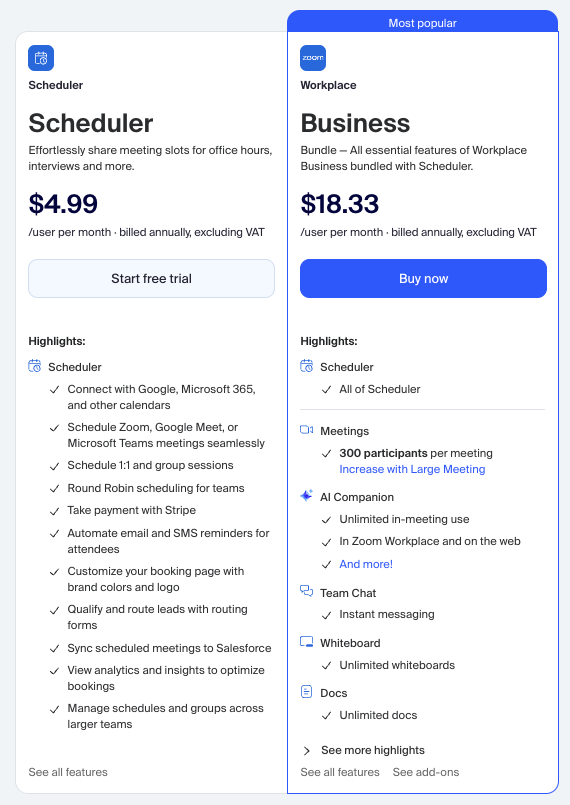
Now, let's talk money. Zoom offers two ways to get Zoom Scheduler: as a standalone add-on or included in specific Zoom packages. If you want just the scheduling feature, you can purchase it separately for $4.99 per user per month (billed annually), excluding VAT. This option gives you flexibility if you don't need Zoom's entire tool suite.
For teams that already use Zoom's other services, Zoom Scheduler comes included in certain plans at no extra cost. Specifically, you'll find it bundled with the Business and Enterprise subscriptions. The Business plan costs $18.33 per month per user when billed annually (excluding VAT), while Enterprise Plus pricing requires contacting Zoom's sales team.
Package options with Zoom Scheduler included
If you're considering a full Zoom package that includes the Zoom appointment scheduler, here are your options:
Scheduler Standalone ($4.99/month/user, billed annually, excluding VAT):
- Connect with Google, Microsoft 365, and other calendars
- Schedule Zoom, Google Meet, or Microsoft Teams meetings
- Schedule 1:1 and group sessions
- Round robin scheduling for teams
- Take payment with Stripe
- Automate email and SMS reminders for attendees
- Customize your booking page with brand colors and logo
- Qualify and route leads with routing forms
- Sync scheduled meetings to Salesforce
- View analytics and insights to optimize bookings
- Manage schedules and groups across larger teams
Business ($18.33/month/user, billed annually, excluding VAT):
- Includes all Scheduler features
- 300 participants per meeting (increases with Large Meeting add-on)
- Unlimited in-meeting use
- Enhanced cloud recording
- Advanced team chat features
- Extended meeting duration limits
- Additional admin controls
- In Zoom Workplace and on the web
- Team Chat with instant messaging
- Whiteboard with unlimited whiteboards
- Unlimited docs
Zoom Appointment Scheduler limitations
Let’s move on to what you should know before actually committing. Yes, Zoom Meeting Scheduler’s features come with many useful things, but it's still important to understand its current limitations. The most notable restriction is that you can only connect one calendar service at a time. This means if you use multiple calendars (say, one for work and another for personal appointments), you'll need to choose which one to integrate with Zoom Scheduler.
The tool also has some functional constraints worth noting. Meeting durations are limited based on your Zoom plan: users with basic plans can schedule meetings up to 40 minutes, while paid plans offer extended durations. Additionally, when setting up team scheduling, you're limited to 30 hosts per booking schedule, which might affect larger organizations needing more extensive coordination.
How to use Zoom Scheduler: Your guide
How to use Zoom Scheduler
Using the desktop app (Windows or macOS)
- Sign in to your Zoom desktop application
- Click "More" (three dots icon), then select the "Scheduler" tab
Using the web portal
- Sign in to your Zoom web portal
- Find and click "Scheduler" in the left navigation menu
The process is the same whether you're using Windows or macOS, and both methods give you access to all Scheduler features. You’re free to choose whichever option is more convenient for your workflow.
How to create and manage Zoom Scheduler bookings
Creating a new schedule
- Access Zoom Scheduler:
- For desktop app: Click "More", then "Scheduler" tab
- For web: Click "Scheduler" in the left menu
- Go to "My schedules" and click "Create Schedules"
- Choose your schedule type:
- One to One: Single attendee meetings
- One to Many: Group meetings
- Any Host Available: Rotating team member meetings
- All Hosts Available: Multiple host meetings
- One-Off meeting: Single occurrence meetings
- Availability poll: Time voting system
- Complete your schedule setup and click "Finish"
- Share your booking link (optional: generate a single-use link)
Managing your schedules
You can filter your schedules by:
- All schedules
- Created by you
- Shared with you
- Team events
- One-time meetings
- One-off meetings
- Availability polls
Editing and customizing
To modify a schedule:
- Find it under "My schedules"
- Click the gear icon
- Choose from:
- Edit schedule details
- Edit permissions (view/edit access)
- Add notes (up to 250 characters)
- Duplicate schedule
- Delete schedule
- Enable/disable schedule
💡 Remember: Disabled schedules appear in gray and won't show on your public calendar, but their settings and links remain saved.
How to create a one-on-one meeting schedule
Here's how to set up your first booking schedule in Zoom Scheduler:
- Access Zoom Scheduler:
- For desktop app: Open Zoom, click "More", then select the "Scheduler" tab
- For web: Sign in to the Zoom portal and click "Scheduler" in the left menu
- Go to to "My schedules" and click "Create Schedules"
- Select "One to One" as your schedule type and click "Next"
- In the Details tab, set up your basic meeting preferences:
- Schedule name and color
- Custom link (must be at least 3 characters)
- Meeting duration
- Video conferencing option (None, Zoom Meeting, or Phone)
- Location (optional)
- Additional information (optional)
- Configure your availability:
- Select available days and times (default is Monday-Friday, 9 AM-5 PM)
- Set your time zone
- Choose schedule duration (ongoing or date range)
- Add buffer time between meetings if needed
- Set up notifications:
- Choose between calendar invitations or email confirmations
- Enable SMS notifications if desired
- Customize reminder and follow-up messages
- Add cancellation policy (optional)
- Configure additional options:
- Time slot increments
- Maximum bookings per day
- Booking window restrictions
- Verification requirements
- Custom questions for attendees
- Confirmation page settings
- Click "Finish" to save your schedule and get your booking link
You can choose to make this schedule private (only accessible via direct link) or public (visible on your booking page). For private schedules, you can also generate single-use links that expire after one booking.
How to schedule a Zoom appointment through someone else's booking link
Here's the process from the attendee's perspective:
- Open the booking link provided by the meeting host
- Select your preferred appointment type from the available options. You'll see details like duration and maximum attendees for each option
- Choose a date from the calendar on the left side. Available time slots for that week will appear on the right. Remember that you can adjust the time zone if needed
- Click your preferred time slot
- Fill in your details:
- Your name and email address
- Additional attendees (optional, up to 100 people)
- Phone number for SMS updates (optional)
- Any notes for the meeting host
- Click "Book" to confirm your appointment
💡 Note: If certain dates show no availability, you may need to contact the host directly for alternative times. Also, keep in mind that SMS notifications aren't available when adding multiple guests to the meeting.
How to use Zoom Scheduler Chrome extension
For those who regularly schedule meetings through Google Calendar, there's another way to use the Zoom appointment scheduler. All you need to do is install a Zoom scheduler extension on Chrome: this will give you a convenient way to create Zoom meetings directly from your calendar.
1. Install the Zoom Scheduler Chrome extension
Before you can start scheduling meetings, you'll need:
- Google Chrome browser
- A Zoom account (Google, work email, or SSO login)
- The Zoom Chrome extension from the Web Store
To install the extension, visit the Chrome Web Store and click "Add to Chrome" in the upper right corner of the extension window.
2. Set up the Chrome extension for Zoom scheduling
Once installed, you'll notice a Zoom icon next to your Chrome address bar. Here's how to get started:
- Click the Zoom extension icon
- Sign in to your Zoom account
- Access scheduling options:
- Schedule a Meeting: Creates a new event in Google Calendar
- Start a Meeting: Choose to begin with or without video
- Settings: Adjust your Zoom meeting preferences
3. Schedule Zoom meetings through Google Calendar
The Zoom scheduler Chrome extension seamlessly integrates with Google Calendar. To create a meeting:
- Create a new calendar event or edit an existing one
- Click "More Options" for new events or the pencil icon for existing ones
- Select "Make it a Zoom Meeting"
- The system will automatically add Zoom meeting details to the event description
- Add guests and adjust calendar settings as needed
- Click Save
💡 And remember: When rescheduling meetings, edit the calendar entry directly rather than dragging the event to a new time slot.
Why consider Zeeg as your Zoom Scheduler alternative

At this point, you might be wondering if there are better options out there. While Zoom Scheduler gets you basic scheduling features, you might want to have a look at Zeeg, an AI voice agent and scheduling software with contact management built in. Zeeg also connects with Zoom, so every booked meeting comes with a video link. It's simple.
So here's why you should consider it:
Advanced scheduling features. Zeeg's scheduling software gives you sophisticated features like smart availability rules and automatic timezone detection. This prevents double bookings and ensures smooth scheduling across different time zones, which makes it ideal for international teams and clients.
Better calendar integration. Unlike Zoom Scheduler's single-calendar limitation, Zeeg connects with multiple calendar services simultaneously. You can sync with Google Calendar, Microsoft Outlook, Apple Calendar, and others to give you a complete view of your availability across all platforms.
Native Zoom integration. If you use Zoom for your meetings, you'll appreciate that Zeeg integrates perfectly with the platform. When someone books a meeting, Zeeg automatically creates and includes the Zoom meeting link in the calendar invite. And not just that, Zeeg integrates with many other tools including popular CRMs, payment processors, and video conferencing platforms.
Contact management built in. Besides Zeeg's online and phone scheduling features, every booking also creates a contact record, letting you track and manage your contacts in a clean way.
Payment collection. While Zoom Scheduler doesn't support payment collection, Zeeg lets you charge for your meetings. This feature is particularly useful for consultants, coaches, and service providers who need to collect payments at the time of booking.
Enhanced privacy and compliance. Zeeg ensures complete GDPR compliance, with end-to-end encryption and European data hosting to offer peace of mind for businesses handling sensitive information, no matter if you're in the UK, EU or US.
Meeting analytics and insights. Unlike Zoom Scheduler, which doesn't offer analytics features yet, Zeeg gets you detailed insights about your scheduling patterns through its in-depth analytics dashboard. Track completion rates, no-shows, team performance, and more to optimize your scheduling efficiency.
Advanced team features. Zeeg also has sophisticated team scheduling options, including round-robin distribution and stack mode to help larger organizations manage complex scheduling needs more effectively. You can also use routing forms to qualify leads and direct them to the right team members automatically.
Affordable pricing. Starting at just $10 per month, Zeeg offers more features than Zoom Scheduler's plans. Plus, Zeeg's free plan includes unlimited one-on-one meetings and two scheduling pages, giving you a chance to try its core features without any commitment, or even keeping the free version forever.
Zeeg is Europe's leading AI voice agent and appointment scheduling software in one solution — GDPR-compliant, made in Germany. Start for free →
Frequently Asked Questions
How can I track scheduling analytics?
Currently, Zoom Scheduler doesn't offer analytics features.
Can I customize my booking page design?
Currently, only basic customization options are available.
Can I collect payments for my meetings?
Currently, Zoom Scheduler doesn't support payment collection.
Can I control who sees my availability?
Yes, you can create private schedules that are only accessible via direct links, or public schedules visible on your booking page.
Where is my Zoom Scheduler data stored?
All Zoom Scheduler data is stored in the USA. If you're outside the USA, your Scheduler data will be stored there, while other Zoom data remains in your default country.
Do I need to install anything to use Zoom Scheduler?
No installation is required for the web version. For the desktop version, you'll need the Zoom client installed.
Can I customize notification settings?
Yes, you can set up email and SMS notifications for booking confirmations, reminders, follow-ups, and cancellations.
What's the maximum number of attendees?
For group meetings, you can have up to 100 attendees per session.
Can I create team scheduling pages?
Yes, you can create booking pages for up to 30 team members using the "Any Host Available" or "All Hosts Available" options.
Can I try Zoom Scheduler before buying?
Yes, Zoom offers a 14-day free trial with no credit card required.
How much does Zoom Scheduler cost?
You can get Zoom Scheduler in two ways: as a standalone add-on for $4.99/month per user, or included in Zoom One Business Plus and Enterprise Plus plans.
Does Zoom Scheduler work with my calendar?
Zoom Scheduler integrates with Google Calendar, Microsoft 365, and Zoom Calendar Service. However, you can only connect one calendar service at a time.
Does Zoom have a scheduling tool?
Yes, Zoom Scheduler is Zoom's built-in scheduling tool that lets you share your availability and coordinate meetings directly through the Zoom platform. It integrates with your calendar and automatically creates Zoom meeting links when appointments are booked.


