How to Schedule a Google Meet: Complete Guide for 2026


If you want to schedule virtual meetings without much hassle, you’re most likely trying to learn how Google Meet, an essential tool for remote teams with video conferencing, works. You might be planning team check-ins, client presentations, or quick catch-ups. In all cases, knowing how to schedule Google Meet sessions efficiently can save you time and prevent coordination headaches.
No problem, we’ll show you everything about scheduling Google Meet in advance from any device.
And more than that—we’ll also show you Zeeg's leading European AI voice agents and scheduling capabilities, which integrate seamlessly with Google Calendar and Google Meet and adhere to all GDPR-principles by design. That way, you can optimize your meeting planning.
Try any of the paid plans for free on a 14-day trial. You can also just keep the free plan forever.
Sign up for freeWhat is Google Meet?

Google Meet is Google's video conferencing platform that lets you host virtual meetings with colleagues, clients, and friends. The service integrates with Google Workspace apps like Google Calendar and Gmail, automatically creating meeting information including virtual meeting rooms and dial-in numbers.
The platform supports meetings with up to 100 participants on the free plan for up to 60 minutes. Google Workspace subscribers enjoy extended meeting durations and additional features like recording options and larger participant limits.
And the best part is that you don’t need to pay for Google Workspace in order to use Google Calendar and Google Meet. You can, of course, especially if you intend to use it as a business, because it has other features—like custom business email, meeting recordings, higher limit of participants, and so on and so forth. But the free version is enough to get you started.
Some of the key benefits of Google Meet:
- Easy integration with Google Calendar and Gmail
- Cross-platform availability (web, Android, iOS)
- Clear video and audio quality
- Screen sharing capabilities
- Meeting links that work for both internal and external participants
👉 If you want to learn about other options, read our article on alternatives to Google Calendar.
How to schedule a Google Meet from Google Calendar
Using Google Calendar is the most straightforward way to schedule Google Meet sessions in advance, especially for Google Workspace users. This method automatically adds the video meeting to your calendar and sends invitations to participants.
Here's how to do it:
1. Open Google Calendar in your web browser
2. Click the "+ Create" button in the top-left corner and select "Event"
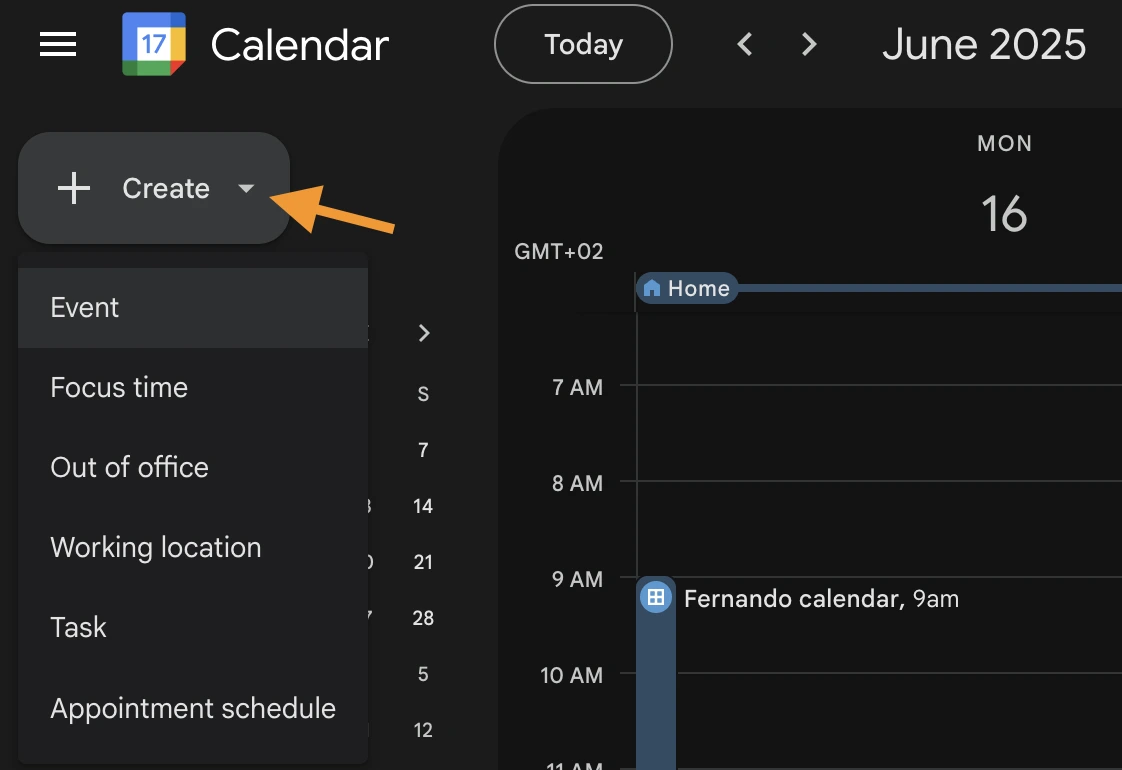
3. Add a title for your meeting, set the date and time, add guests, and - most importantly - click on "Add Google Meet video conferencing"

4. Add any additional details like location or description
5. Click "Save" and, when prompted, click "Send" to notify guests via email (you can also opt for not notifying them if you press "Don't send")
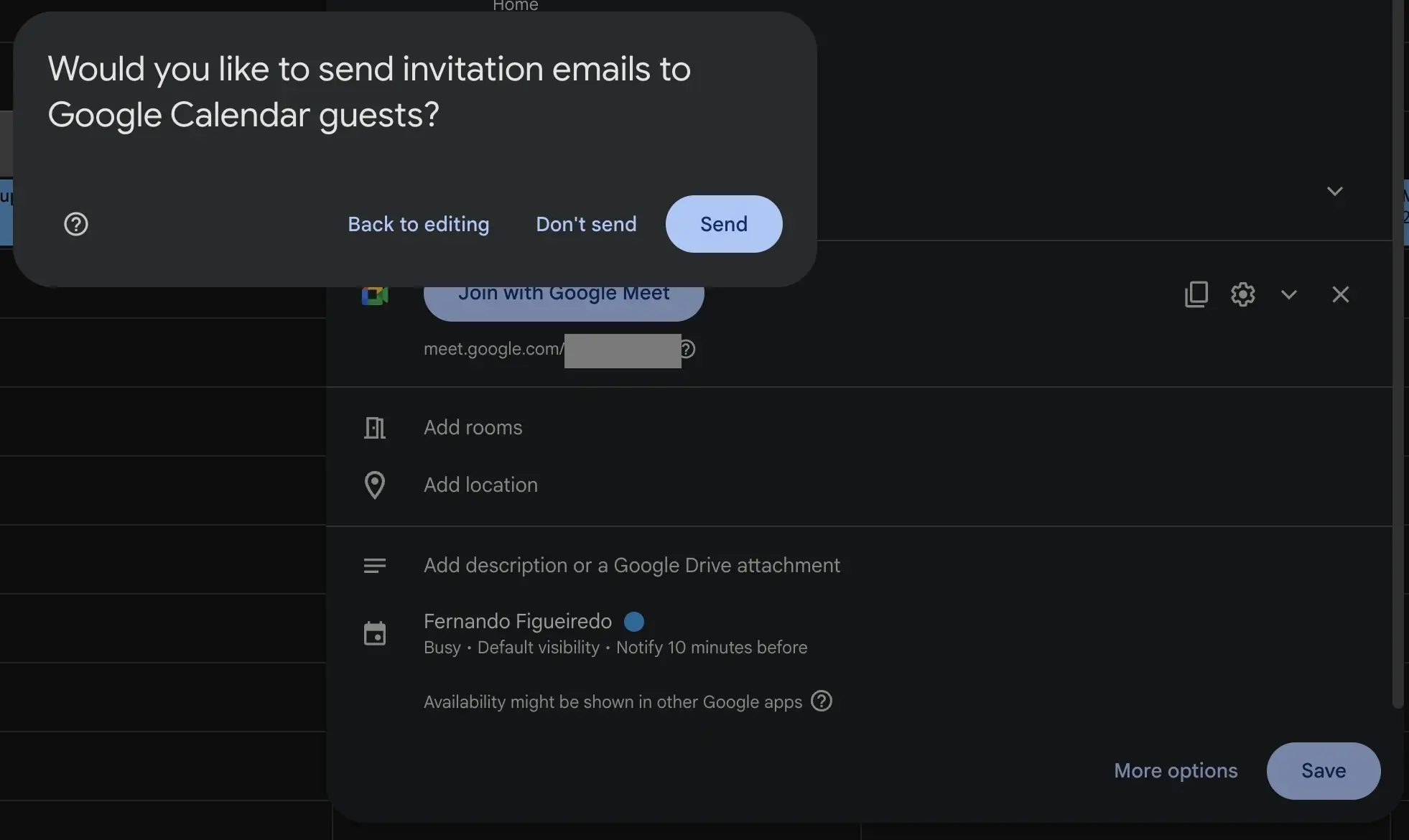
The meeting will now appear on your calendar with a Google Meet link attached. All invited participants will receive an email with meeting details and the link to join.
Note: If you don't see the "Add Google Meet video conferencing" option, check that:
- You're using a Google Workspace account (formerly G Suite)
- You have the required permissions
- Your administrator hasn't disabled this feature for you
👉 Want to edit your meeting details? Learn how to propose a new time on Google Calendar
How to schedule a Google Meet through Gmail
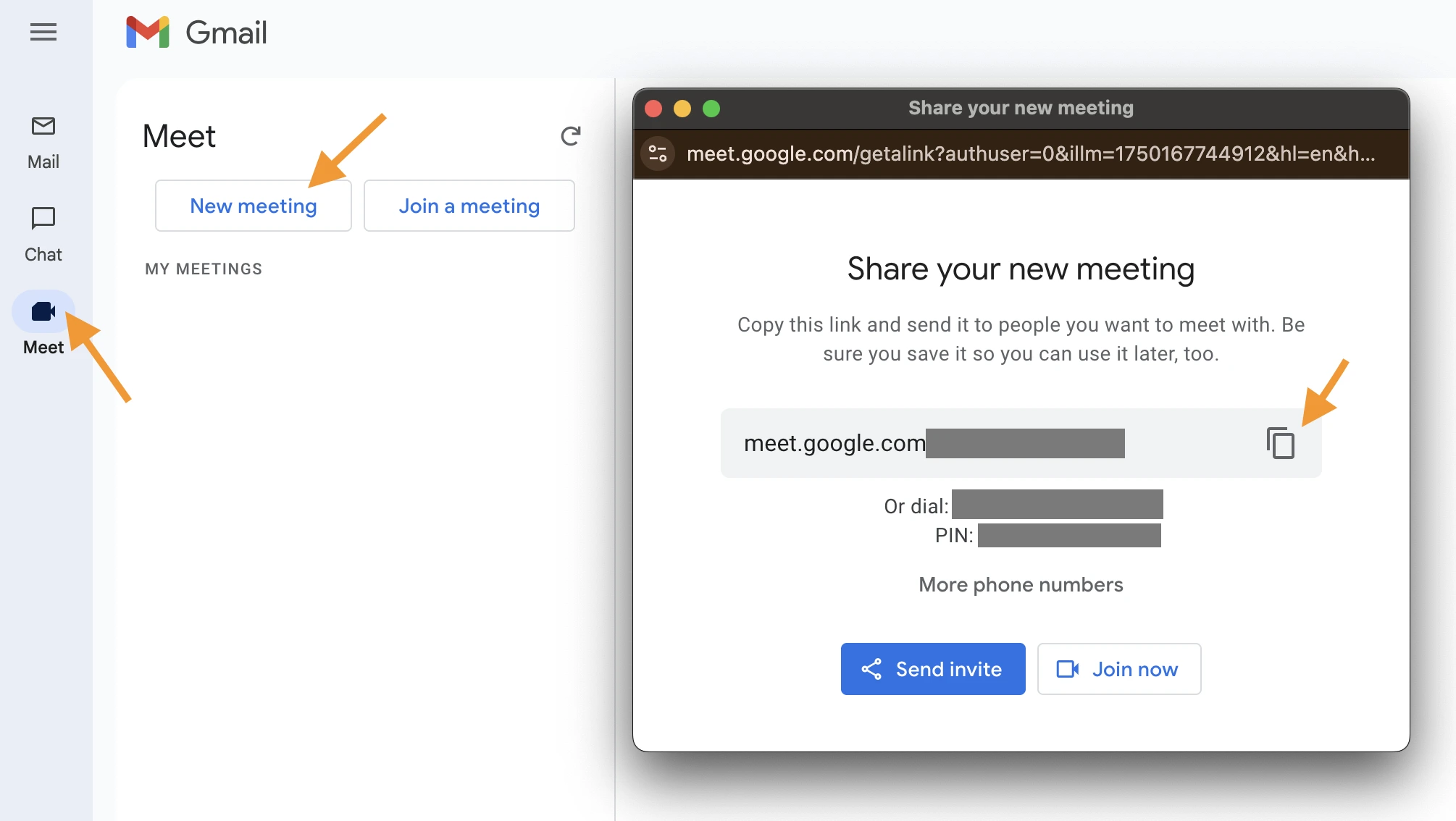
Gmail also offers a convenient way to create Google Meet sessions without leaving your email:
- On Gmail, look for the "Meet" section in the left sidebar
- Click "New meeting"
- Copy the generated link from the pop-up window that will open, or send the email via email ("Send invite" button)
- Share the link with your participants
How to schedule a Google Meet directly in the Meet app
If you prefer to create a meeting link without setting up a calendar event, you can do so directly through the Google Meet application:
- Go to meet.google.com
- Click on "New meeting"
- Choose "Create a meeting for later"
- A meeting link will be generated
- Copy this link and share it with participants through email, chat, or any preferred communication channel
- Save the link for yourself to join when the meeting starts
This method is useful when:
- You don't need a calendar invitation
- You want to share a meeting link that can be used multiple times
- You're planning an impromptu meeting
Remember that Google Meet links created this way will expire after 365 days of inactivity or 90 days after a one-time event.
How to schedule a Google Meet on mobile devices
On Android devices
Using the Google Calendar app:
- Open the Google Calendar app
- Tap the "+" button in the bottom-right corner
- Select "Event"
- Enter the meeting title, date, and time
- Tap "Add video conferencing"
- Select "Google Meet"
- Add guests by entering their email addresses
- Tap "Save"
Using the Google Meet app:
- Open the Google Meet app
- Tap "New meeting"
- Choose "Get a meeting link to share" for future use
- Or select "Schedule in Google Calendar" to create a calendar event
- Share the link with participants
On iOS devices (iPhone/iPad)
Using the Google Calendar app:
- Open the Google Calendar app
- Tap the "+" icon in the bottom-right corner
- Select "Event"
- Enter the meeting details
- Tap "Add video conferencing"
- Select "Google Meet"
- Add guests and any other details
- Tap "Save"
Using the Google Meet app:
- Open the Google Meet app
- Tap "New meeting" at the bottom
- Select "Get a meeting link to share"
- Copy and share the link with participants
- Or choose "Schedule in Google Calendar" to create a calendar event
Setting up recurring Google Meet sessions
For regular team meetings or check-ins, setting up recurring Google Meet sessions saves time and ensures consistency:
- Open Google Calendar
- Create a new event with Google Meet video conferencing
- Under the date and time options, click "Does not repeat"
- Select your preferred recurrence pattern:
- Daily
- Weekly
- Monthly
- Yearly
- Custom (for more specific patterns)
- Choose when the recurrence should end (if applicable)
- Add participants and other details
- Click "Save"
Each occurrence will have the same Google Meet link, making it easy for participants to join without needing new invitations each time.
How to find when your next meeting is scheduled
Keeping track of upcoming meetings is essential for good time management. Here are several ways to quickly check when your next meeting is:
In Google Calendar:
- Open Google Calendar
- Your upcoming meetings appear in the main calendar view
- For a quick overview, look at the "Upcoming" section on the right sidebar
In Gmail:
- Open Gmail
- Look for the "Meet" section in the left sidebar
- Your upcoming meetings should be listed there
Using Google Assistant:
If you use Google Assistant, you can simply ask:
- "When's my next meeting?"
- "What's on my calendar today?"
- "Do I have any meetings tomorrow?"
On mobile devices:
- Open the Google Calendar app
- Your upcoming meetings will be displayed on the main screen
- You can also add the Google Calendar widget to your home screen for quick access
Tips for effective Google Meet scheduling
1. Choose appropriate meeting times
Be mindful of participants' time zones when scheduling international meetings. Google Calendar automatically adjusts times based on each participant's time zone settings. Most importantly, always try to schedule your Google Meet in advance, if possible a few days before.
2. Set clear agendas
Include a brief agenda in the meeting description so participants know what to expect and can prepare accordingly.
3. Add buffer time
Consider scheduling meetings for 25 or 50 minutes instead of 30 or 60 minutes to give participants a short break between consecutive meetings.
4. Use the "Find a time" feature
When scheduling with multiple participants, use Google Calendar's "Find a time" feature to identify when everyone is available:
- Create a new event
- Add all participants
- Click "Find a time"
- Review the calendar grid showing everyone's availability
- Select an open time slot
5. Send reminders
Configure notifications to remind participants about upcoming meetings:
- When creating or editing an event
- Click on "Add notification"
- Set when you want reminders to be sent (e.g., 10 minutes before, 1 hour before)
👉 You might also like: How to synch Google Calendar with Apple Calendar
6. Integrate Google Calendar with Zeeg for advanced scheduling capabilities
Google Meet works well for basic meeting creation, but if you want advanced scheduling, then you should think further. And that’s when Zeeg takes things to a whole new level. It integrates seamlessly with Google Meet, while offering powerful features beyond basic calendar management.
First of all, Zeeg connects multiple calendar systems simultaneously—not just Google Calendar, but also Apple Calendar and Microsoft. That gives you a unified view of your availability across all platforms, ensuring you never double-book yourself, even when using different calendar systems for personal and professional purposes.
Also, the platform enables 24/7 booking through customizable scheduling pages where clients and colleagues can book time with you based on your actual availability. This automated system increases leads and conversions by removing scheduling barriers – people can book appointments even when you're offline.
The process is simple:
- You send a booking link with your availability, defined by you (or they find that calendar on an online page)
- And they can book in the meeting, consultation, etc.
- The meeting will resume through Google Meet when scheduled time comes
That sums it up, but isn’t close to explain everything that Zeeg has. So, here’s some more features from Zeeg that will improve your Google Meet experience:
- Team scheduling with round-robin distribution for fair meeting allocation
- Buffer time between meetings to prevent back-to-back fatigue
- Time zone intelligence that automatically adjusts for international meetings
- Customizable booking forms that gather information before meetings
- AI voice agents that handle your calls 24/7 and let your customers book meetings without your manual intervention
- Integration with payment systems for paid consultations
- CRM integrated within your prospects/contacts list
- GDPR-compliant data handling for international privacy compliance
Try any of the paid plans for free on a 14-day trial. You can also just keep the free plan forever.
Sign up for freeGoogle Calendar scheduling options comparison
*prices and features last checked on 06.17.2025 on Google Workspace pricing page
Common issues and troubleshooting
Meeting link not appearing in calendar event
If the Google Meet link isn't appearing in your calendar event:
- Edit the event
- Look for "Add Google Meet video conferencing"
- If missing, check that you have the necessary permissions
- Save the event again
Participants unable to join
If participants can't join your meeting:
- Ensure they have the correct link
- Check if they need permission to join (for restricted meetings)
- Verify they're using a supported browser (Chrome, Firefox, Safari, Edge)
- Ensure they have a Google account if the meeting is restricted to Google users
Meeting link expired
Google Meet links expire after:
- 365 days of inactivity for recurring meetings
- 90 days after the event date for one-time meetings
To fix this, create a new meeting and share the updated link with participants.
Conclusion: Streamline your meeting scheduling process
Scheduling Google Meet sessions efficiently saves time and reduces coordination hassle. Whether you prefer using Google Calendar, the Meet app directly, or Gmail, the process is straightforward once you know the steps.
For more advanced scheduling needs, consider using Zeeg alongside Google Meet. Zeeg's AI voice agent and scheduling platform integrates seamlessly with Google Calendar and Meet while adding powerful features like custom booking pages, automatic time zone detection, and team availability coordination.
By mastering these Google Meet scheduling methods, you'll make sure that your virtual meetings start on time and run smoothly, keeping your team productive and connected, regardless of where everyone is working from.
Try any of the paid plans for free on a 14-day trial. You can also just keep the free plan forever.
Sign up for freeZeeg is Europe's leading AI voice agent and appointment scheduling software in one solution — GDPR-compliant, made in Germany. Start for free →
Frequently Asked Questions
Can I schedule a Google Meet for someone else?
If you have the necessary permissions, you can schedule meetings on behalf of someone else by creating the calendar event, adding them as a participant, and setting them as the host in the event details.
Can I allow participants to join before the host?
Yes, participants can join before the host unless you've enabled the "Host controls" feature, which requires you to admit participants.
Is there a limit to how many Google Meet sessions I can schedule?
There's no specific limit to the number of meetings you can schedule, but free accounts are limited to 60-minute meetings with up to 100 participants.
Can I schedule a Google Meet without Google Calendar?
Yes, you can create a Google Meet session directly through meet.google.com or the Google Meet app without creating a calendar event.
How long do Google Meet links remain active?
For one-time events, links expire 90 days after the event date. For recurring meetings, links expire 365 days after the last use.
Do I need a Google account to schedule a Google Meet?
Yes, you need a Google account to create and schedule Google Meet sessions. However, participants don't necessarily need Google accounts to join unless you've restricted the meeting to only allow Google account holders.