
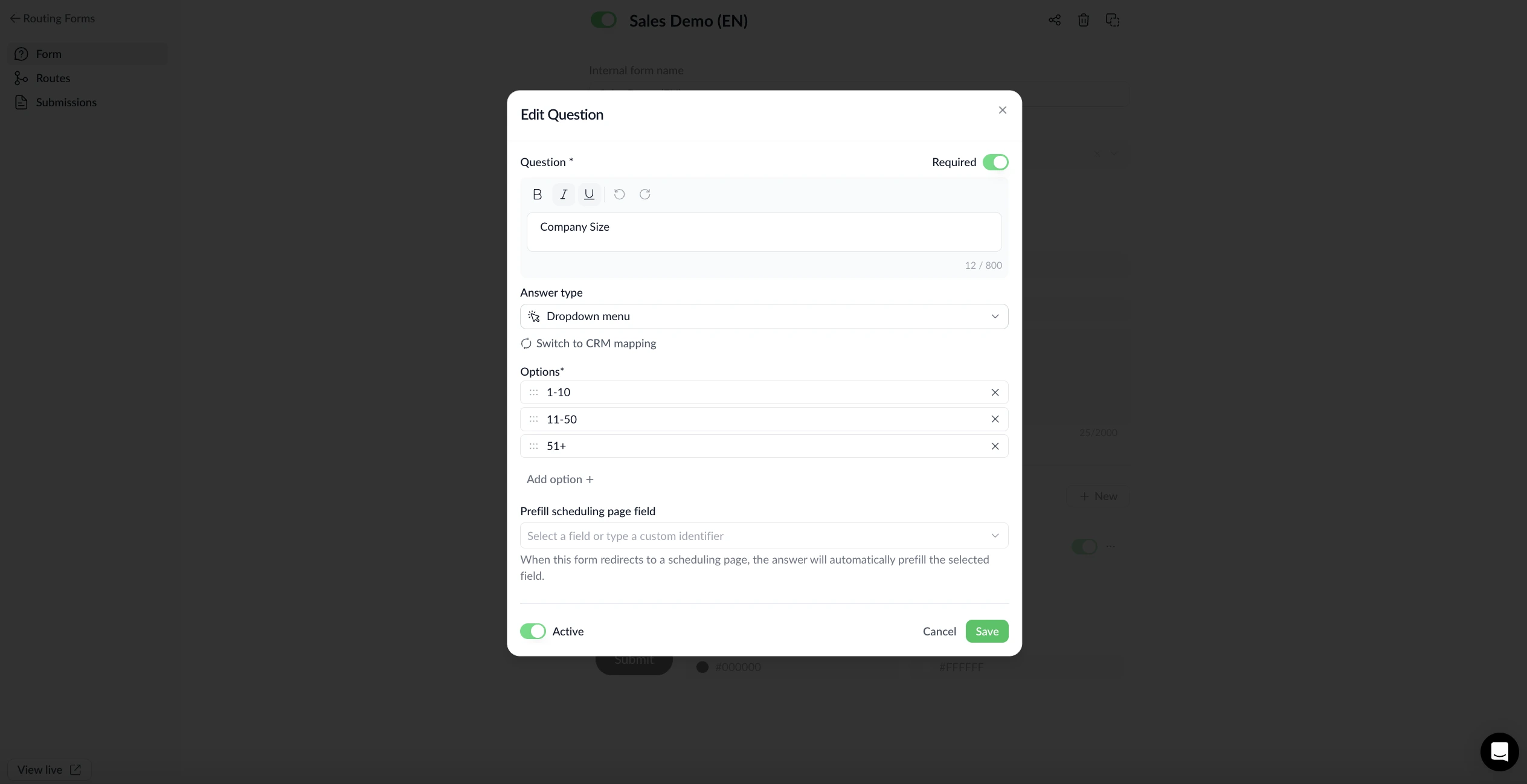
You can now build routing forms that work with every CRM attribute type — not just text. Whether your CRM tracks deal stage, industries, service tier, or a custom rating, your form renders the right input and your route rules can act on the answer.
What's new:
• Full CRM attribute type support – Map a routing form question to any CRM attribute — single-select dropdown, multi-select, checkbox, rating, number, or date — and the public form renders the correct input control automatically.
• Accurate CRM write-back – Answers flow correctly into the matched CRM record: multi-select answers land as the selected option IDs, checkboxes as true/false, and so on — no data loss in translation.
• Route rules on real CRM options – When building a route condition on a CRM dropdown or multi-select question, you pick from the actual CRM option list instead of typing free text. Single-select operators close the popover on pick; multi-select operators keep it open for multiple choices.
• Autosave on the Routing tab – Changes to route cards save automatically when you finish interacting with them. A spinner, green check, or retry icon confirms the save status inline — no more manual Save button.
• Routing tab polish – A few UX fixes are included: the email field on the public form no longer shows a format error while you're still typing, the event-type dropdown in the route editor now layers correctly above the page header and scrolls when the list is long, and empty answer rows on SELECT and RADIO questions are prevented at the source.
Why this matters: Routing forms used to stop at text, email, and phone — so customers who wanted to route based on a contact's industry, subscription tier, or any CRM dropdown had no clean path. Now the form speaks your CRM's language end-to-end: the input the visitor sees, the data that lands in the record, and the rule that fires on submission are all working from the same options.
Find it under Routing Forms → Questions tab → "Switch to CRM mapping"