
Why is Calendly Not Showing Availability? How To Fix Guide


Experiencing problems with Calendly showing no times available can be frustrating, especially when you need to schedule important meetings. You've set up your calendar correctly, but for some reason, your available slots aren't displaying properly. This issue affects many users and can disrupt your scheduling workflow, leading to missed opportunities and confusion.
In this comprehensive troubleshooting guide, we'll explain why your Calendly availability might not be showing up correctly and provide step-by-step solutions to fix these problems. We'll also introduce you to Zeeg, a reliable Calendly alternative that offers enhanced scheduling features. But for now let's get to Calendly and the ways to fix its availability issues.
Common reasons for Calendly not showing availability
%20(1).jpg)
When your Calendly calendar shows no available times, several factors could be causing this problem:
- Calendar connection issues or conflicts
- Incorrect event type settings
- Buffer time conflicts
- Meeting limits being reached
- Outdated calendar permissions
- Time zone discrepancies
- Holiday conflicts
- Round-robin assignment issues
👉 Into availability schedules? You might want to read these:
Calendly not showing availability? Use the troubleshooting tool
The fastest way to identify why Calendly is not showing availability is to use the built-in troubleshooting tool. Here's how to access it:
1. Log into your Calendly account
2. Navigate to the event type having availability issues
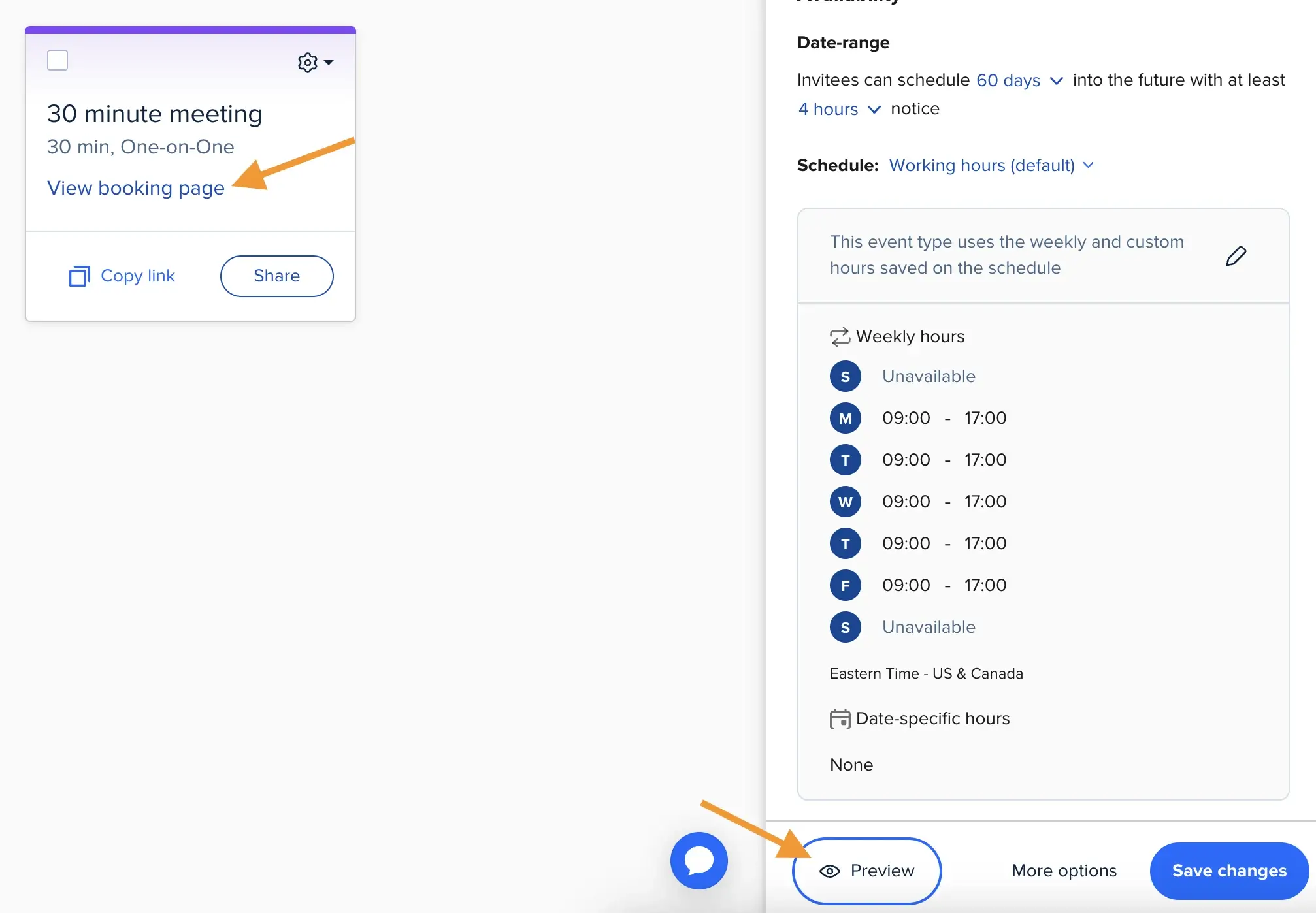
3. Click on "View booking page" from the event type or click directly on the event type and then select "Preview" from the right menu
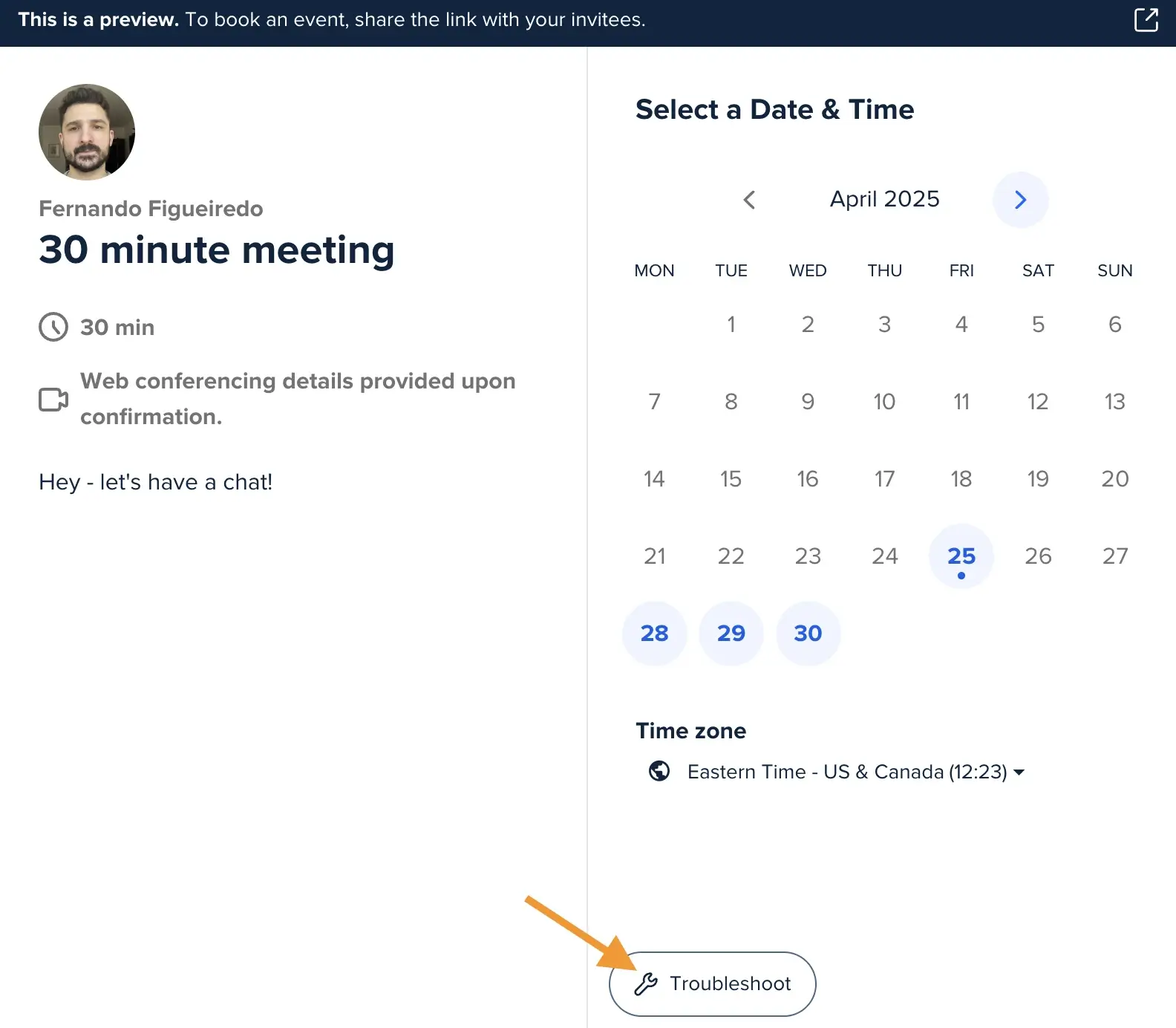
4. Once on your booking page, scroll to the bottom and click on "Troubleshoot"
5. Select the date where you're experiencing availability issues and click on a specific time slot showing as unavailable to see the error code
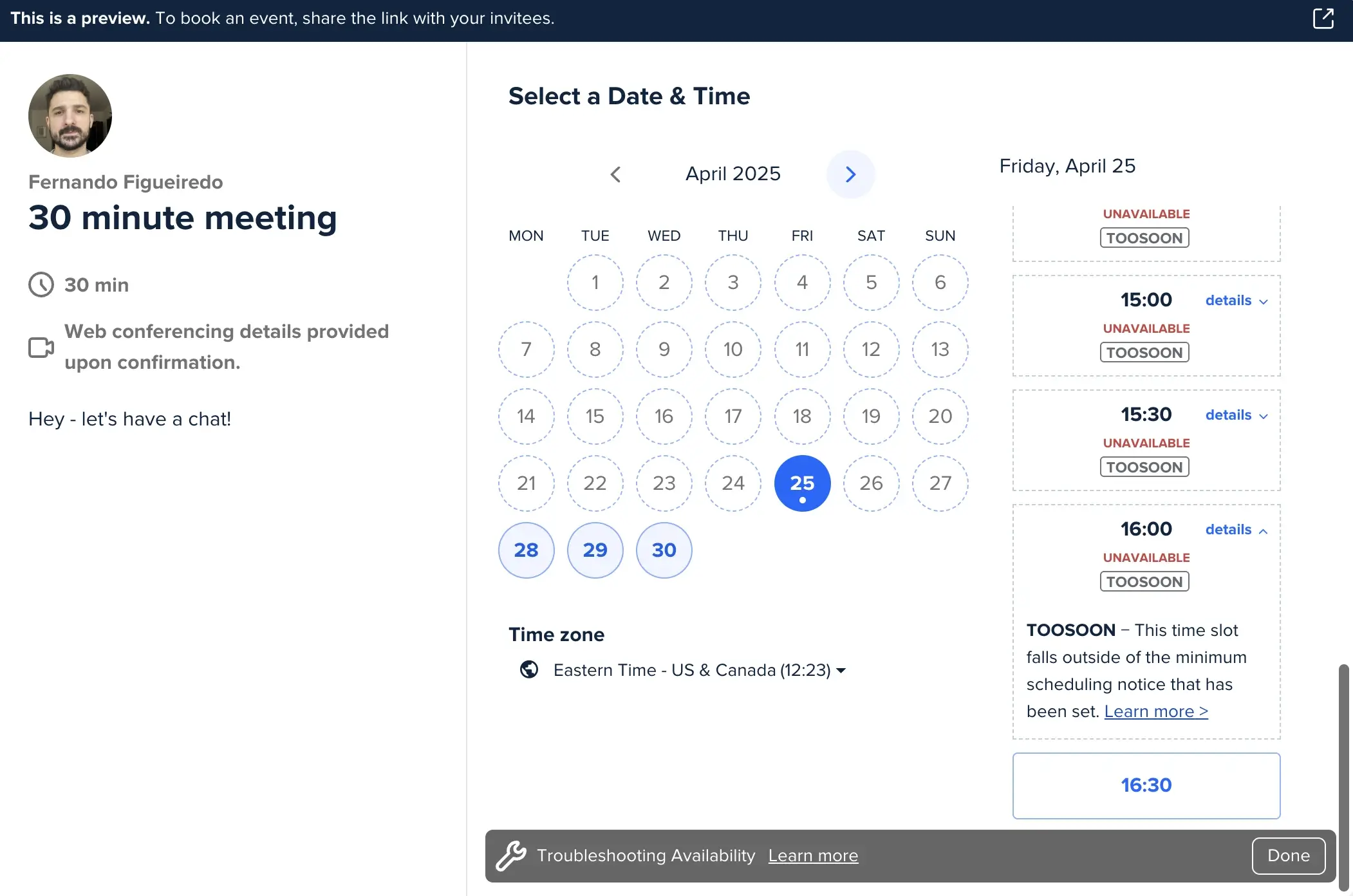
The troubleshooting tool will show you error codes explaining why each time slot appears unavailable when it should be free.
Understanding troubleshooting error codes
When no times are available on Calendly, the error codes help identify specific problems. In this case, you can use a Code Error Finder to better understand what each error means and how to fix it. Still, let's explore these codes and their solutions:
Calendar conflicts (CALENDAR)
When you see the CALENDAR error, it indicates that you have a conflicting "busy" event on your connected calendar. This is among the most common reasons for Calendly showing no available times.
To resolve this issue:
- Go to your Calendar settings and review all connected calendars
- Find the conflicting events and change their status from "busy" to "free"
- Don't forget to check all-day events, which might be set to "busy" by default
- Consider updating your free/busy rules if you want to allow scheduling over existing meetings
Existing Calendly bookings (EVENT)
The EVENT error occurs when you already have a meeting of this specific event type scheduled at the time slot. Your Calendly availability won't show times that are already booked.
You can fix this by:
- Viewing your scheduled meetings in the Meetings page
- If necessary, rescheduling or canceling the existing booking
- Adjusting your free/busy rules to allow multiple bookings of the same event type
Overlapping appointments (OVERLAP)
If you see an OVERLAP error, it means you have another Calendly event (of a different type) already scheduled during this time. Your calendar might be showing as available, but Calendly is blocking the slot due to this other appointment.
To address overlapping appointments:
- Navigate to your Meetings page to find what other event is scheduled
- Consider rescheduling or canceling the conflicting event if appropriate
- In your event settings, you can update rules to allow different event types to overlap
Buffer time restrictions (BUFFER)
A BUFFER error means that a buffer time applied to another meeting is preventing bookings in this time slot. Buffer times create breathing room before or after appointments but can also cause availability conflicts.
To manage buffer conflicts:
- Examine buffer settings for your existing meetings
- You can edit buffers on specific meetings from the Meetings page
- Consider shortening buffer times if they're causing too many scheduling conflicts
- Remember that buffer settings lock in when appointments are booked and won't change retroactively
Maximum booking limits (DAYMAX)
The DAYMAX error appears when you've reached your maximum allowed events per day, week, or month for this event type. This limit is something you set in your event settings.
You can adjust this by:
- Going to your event type editor and finding "More options"
- Looking for the "Limits and buffers" section
- Increasing your maximum meetings setting
- For Round Robin events, remember limits apply to the event type, not individual team members
Duration constraints (DURATION)
A DURATION error indicates that your event duration exceeds the available time period. For example, if you have a 2-hour event type but only a 1-hour window available, this error will show.
To fix duration issues:
- Either extend your availability window in settings
- Or shorten the duration of your event type
- Check for calendar conflicts that might be creating these shorter windows
Date range limitations (RANGE)
When you see the RANGE error, it means the date falls outside your event type's configured available date range. You might have limited bookings to certain dates.
To resolve range issues:
- Edit the date range section in your event type settings
- Expand the available dates if needed
- For weekend availability, make sure you're assigning calendar days rather than weekdays
Notice period restrictions (TOOSOON)
A TOOSOON error means the time slot falls within your minimum scheduling notice period. For example, if you require 24 hours' notice for bookings, slots within that window will show this error and thus you’ll have Calendly showing no times available.
The solution is to:
- Find the minimum notice setting in your event type
- Reduce the required notice period if you want to allow more last-minute bookings
Special event type issues
Some availability problems are specific to certain types of Calendly events:
Group event limitations (GROUP)
When a GROUP error appears, your group event has reached its maximum allowed participants. No additional attendees can join this session.
To resolve group booking issues:
- You can increase the maximum attendees from your Meetings page for specific events
- Note that changing this setting in your event type won't affect already scheduled meetings
- Event settings lock in at booking time, so adjust directly from the Meetings page
Collective scheduling conflicts (HOST)
A HOST error indicates that one of your collective event hosts isn't available during this time slot. For collective events, all hosts must be available for the time to show.
To address host availability:
- Verify calendar settings for all hosts
- You might need to remove unavailable hosts or find alternative times
- Adjust host calendars to ensure better alignment
Round-robin distribution balancing (UNFAIR)
The UNFAIR error occurs in round-robin events when the only available team members already have too many meetings compared to others. This helps maintain fair distribution.
To fix distribution issues:
- Check your round-robin distribution settings
- Try making more team members available during this time
- The system prevents any team member from having more than three additional meetings than others
Less common availability problems
These issues occur less frequently but can still prevent available times from showing:
Calendar connection problems (NOCAL)
A NOCAL error means Calendly can't connect to your calendar or a team member's calendar. Without this connection, availability can't be accurately determined.
To resolve connection issues:
- Verify all calendar connections in your settings
- Reconnect any disconnected calendars
- Ensure all hosts have properly linked their calendars
Past time slots (PAST)
The PAST error simply indicates that the selected time is in the past and can't be booked anymore. This often relates to time zone confusion.
The only solution is to:
- Focus on future dates instead
- Verify your time zone settings are correct
Reserved time blocks (RESERVED)
A RESERVED error means the time is held for a one-off meeting or poll that hasn't been confirmed yet, hence that might be why Calendly is showing no times available.
To handle reserved times:
- Either schedule these pending meetings
- Or clear reserved times from the Pending section of your Meetings page
- Be aware that delays can occur when removing reserved times
Holiday conflicts (HOLIDAY)
The HOLIDAY error shows when the date falls on a designated holiday when you've marked yourself as unavailable.
To manage holiday availability:
- Review your holiday settings
- You can override holiday closures if you want to work on these days
Round-robin scheduling issues (ROUNDROBIN)
A ROUNDROBIN error indicates a problem with the round-robin scheduling logic for this time slot.
To fix round-robin problems:
- Review your round-robin event type settings
- Make sure all team members have correctly set their availability
- Adjust distribution rules if necessary
Frequently asked questions about Calendly availability
Why is Calendly not showing availability after I marked calendar events as "free"?
Calendly automatically blocks times for events it books through the platform, regardless of their status in your connected calendar. To make these times available again, you'll need to:
- Cancel or reschedule the event from your Calendly Meetings page
- Adjust your free/busy rules to allow overlapping appointments
Simply changing the status to "free" in your calendar application won't override Calendly's internal scheduling logic.
How do time zone differences affect Calendly availability?
Time zone mismatches are a common reason why Calendly shows no times available. While Calendly automatically adjusts for time zones, problems can still occur:
- Ensure your Calendly account has the correct time zone set
- Remember that daylight saving time changes are handled automatically, though labels may not always reflect the change
- Consider adding time zone support to your event types to avoid confusion
Why can't invitees see any available times even though I'm free?
If your invitees report no times available on Calendly despite your calendar being open, check:
- Whether you've properly set your available hours for that event type
- If you have conflicting events marked as "busy" in your calendar
- Whether your date range settings might be limiting availability
- If you've accidentally turned off the event type or restricted access
Why do my Calendly time slots show differently for invitees in other countries?
Time zone detection can sometimes cause confusion. Calendly automatically converts available times to your invitee's local time zone. If they report seeing different slots than you expect, verify that your event type has time zone detection enabled and that both you and your invitees have correct time zone settings in your devices and browsers.
Can multiple calendars cause availability conflicts in Calendly?
Yes. When you connect multiple calendars to Calendly, events from all connected calendars can affect your availability. If you're experiencing unexpected conflicts, check all connected calendars—including subscribed calendars and secondary calendars—as they all factor into Calendly's availability calculations.
How do recurring meetings affect Calendly availability?
Recurring meetings set in your connected calendar will block the corresponding slots in Calendly. If you've created a recurring meeting series that you want invitees to be able to book over, make sure to mark these events as "free" in your calendar or adjust your Calendly free/busy rules to ignore these specific events.
Why do I see different availability on the mobile app versus the desktop version?
Calendly's mobile and desktop applications should display identical availability. If you notice discrepancies, try clearing your cache and cookies on both devices. The issue could also stem from sync delays between your calendar and Calendly, which typically resolve within 15 minutes.
How do I troubleshoot Calendly availability for team members I manage?
As an admin, you can troubleshoot team members' availability by accessing their event types and using the troubleshooting tool on their behalf. Common team availability issues include disconnected calendars, conflicting organization-wide settings, or incorrect team member permissions. Verify that all team members have properly connected their calendars and configured their availability settings.
Why are some times showing as available to me but invitees report they can't book them?
This discrepancy often occurs due to caching issues, recent calendar changes that haven't fully synced, or invitee access restrictions you may have set. Ask your invitee to refresh their page and try again. Also check if you've inadvertently applied scheduling limits, such as date range restrictions or minimum scheduling notice that might be affecting their view.
Does Calendly availability update in real-time when I change my calendar?
Calendly typically syncs with your calendar every 10-15 minutes. This means there might be a short delay between making changes to your calendar and seeing those changes reflected in your Calendly availability. For immediate updates, you can manually refresh your Calendly page or reconnect your calendar in the settings.
Zeeg: A better alternative to Calendly
.webp)
Even though Calendly not showing availability probably has a reason and is fixable, there’s a few other motives why want to consider alternatives. Zeeg offers a reliable scheduling solution with several advantages:
- More complete Calendar integrations: Calendly discontinued new Apple Calendar connections in 2024, but Zeeg maintains full iCloud integration, ensuring Apple users can reliably see and manage their availability. And it also has seamless integration with Microsoft 365 calendars and Google Calendar.
- GDPR compliance: Zeeg is fully GDPR compliant, and, unlike Calendly, it doesn’t need any extra set-up to be fully compliant. That’s essential for businesses that work in Europe or with European customers and partners, regardless of their location being in the US, Canada, Japan or Australia.
- Generous free plan: Zeeg's free plan includes two scheduling pages (compared to Calendly's single page) with unlimited appointments and automation features.
- Advanced scheduling features: Zeeg offers collective meetings, team scheduling control, customizable booking pages, availability rules, round-robin scheduling, and routing forms at more affordable price points than Calendly.
- Better booking page customization: While Calendly restricts layout flexibility and custom fields on lower-tier plans, Zeeg gives you complete control to create scheduling pages that perfectly match your brand identity from day one.
Conclusion: Resolving Calendly availability issues
When dealing with Calendly not showing availability, the built-in troubleshooting tool is your best friend for diagnosing problems. Most availability issues can be resolved by:
- Understanding the error codes
- Adjusting calendar settings and connections
- Modifying event type parameters
- Managing buffer times and scheduling limits
However, if you find yourself constantly battling with Calendly showing no times available despite your best efforts, considering an alternative like Zeeg might save you time and frustration while providing enhanced scheduling features. With its better integration capabilities, more generous free plan, and advanced scheduling options, Zeeg offers a compelling alternative for users who need reliable availability management.
Whether you choose to troubleshoot your existing setup or explore new options, ensuring your scheduling system accurately reflects your availability is crucial for maintaining professional relationships and making the most of your valuable time.
Zeeg is Europe's leading AI voice agent and appointment scheduling software in one solution — GDPR-compliant, made in Germany. Start for free →


