
Pipedrive Calendar: Everything You Need to Know


Managing your sales activities effectively is crucial for success. Pipedrive Calendar offers a visual way to track appointments, calls, and deadlines all in one place, therefore it's essential to know it if you want to use Pipedrive efficiently. But things might be slightly more complex than what they look like - even though Pipedrive is a popular CRM, calendar and scheduling aren't exactly its main thing. They have a lot of features, that's true, but many businesses will find their scheduling capabilities quite limited.
In this article, we'll explore Pipedrive's calendar functionality and learn everything you need to know about - how to use it, integrate it, and its limitations. And we’ll also look at Zeeg, an AI voice agent and scheduling software, with more advanced calendar and booking features, which also connect to Pipedrive calendar. So let’s start from the beginning.
What is Pipedrive Calendar?

Pipedrive Calendar is the integrated calendar and scheduling feature within the Pipedrive CRM that gives sales professionals a comprehensive view of their activities. Unlike standalone scheduling tools, Pipedrive Calendar connects directly with your sales pipeline, allowing you to link meetings to specific deals, leads, or contacts.
The calendar provides a visual representation of your schedule, making it easier to:
- View your activities in daily, weekly, or monthly formats
- Schedule new calls and meetings with prospects
- Track follow-ups and deadlines
- Avoid double-booking by syncing with external calendars
- Manage team availability when coordinating group meetings
This integration between your schedule and sales data eliminates the need to switch between different platforms, helping you stay focused on moving deals forward.
How to access and navigate Pipedrive Calendar
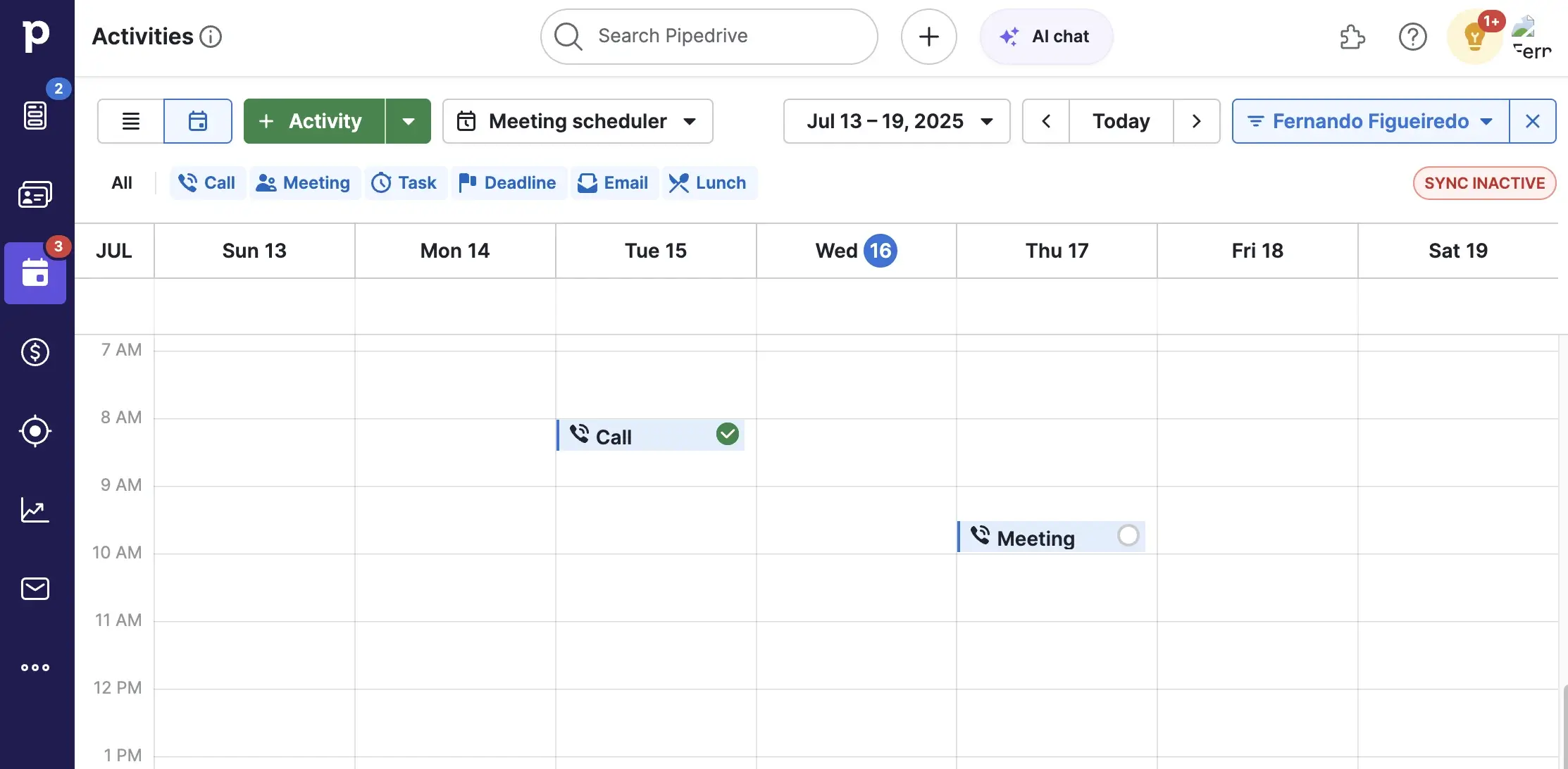
Finding and using the calendar view in Pipedrive is quite easy. Simply log into your Pipedrive account, navigate to the "Activities" section in the main menu, and click the calendar icon in the upper right corner to switch from list view to calendar view.
Once you're in the calendar view, you'll see your scheduled activities arranged by date and time. The interface resembles traditional calendar applications, with days shown in columns and hours in rows.
Calendar navigation controls
At the top of the calendar, you'll find controls to help you move through different time periods:
- Use the left and right arrows to navigate between weeks
- Click the date selector to jump to a specific day or week
- Toggle between day, week, and month views depending on your preference
The calendar displays activities using color-coding based on activity type, making it easy to distinguish between calls, meetings, and other tasks at a glance.
Adding activities to your Pipedrive Calendar
There are several ways to create new activities in your calendar:
Method 1: Quick add from calendar view
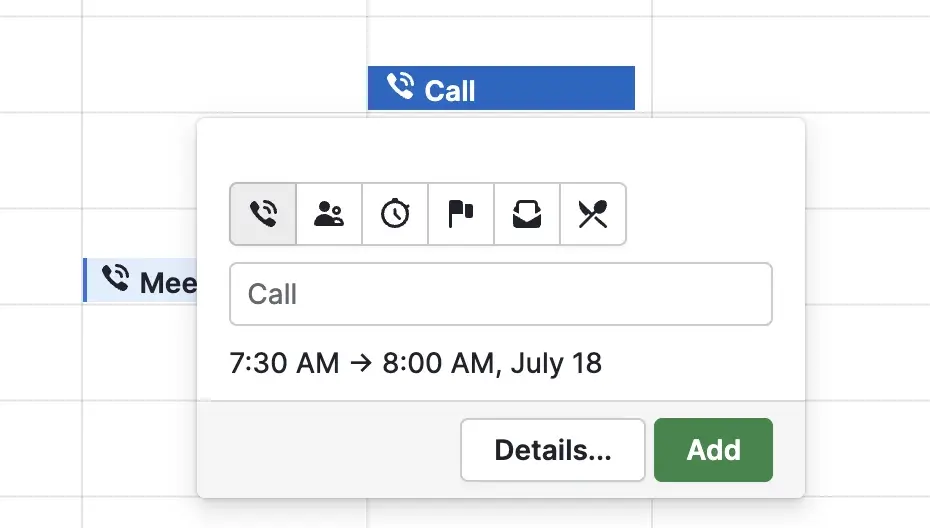
The simplest way to add an activity is directly from the calendar:
- Hover over any time slot in your calendar
- Click "Click to add" or select the specific time slot
- Fill in the activity details in the popup form
- Click "Save" to add the activity to your calendar
Method 2: Using the Add Activity button
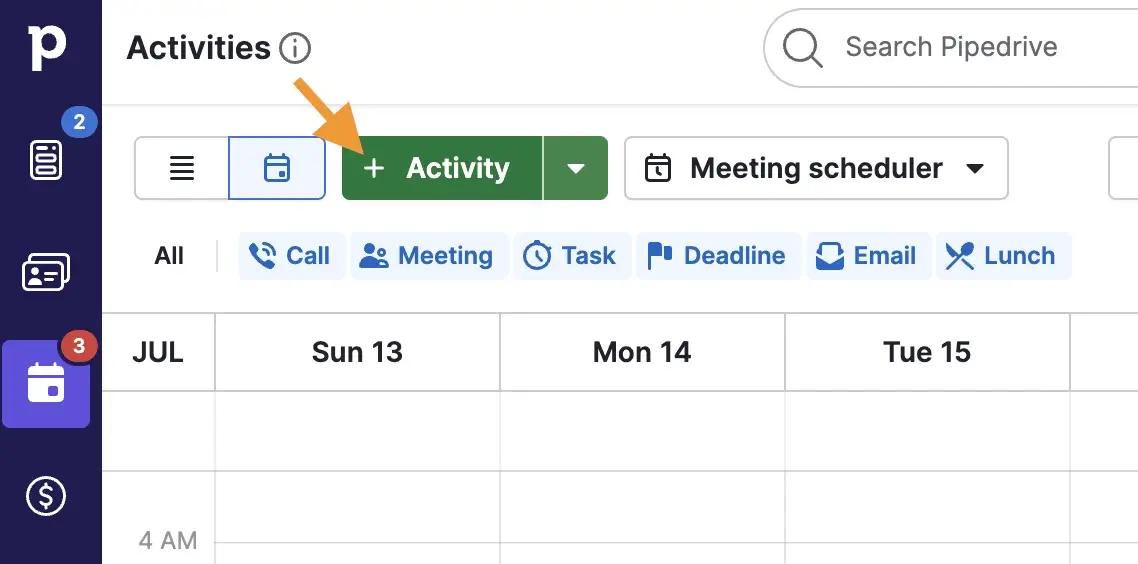
For more detailed activity creation:
- Click the "+ Activity" button in the top left corner of the calendar
- Complete the activity form with all relevant details
- Link the activity to deals, contacts, or organizations as needed
- Set the date, time, and duration
- Click "Save" to create the activity
Method 3: Creating activities from deals or contacts

You can also schedule activities while working with specific deals or contacts:
- Navigate to a deal or contact record
- Click on "Activity" on the right hand side
- Fill in the activity details
- Save the activity
This method automatically links the activity to the relevant deal or contact, saving you time and ensuring proper tracking.
Managing and editing Pipedrive calendar activities
Once activities are in your calendar, you can easily manage them in various ways.
Viewing activity details
Click on any activity in your calendar to see its details, including:
- Activity type and title
- Scheduled date and time
- Duration
- Linked deals or contacts
- Description and notes
- Assigned users
Editing activities
To modify an existing activity:
- Click on the activity in your calendar
- Select "Edit" in the popup window
- Make your changes to any field
- Click "Save" to update the activity
You can also reschedule activities using drag-and-drop. Simply click and hold an activity in your calendar, drag it to a new time slot or date, and release to confirm the new schedule. The system automatically updates the activity with the new date and time.
Marking activities as complete
When you've finished an activity:
- Click the activity in your calendar
- Select "Mark as done" in the popup
- Optionally add outcome notes
- Click "Save" to complete the activity
Completed activities remain viewable in your calendar history for reference.
Filtering and customizing your calendar view
Pipedrive Calendar offers several filtering options to help you focus on specific activities.
Date filters
Control the time period displayed in your calendar:
- Use the date selector to view specific weeks or months
- Navigate forward or backward using the arrow buttons
- Jump to today's date with the "Today" button
Activity type filters
On the left side of your calendar, you'll find a list of activity types:
- Click on an activity type icon to hide or show those activities
- Select "All" to toggle all activity types at once
- Create custom filters for specific combinations of activity types
User filters
If you have permission to view other users' calendars:
- Use the dropdown in the top right corner
- Select the user whose calendar you want to view
- The calendar will update to show only that user's activities
Remember that you can only view one user's calendar at a time in the standard calendar view.
How to sync Pipedrive Calendar with external calendars apps
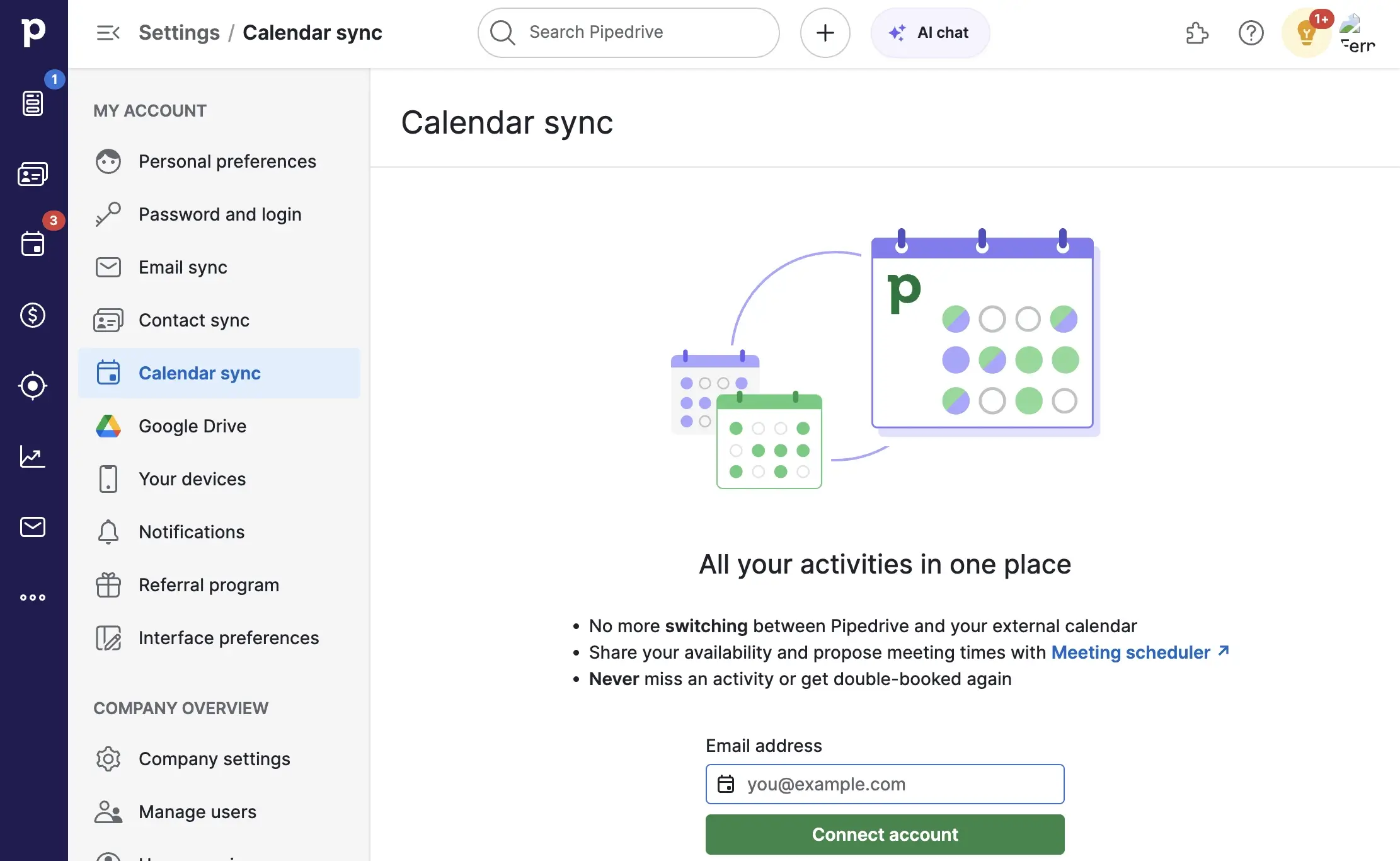
One of the most powerful features of Pipedrive Calendar is its ability to sync with external calendar applications.
Google Calendar integration
To connect your Google Calendar:
- Go to your personal preferences in Pipedrive
- Select "Calendar sync" from the menu
- Click "Connect account" under Google Calendar
- Log in to your Google account when prompted
- Grant the necessary permissions
- Choose your sync preferences (one-way or two-way)
- Select which calendars and activity types to sync
- Click "Start sync" to begin synchronization
Microsoft Outlook/Office 365 integration
For Microsoft calendar users:
- Navigate to personal preferences
- Select "Calendar sync"
- Click "Connect account" under Exchange/Office 365
- Enter your Microsoft credentials
- Grant permissions to Pipedrive
- Configure your sync settings
- Start the synchronization
Understanding sync types
When setting up calendar synchronization, you have two main options:
One-way sync
- Activities created in Pipedrive appear in your external calendar
- Changes made in Pipedrive update in your external calendar
- Events created in your external calendar do not appear in Pipedrive
This option is ideal if you want to keep personal appointments separate from your sales activities.
Two-way sync
- Activities created in Pipedrive appear in your external calendar
- Events created in your external calendar appear in Pipedrive
- Changes made in either calendar update in both places
This provides complete calendar integration, ensuring you never double-book regardless of where you schedule appointments.
Advanced calendar features in Pipedrive
Beyond basic scheduling, Pipedrive Calendar offers several advanced features that can take your sales company to the next level.
Team scheduling
For sales managers or team leads:
- View team members' availability when scheduling group activities
- Coordinate meetings with multiple participants
- Ensure proper resource allocation across your team
Calendar activity automation
Save time with automated calendar processes:
- Set up activity sequences that automatically create follow-up tasks
- Create recurring activities for regular check-ins
- Use workflow automation to generate activities based on deal stages
Calendar sharing options
Control who can see your calendar:
- Make activities visible to everyone or only to you
- Decide how private events from external calendars appear in Pipedrive
- Share specific calendar views with team members
Integrating with Pipedrive Scheduler
Pipedrive's Scheduler feature works with the calendar to simplify appointment booking:
- Define your availability in Pipedrive
- Create a shareable booking link
- Send the link to prospects or clients
- They select a convenient time from your available slots
- The appointment is automatically added to your Pipedrive Calendar
- Both parties receive confirmation emails
This eliminates the back-and-forth of scheduling and ensures appointments are properly tracked in your CRM.
Best practices to optimize your Pipedrive Calendar
1. Block time for focused productivity
Allocate specific time blocks for different sales activities in your calendar. Reserve your peak energy hours for high-value tasks like prospecting calls, while scheduling administrative work during your natural energy dips. You can create intentional buffer times on your calendar app and let it sync with Pipedrive. This way you’ll have gaps between meetings to prepare, take notes, and follow up while the conversation is still fresh.
2. Link activities to deals for contextual selling
Connect each calendar activity directly to its corresponding deal or contact record. When preparing for a call, this integration gives you immediate access to the client's history, previous discussions, and current pipeline position. Also, you should schedule follow-up calls immediately after creating new opportunities, using the linked history to personalize each interaction.
3. Analyze calendar data for performance insights
Something else you can do is to transform your calendar from a simple scheduling tool into a source of sales intelligence. For that, try tracking certain metrics, like the average number of client meetings per closed deal or the typical follow-up sequence that leads to conversion. For example, you might find which days or times consistently yield better meeting outcomes, or concerning gaps in your follow-up cadence.
4. Maintain consistent labeling conventions
Clear, standardized naming conventions for all calendar activities across your team can also be helpful as a best practice. Rather than adding generic titles like "Meeting with ABC Corp," use descriptive formats like "ABC Corp - Discovery Call - New Accounting System." Include essential context in activity descriptions, such as key discussion points or decision criteria, to make search and filtering more effective.
5. Practice disciplined calendar maintenance
Review and update your calendar daily, ideally at the end of each workday to prepare for tomorrow. Promptly mark completed activities with relevant outcome notes, reschedule missed appointments rather than leaving them as overdue tasks, and regularly archive or delete irrelevant activities to reduce visual clutter. This will help your calendar to be an accurate reflection of your priorities rather than a graveyard of forgotten commitments.
6. Coordinate effectively with team members
Share your calendar availability with colleagues to facilitate smooth internal coordination. Establish protocols for scheduling team meetings that respect everyone's productive hours. For customer-facing teams, create consistent activity types and status indicators so managers can easily understand the current state of client engagements across the organization. Consider creating shared templates for common scheduling scenarios like product demos or onboarding sessions to maintain quality standards.
Read more: How to use Pipedrive as a small business
Troubleshooting common Pipedrive Calendar issues
Like any technology, you might encounter occasional challenges with your calendar. Here are solutions to common problems.
Calendar sync problems
If your calendar isn't syncing properly:
- Check your internet connection
- Verify that you've granted all necessary permissions
- Ensure you haven't exceeded any API limits
- Try disconnecting and reconnecting the calendar integration
- Contact Pipedrive support if problems persist
Missing activities
If activities aren't appearing in your calendar:
- Check your filter settings to ensure the activity type is visible
- Verify the activity ownership if viewing a specific user's calendar
- Confirm the activity has a scheduled date and time
- Refresh your browser or try clearing your cache
Display issues
For calendar display problems:
- Try switching between different view modes (day/week/month)
- Adjust your browser zoom level
- Clear your browser cache and cookies
- Try a different browser if issues persist
Most display issues can be resolved with simple browser adjustments.
Limitations of Pipedrive Calendar
Despite its useful features, Pipedrive Calendar has several notable limitations that may impact your team's productivity:
- Limited availability on basic plans – Full scheduling functionality is only available on Growth+ plans ($49+/month), leaving users on lower tiers with basic calendar features
- No native Apple Calendar support – Unlike Zeeg, Pipedrive lacks direct integration with Apple Calendar, creating friction for Mac and iOS users
- Manual team coordination – Pipedrive relies mostly on manual processes for team scheduling, without automated conflict resolution for multi-person meetings
- Separated from marketing tools – No built-in email marketing or campaign tracking, requiring third-party integrations and creating a disconnected experience
- Poor booking page customization – Limited branding and design options for client-facing booking pages compared to more specialized scheduling tools
- Weak campaign attribution – Difficulty tracking which marketing efforts lead to booked appointments and deals, creating blind spots in your conversion data
- No intelligent routing – Lacks form-based routing to direct prospects to appropriate team members based on their needs
- Rigid data structure – Despite marketing claims of being "highly customizable," Pipedrive has no custom objects capability, forcing you to work within their fixed Deal→Person→Organization hierarchy
👉 Read about these Pipedrive's scheduler limitations with more detail.
Meet Zeeg, an AI voice agent and scheduling software

While Pipedrive adds calendar features to its CRM, Zeeg is an AI voice agent and scheduling software built entirely around appointments, which creates several practical advantages for your sales process. The moment someone books an appointment with Zeeg, they're automatically captured in your CRM without manual entry. Conversation notes remain permanently linked to the original booking, and follow-up sequences trigger automatically after meetings.
👉 Why businesses choose Zeeg:
- Full calendar control - AI phone agents and online scheduling connected to your calendar and CRM
- Zero-loss lead capture – Every appointment automatically becomes a qualified lead
- Native calendar integration – Direct integration with Calendar apps without connectors
- Strict security and compliance – German-hosted infrastructure with built-in GDPR compliance
👉 Advanced scheduling features Pipedrive lacks:
- Native Apple Calendar support – Zeeg has native Apple Calendar integration, while Pipedrive offers no native support
- White-label booking pages – Full brand control with no Zeeg branding, compared to Pipedrive's limited customization options
- Smart pre-qualification – Route prospects to the right team member based on form responses before booking, a feature unavailable in Pipedrive
- Advanced team calendar coordination – Intelligent multi-person booking with automated conflict resolution, versus Pipedrive's mostly manual coordination
For businesses that rely on appointments to generate and qualify more leads, Zeeg offers a more natural workflow built around scheduling. The result? Less time on data entry, more time with customers, and nothing falling through the cracks between scheduling and sales.
Additionaly, if you need great scheduling and already use Pipedrive CRM, you can also connect Zeeg to Pipedrive seamlessly.
Conclusion
Effective calendar management is essential for sales success, and your choice of tool significantly impacts your team's productivity. Pipedrive Calendar offers solid functionality for organizing sales activities and connecting them directly to your pipeline. When properly configured, it can help eliminate scheduling conflicts and maintain better client relationships.
However, as we've seen, the appointment-first approach that Zeeg takes represents a meaningful evolution in how sales tools handle scheduling. Rather than treating appointments as activities within a traditional CRM framework, Zeeg recognizes that for many businesses, the appointment itself is the starting point of the customer relationship.
The best solution depends on your specific business needs. If you're already embedded in the Pipedrive ecosystem and primarily need basic calendar management, Pipedrive's built-in tools may be sufficient. But if appointments are central to your sales process, a purpose-built solution like Zeeg eliminates friction points between scheduling and relationship management.
Whichever system you choose, the principles remain the same: maintain disciplined calendar practices, connect activities to your sales context, and use your calendar strategically as more than just a scheduling tool. With the right approach and technology, your calendar becomes not just a record of where you need to be, but a powerful driver of sales success.
Zeeg is Europe's leading AI voice agent and appointment scheduling software in one solution — GDPR-compliant, made in Germany. Start for free →
.webp)


