How to Propose a New Time in Google Calendar: 2026 Guide


Need to reschedule a meeting but can't make the original time? Google Calendar lets you propose new meeting times without the hassle of separate emails or messages. We’ll go through that in this article.
And while Google Calendar offers basic scheduling features, we’ll also cover Zeeg, a tool that combines AI voice agents and scheduling options for teams and is made in Germany to be fully GDPR-compliant.
Connect Zeeg and Google Calendar, and automate your company's scheduling, no matter how many calendars you have.
Sign up for freeWhy propose a new time in Google Calendar?
Let's imagine that you've received a Google Calendar scheduling link, but you can't actually attend that scheduled meeting. Instead of the email ping pong, proposing a new time in Google Calendar will help you to communicate your availability without those email chains. Besides, there's a few added benefits. You'll:
✔ Keep all scheduling information centralized in one place
✔ Streamline the rescheduling process for everyone involved
✔ Ensure all participants are automatically notified of any changes
You wouldn't be alone, either. In Zeeg's booking data, moving a meeting is almost as common as cancelling it: when invitees can't make their slot, 48.8% reschedule instead of dropping out.
How to suggest a new time in Google Calendar
1. On desktop
When you need to suggest a different meeting time in Google Calendar on your computer, follow these steps:
1. Open Google Calendar and, when logged in, click on the event you want to reschedule
2. In the event details popup, locate the RSVP section at the bottom and click the up arrow next to the "Yes/Maybe/No" options
3. Select "Propose a new time" from the menu
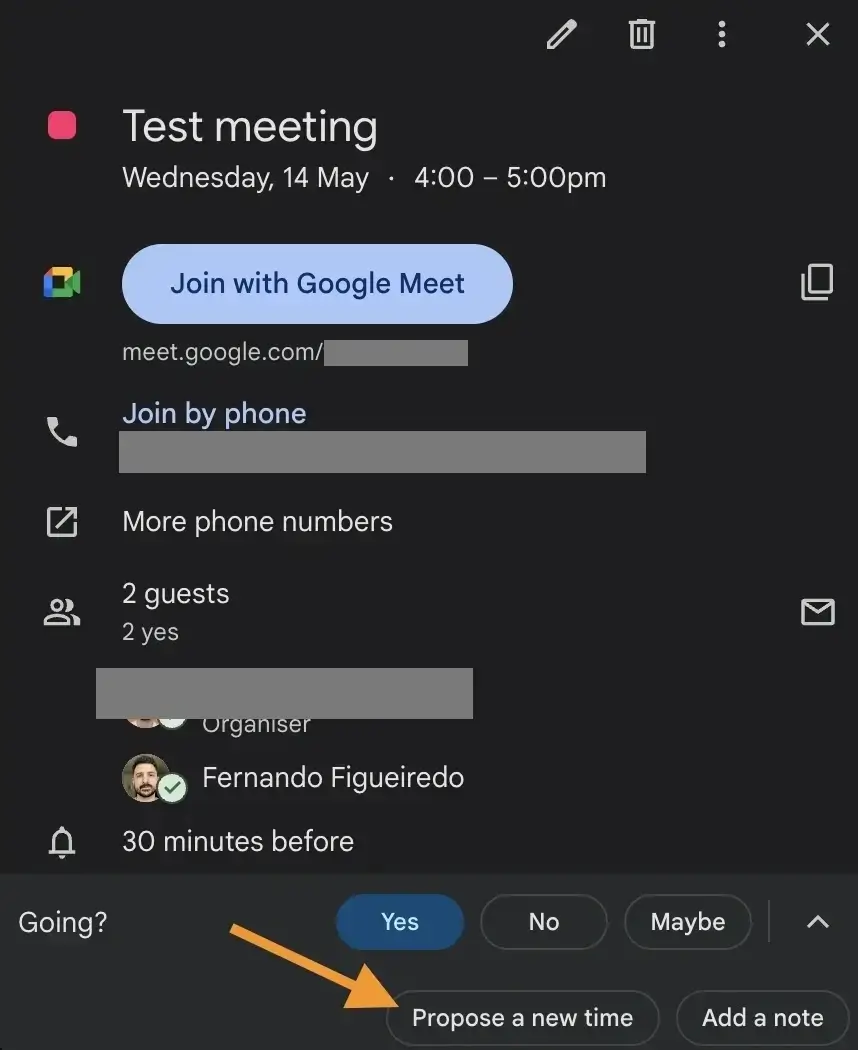
4. In the new screen that appears, you'll see the current event time and your proposal section on the left. Click on either the start or end time/date to change it
5. Add an optional message explaining your request
6. Click "Send proposal"
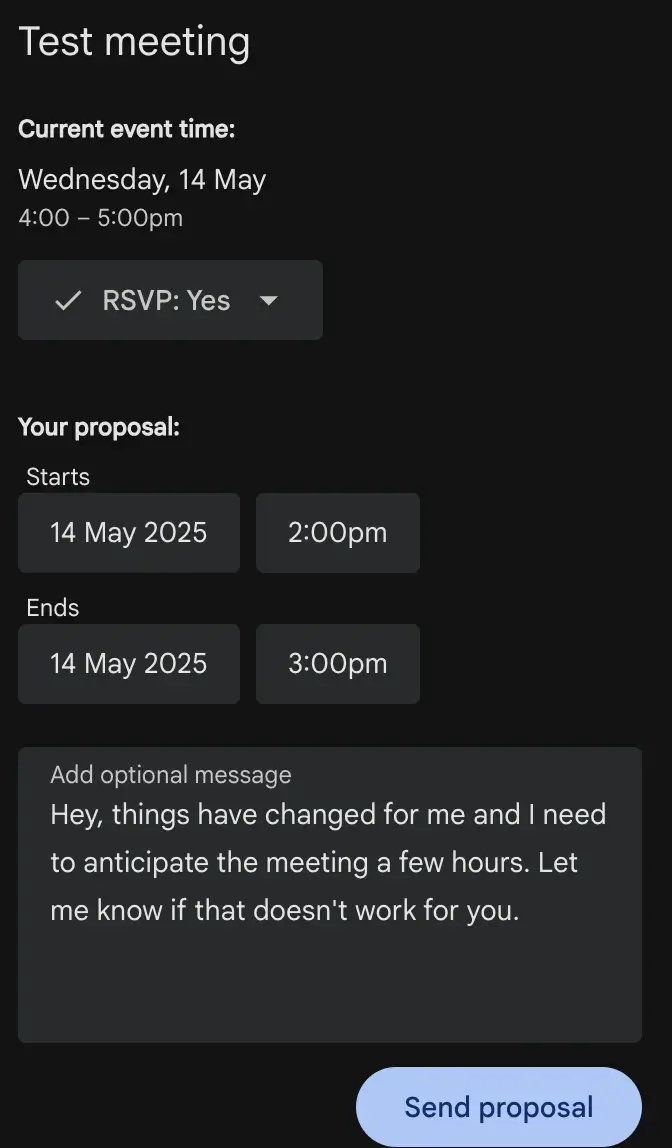
The event organizer will be notified of your suggestion and can review it from their calendar.
Proposing a new time from Gmail

If you received the meeting invitation in your email, you can propose a new time directly from Gmail:
- Open the calendar invitation email in Gmail
- Look for the "Going?" section with Yes/No/Maybe options
- Click "More options" (or find the arrow next to response options)
- Select "Propose a new time"
- This will redirect you to Google Calendar where you can select a different time
- Choose your new proposed time and add an optional message
- Click "Send proposal"
Using the Google Calendar mobile app
The Google Calendar app on your smartphone makes it easy to propose times while on the go:
- Open the Google Calendar app on your Android or iOS device
- Tap on the event you want to reschedule
- At the bottom of the event details, tap the up arrow icon
- Select "Propose a new time"
- Use the date and time selectors to pick your preferred options
- Add an optional message explaining your request
- Tap the send icon to submit your proposal
How to propose a new time after accepting an invitation
If you've already accepted a meeting but later find you can't attend, you can still propose a new time:
- Open the accepted event in your Google Calendar
- Click on the event to open the details
- Look for the "Going?" section where it shows "Yes" (since you accepted)
- Click the up arrow next to your response
- Select "Propose a new time"
- Follow the normal process to suggest an alternative
The organizer will be notified that you're requesting a change even though you previously accepted.
👉 There are also other ways to communicate your availability, like integrating Zeeg with Google Calendar. Zeeg will look for calendar conflicts and give your availability (which you can also edit) to the other people. And the best part - this can be automated.
Troubleshooting: When "propose new time" isn't showing
Sometimes the "Propose a new time" option might not appear. Here's why this might happen and how to fix it:
- You're the event organizer: Event creators can't propose new times (since they can directly edit the event)
- It's an all-day event: Google Calendar doesn't support time proposals for all-day events
- Large event: For events with more than 200 guests, the propose feature is disabled
- Permission issues: If you've been invited via a group or have limited permissions, you might not see this option
- Using an outdated app: Update your Google Calendar app to the latest version
- Viewing a shared calendar: You may not have permission to propose times for events on calendars shared with you
If the option still doesn't appear, you may need to request a new time the old-fashioned way—by directly messaging the organizer.
What happens after you propose a new time?
After sending your proposal:
- The event organizer receives a notification about your suggested time
- They can review the proposal and see your optional message
- If they accept, the event will automatically update for all attendees
- If they ignore your suggestion, the original time remains unchanged
Note that organizers won't receive automatic notifications when they decline a time proposal, so they may need to manually inform you if they can't accept your suggestion.
Zeeg: A better alternative for scheduling flexibility
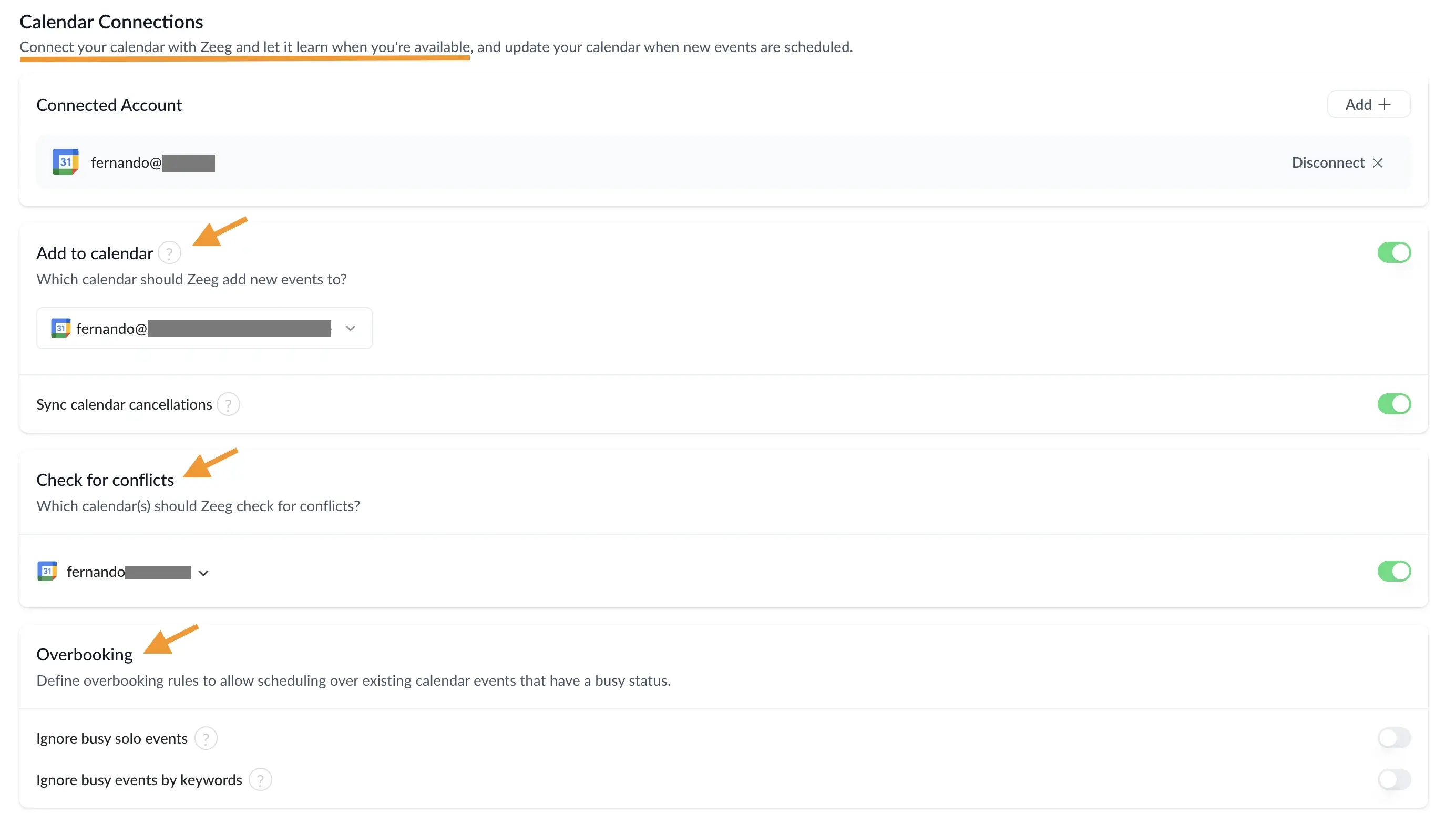
While Google Calendar provides basic scheduling functionality, teams and businesses often need more robust features. Zeeg offers a more complete scheduling solution with several advantages:
- Flexible free plan: Unlike Google Calendar's limited options, Zeeg gives you two scheduling pages on its free plan with unlimited appointments
- AI voice agents: Turn every call into a customer with 24/7 availability and appointment booking via phone
- Automated conflict prevention: You won't have calendar duplicates even if you have different calendars
- Multiple calendar integration: Zeeg can integrate with Google Calendar, Apple Calendar and Microsoft, all at the same time, avoiding calendar overlaps
- GDPR compliant: Zeeg is fully GDPR compliant out of the box, with no extra set up required
- Advanced team scheduling: Features like round-robin scheduling and routing forms make managing team availability much easier
- Customizable booking pages: You can create professional-looking scheduling pages that match your brand
- Control of availability rules: Set complex availability rules beyond what Google Calendar offers
- Payment integration: Collect payments per meeting directly through your scheduling page
For businesses looking for more powerful scheduling tools that integrate with their existing systems, Zeeg provides a cost-effective solution that extends beyond Google Calendar's capabilities.
Connect Zeeg and Google Calendar, and automate your company's scheduling, no matter how many calendars you have.
Sign up for freeImportant limitations to keep in mind
There are a few limitations to be aware of when proposing times in Google Calendar:
- You cannot propose a new time if you're the event organizer (instead, you would simply edit the event)
- The propose feature is disabled for all-day events
- Events with more than 200 guests cannot use the propose feature
- You can only suggest one alternative time with each proposal
Google Calendar's time proposal feature helps streamline basic rescheduling needs, but for teams requiring more sophisticated scheduling capabilities, dedicated scheduling platforms like Zeeg offer more comprehensive solutions.
Zeeg is Europe's leading AI voice agent and appointment scheduling software in one solution — GDPR-compliant, made in Germany. Start for free →
Frequently Asked Questions
Is Zeeg GDPR-compliant for scheduling in Europe?
Yes. Zeeg is Europe's leading AI phone assistant and appointment scheduling software in one solution — GDPR-compliant, made in Germany, with no extra setup required for compliance.
Is Zeeg a better option than Google Calendar's propose-a-new-time feature for teams?
For teams needing more than basic rescheduling, yes. Zeeg checks for calendar conflicts across Google Calendar, Apple Calendar, and Microsoft simultaneously and can automatically share your real availability, removing the back-and-forth of manual time proposals.
Can event organizers propose a new time for their own meetings?
No, event creators can't use the propose feature since they can directly edit the event's time themselves instead.
What happens if the organizer ignores my proposed time?
If the organizer doesn't respond to your proposal, the original meeting time remains unchanged. Note that organizers don't get an automatic notification when they decline a proposal, so they may need to message you directly.
Can I propose a new time after I've already accepted a meeting?
Yes. Open the accepted event, click the up arrow next to your "Yes" response, and select "Propose a new time." The organizer will be notified of the change request even though you previously accepted.
Why can't I see the "Propose a new time" option?
This option is hidden if you're the event organizer, the event is an all-day event, the event has more than 200 guests, you have limited permissions on a shared calendar, or you're using an outdated Google Calendar app.
How do I propose a new time in Google Calendar?
Open the event, click the up arrow next to the Yes/Maybe/No RSVP options, and select "Propose a new time." Choose your preferred start or end time, add an optional message, then click "Send proposal." The organizer gets notified and can accept or ignore it.